Any source
Full screen, a single window, a browser tab, an area you draw, or voice only.


One free screen recorder for Mac, Windows, Chrome and Edge. No subscription, no in-app purchases, no account — and every recording stays on your own machine.
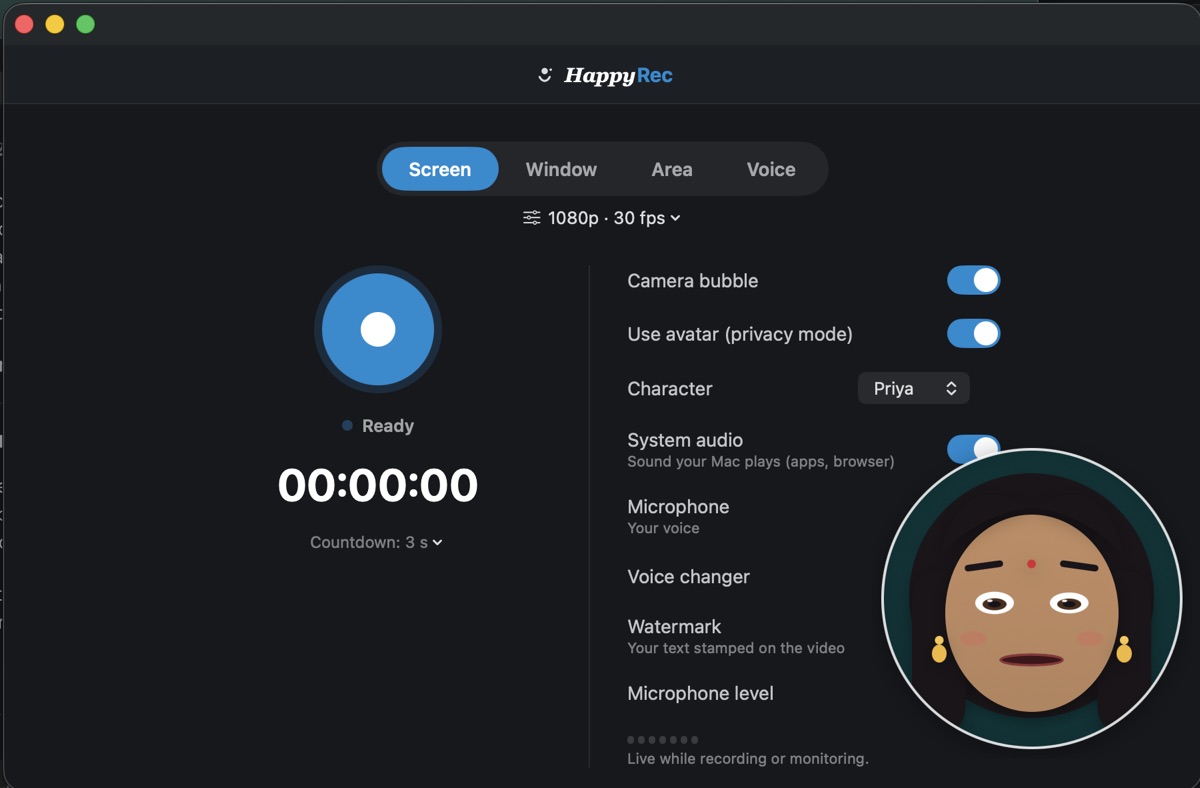
Pick a source, pick a quality, press record.
Full screen, a single window, a browser tab, an area you draw, or voice only.
720p, 1080p or 4K at 30 or 60 frames per second.
Your voice and what the computer plays, recorded together.
Put yourself in the corner as a circle or a card — or your logo instead — plus your own watermark text.
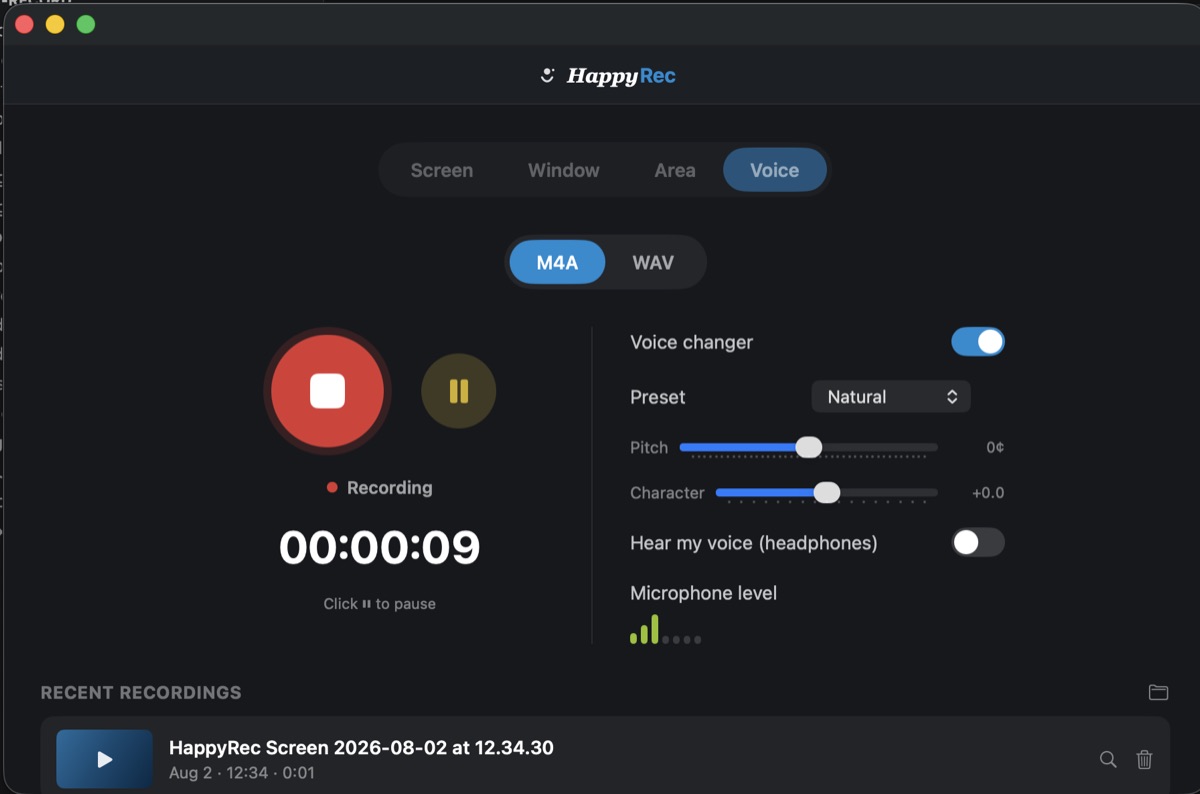
Eight presets on Mac, plus pitch and character sliders. Windows has pitch and character presets.
Pen, highlighter, arrow, box and circle over any web page, in the Chrome and Edge extension.
Most “voice changers” just speed your voice up or down. HappyRec shifts pitch and vocal-tract formants independently, so converted voices keep their human character. It is pure signal processing — it works the same in English, Tamil, Hindi, Telugu, Malayalam or anything else.
Natural, Male, Female, Chipmunk, Robot, Anonymous, Cave and Radio — plus pitch and character sliders.
Male, Female, Chipmunk and your own mix. Robot, Anonymous, Cave and Radio are Mac-only.
With headphones on a Mac, hear the converted voice while you record.
They blink, talk and tilt with your real expressions, using on-device face tracking. The camera image is never stored or recorded.
One of twelve characters takes your place, driven by your own face: it blinks when you blink and talks when you talk, using on-device face tracking.
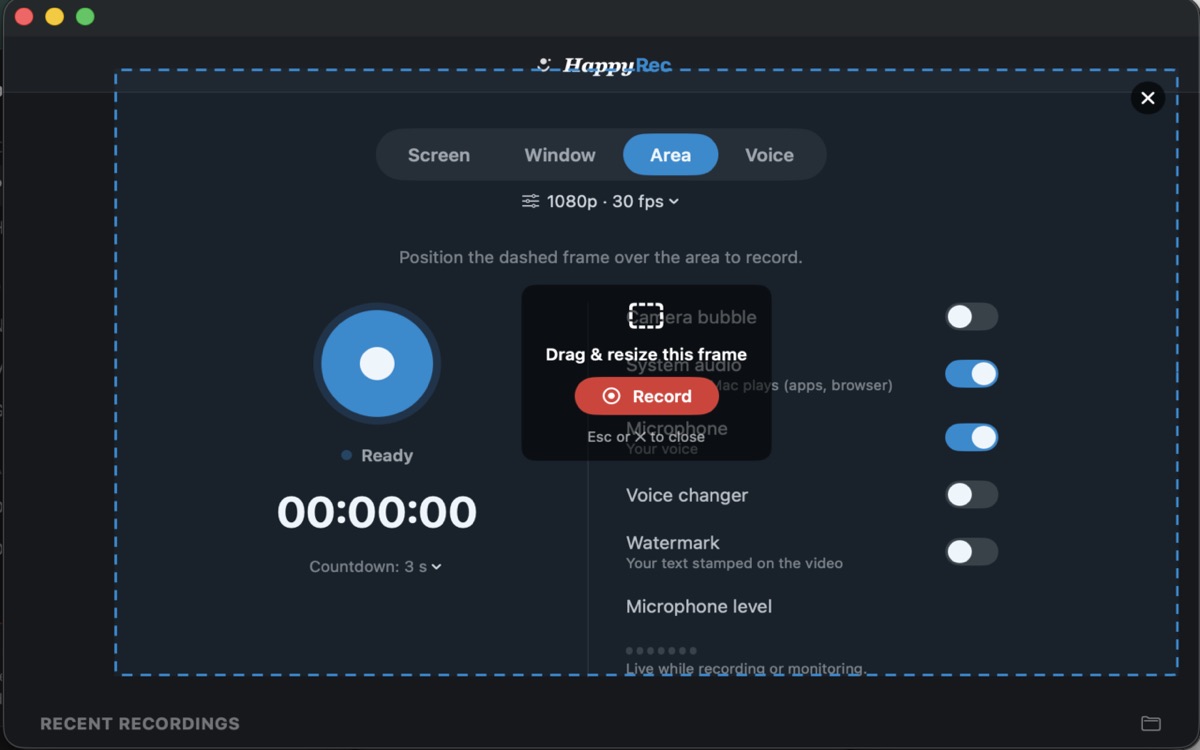
Drag a box over the bit of the screen you are explaining and record only that — no cropping afterwards.
The Chrome and Edge extensions are the same code, so they share a column. Swipe the table sideways on a phone.
| Feature | Mac app | Windows app | Chrome & Edge |
|---|---|---|---|
| Entire screen | ✓ | ✓ | ✓ |
| Single window | ✓ | ✓ | ✓ |
| Custom area | ✓ | — | ✓ |
| A browser tab | — | — | ✓ with the tab's sound |
| Voice only | M4A or WAV | M4A or WAV | WAV, WebM or M4A |
| Resolution / frame rate | 720p · 1080p · 4K, 30/60 fps | 720p · 1080p · 4K, 30/60 fps | 720p · 1080p · 4K, 30/60 fps |
| Video file | MOV H.264, hardware encoded | MP4 H.264 | MP4 (or WebM) |
| System audio + mic | ✓ | ✓ | Tab audio everywhere; system audio where the browser allows |
| Noise reduction | Optional | — | On by default |
| Quiet-mic help | Built-in boost | Auto level or boost up to ×32 | Browser auto gain |
| Voice changer | 8 presets + pitch & character | Pitch & character presets | — |
| Animated avatars | 12 characters | — | — |
| Webcam bubble | Circle or card, auto face focus | Circle or card, drag anywhere | Circle or card, 4 corners, 3 sizes |
| Logo bubble | — | PNG, JPG, BMP or GIF | ✓ |
| Watermark text | ✓ 3 corners | ✓ 3 corners | ✓ 3 corners |
| Draw on the page | — | — | Pen, highlighter, arrow, box, circle |
| Pause & resume | ✓ | — (one take for now) | ✓ |
| Keyboard shortcuts | ⌘⇧R · ⌘⇧P | — | Ctrl/⌘+Shift+9 · 8 · 7 |
| Saved to | A folder you choose | Videos\HappyRec | Downloads/Happy Recorder |
| Requirements | macOS 13+, Apple Silicon or Intel | Windows 10 or 11, 64-bit | Chrome or Edge 116+, any OS |
Every recording carries a small HappyRec badge in the top-right corner.
Record lessons in 4K with your face or an avatar in the corner and your watermark on every video.
Capture app walkthroughs with system audio, a face cam and pauses between steps.
Explain on camera without being on camera: an avatar carries your expressions, a preset changes your voice.
Record a browser tab and draw arrows and circles on the page while you talk, with no app install.
Area-select exactly the broken part, narrate what happened, and share a small local file.
Macs, Windows PCs and Chromebooks in one team? Everyone gets HappyRec for free.
There is nothing to sign up for, on any platform.
Recordings save straight to disk. There is no upload portal.
Avatars are driven on-device; the camera image is never stored or recorded.
Screen recording, microphone and (optionally) camera — the Mac app walks you through each one.
Three video modes for exactly how much of your display to show, plus audio-only.
Your full display at up to 4K, 30 or 60 fps. The straightforward choice for tutorials and demos where the viewer needs the whole picture.
A single app window and nothing else — the rest of your desktop and notifications stay out of the recording.
Drag a resizable frame over exactly the region you want — one panel, a chart, a form field — without cropping later.
No screen at all — just your microphone, straight to M4A or WAV. For voiceovers, narration and quick voice notes.
It sounds better than the built-in mic — and it sits away from the fan.
A fan at speed is picked up by a built-in mic and is very hard to remove. 1080p at 30 fps keeps it quieter than full Retina at 60.
Say a sentence and play a second of system sound, then check the live level meter.
It takes effect the next time the mic starts — switch it on before you record, not halfway through.
The camera is drawn into the recording as it happens: one file, nothing to line up afterwards.
People follow an explanation better when there's a person attached to the voice.
A handover recording with a face gets watched; one without tends to be skimmed.
A sales or onboarding video where the first twenty seconds are you, then the screen.
A spreadsheet, a code editor at small font, a dashboard. Turn the bubble off, or shrink it into a genuinely empty corner.
Yes, on every platform. No subscription, no in-app purchases and no account.
There is a small HappyRec badge in the corner of every recording. You can add your own watermark text as well.
On a Mac, the Mac app — it has the voice changer and avatars. On Windows, the Windows app. If you mainly record web pages, the Chrome or Edge extension.
To your own computer. Nothing is uploaded.
Yes. They run anywhere Chrome or Edge 116+ runs, including macOS, Windows, Linux and ChromeOS. On a Mac, macOS asks you to give the browser Screen Recording permission the first time.
Yes. The presets use pure signal processing (pitch plus formant shifting), so they work the same in every spoken language. It is in the Mac and Windows apps.
Yes. On Mac, Avatar mode animates one of 12 characters from your expressions while your camera image is never recorded. On Windows and in the extensions you can show your logo in the bubble instead.
Yes, in the Chrome and Edge extensions: pen, highlighter, arrow, box and circle in six colours, with undo. Press Ctrl+Shift+7 (⌘⇧7 on Mac) on a web page.
720p, 1080p or 4K, at 30 or 60 frames per second, on every platform.
Yes on Mac and in the extensions — paused time is cut from the file. The Windows app records in one take for now.
Screen recording, microphone and (optionally) camera. In the extensions, your browser asks what to share each time you record.
No. There are no accounts and no cloud. Face tracking for avatars runs entirely on your Mac.
Write to the people who built it. We answer from Thoothukudi, usually the same day.