Ask almost any growing company how they track time and you will hear a version of the same answer. There is a timer somewhere, usually free, that somebody set up two years ago. Timesheets live in a spreadsheet that one person maintains and everybody else fills in on a Friday afternoon from memory. The actual work is planned in a project tool that knows nothing about hours. And if anybody is being monitored, that is a fourth product with its own login, its own dashboard and its own invoice.
None of the four agree with each other. At the end of every month somebody exports three of them, opens the fourth, and spends a day making the numbers line up well enough to invoice a client or run payroll. That day is not work. It is the tax you pay for having four tools instead of one, and it recurs twelve times a year forever.
Happy Tracker is our answer to that. One workspace where the board your team plans on, the hours they track, the activity behind those hours, and the invoice at the end are all the same records — so there is nothing to reconcile, because nothing was ever separate.
This is a long post, because the product is not a single feature. Here is what is in it, why each part exists, and what changes when they share one database.
The problem with a timer on its own
Every time tracking tool can record that somebody worked seven hours. Very few can tell you what those seven hours contained, and that gap is the entire difference between a stopwatch and a system.
It matters in three specific situations, and if none of them apply to you then a free timer is genuinely enough.
- You bill by the hour. An hour with nothing behind it is an hour a client can query and you cannot defend. When they ask what the twenty hours went into, “development” is not an answer that gets an invoice paid quickly.
- You work with people you have never met. Remote contractors, a distributed team, a new hire in another city. Trust has to be built on something, and “they said they worked eight hours” is a thin foundation for both sides.
- You want to know where the month went. Not per person — per project. Most companies discover, the first time they measure properly, that a third of their capacity is going into something nobody planned for.
A browser tab cannot help with any of those, and that is not a limitation of any particular product. A browser is not allowed to see which applications you used or whether the machine was active, and rightly so. Only an application running on the machine can, which is why Happy Tracker ships native desktop trackers for Mac, Windows and Ubuntu alongside the web app.
A real sprint board, not a task list
This is the part most time tracking tools simply do not have, and it is the single biggest reason companies end up running two products. You plan in one place and log hours in another, and then nobody can answer what a feature actually cost.
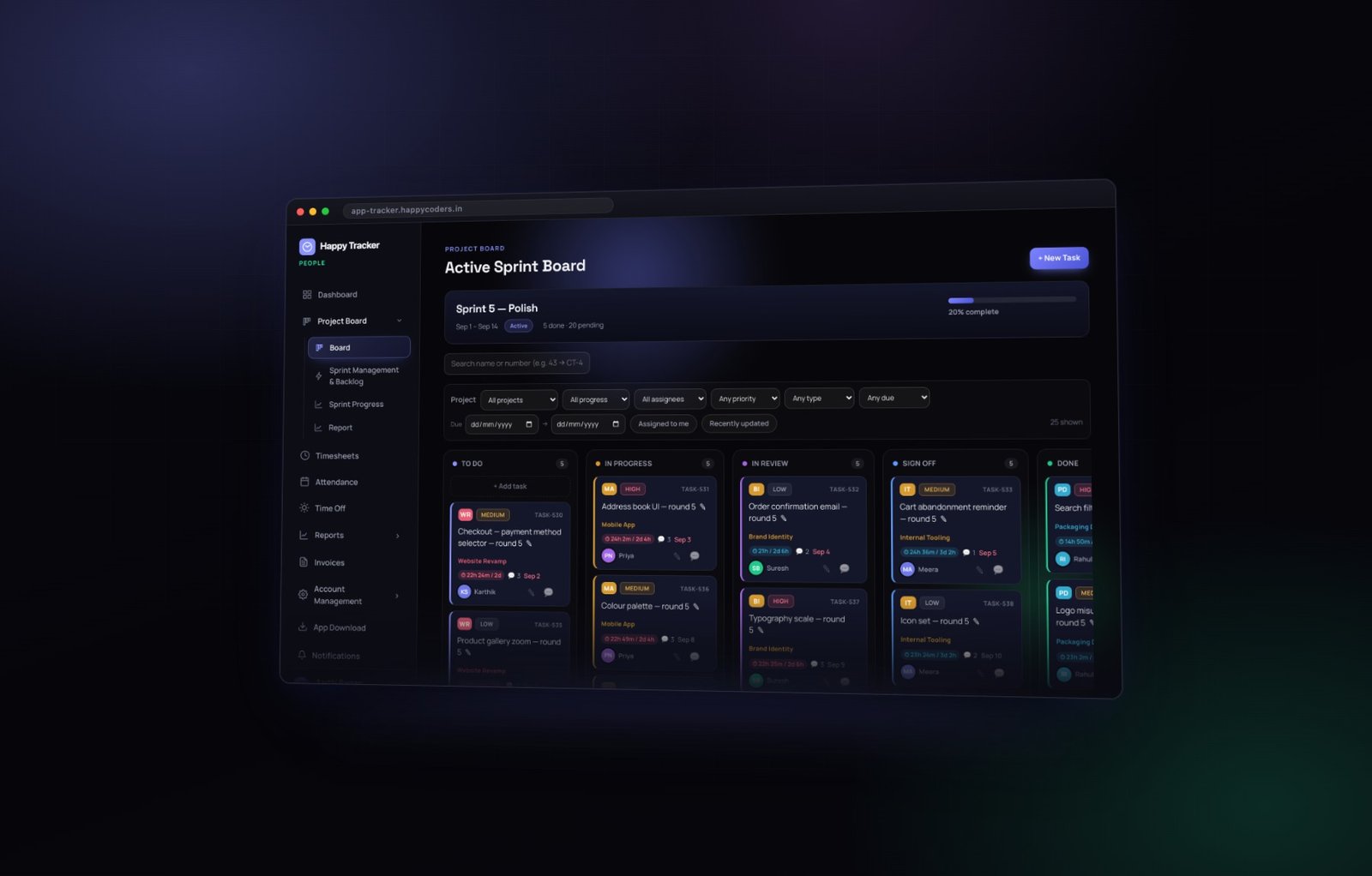
Work moves left to right through five clear stages: to do, in progress, in review, sign off, and done. One sprint is active at a time, which is deliberate and worth defending when somebody asks to run two in parallel — a board showing three sprints at once is a backlog with extra columns, and the whole value of a sprint is that it is a commitment small enough to be real.
What is on a card
Each card carries who owns it, its priority, its type, the project it belongs to, its due date, the time tracked against it so far, and its comment count. The filter row above the columns narrows by project, progress, assignee, priority, type or due date, and two quick filters — assigned to me, and recently updated — cover the two views most people actually want on a Monday morning.
Inside a card
Open one and you get the whole story of that piece of work. A rich text description with attachments, so the specification lives with the work rather than in a chat message somebody has to go and find. Assignee, priority, due date, story points, reporter, start date and the sprint it belongs to. Sub-tasks for anything that needs breaking down. A comment thread. And a full history of every change anybody ever made to it.
That history is the part people underrate until the first time somebody asks why a task took three weeks. The answer is usually right there: reassigned twice, priority changed mid-sprint, description rewritten on day nine.
Estimates that measure themselves
The line worth watching on every card is the original estimate against the actual tracked time. Nobody enters that twice — the estimate came from planning, and the actual came from the timer running on this card.
After three or four sprints it stops being a per-task curiosity and becomes a pattern. And the pattern is almost never that the coding took longer. It is the review cycles, the environment problems, and the third round of small changes that nobody estimated for. You cannot plan for those until you can see them, and you cannot see them until estimate and actual sit on the same card.
Use the variance to improve estimating, never to grade people. The moment a team believes estimates are a performance measure, every estimate doubles and the data becomes useless to everybody — including them.
Timesheets that build themselves
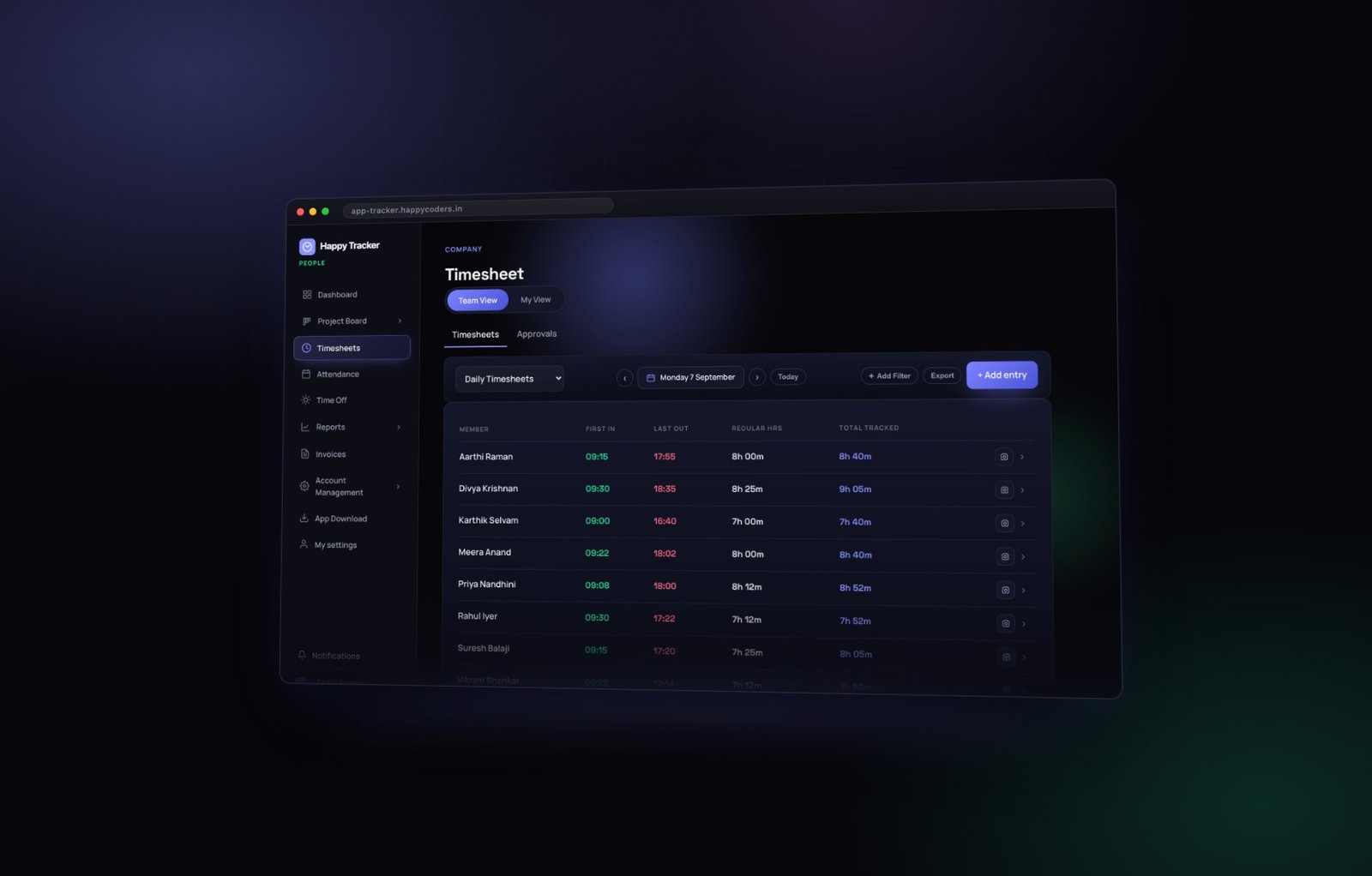
Every hour tracked anywhere in the company arrives here, already organised by person and by day. Nobody reconstructs a week from memory, which is also the reason the numbers are accurate enough to bill from.
Two columns worth understanding
First in and last out are not hours worked. Somebody can clock in at nine, clock out at six, and have worked seven hours because of breaks. That is exactly what the next two columns separate: regular hours is worked time only, and total tracked is worked time plus break time.
Break time never counts as worked hours and never counts as billable. Keeping the two apart everywhere is what stops a company overpaying some people and underpaying others, and it is why the gap between somebody’s first and last click is not treated as their working day.
One person’s day, opened up
Click any row and you get that person’s day session by session — clock in, clock out, how long each ran, whether it was work or a break, the project and the task. A session still running shows as running, with a clock out button beside it.
If a number looks wrong, the answer is nearly always visible on this one screen. Every session has a pencil, so an owner, admin or manager can correct a time, change the project or delete an entry outright — and every correction is written to the audit log with the name of whoever made it. That is what makes editing safe rather than suspicious.
Approvals that mean something
A manager reviews a week and approves it. Once approved, the entries inside it are locked: nobody can add, edit or delete time in that week — not an employee, not an admin — until it is deliberately unapproved.
That is what makes an exported timesheet worth showing to a client or an auditor. Without locking, “approved” is a label rather than a state, and any number in the export could have moved afterwards. Nobody approves their own week, and the owner’s weeks read as approved automatically because there is nobody above them to sign their time off.
Our advice is to approve weekly, on a fixed day, rather than monthly. It is the single change that improves accuracy most, because people still remember the week and a correction takes a sentence instead of an investigation. By month end you have four approved weeks rather than one archaeology project.
Activity, so an hour means something
An hour on a timesheet is a claim. What turns it into evidence is knowing what happened inside it. While the desktop tracker runs — and only while it runs — it records what was being worked on and how engaged the session was, in short blocks of a few minutes, and sorts each block into the kind of work it represents.
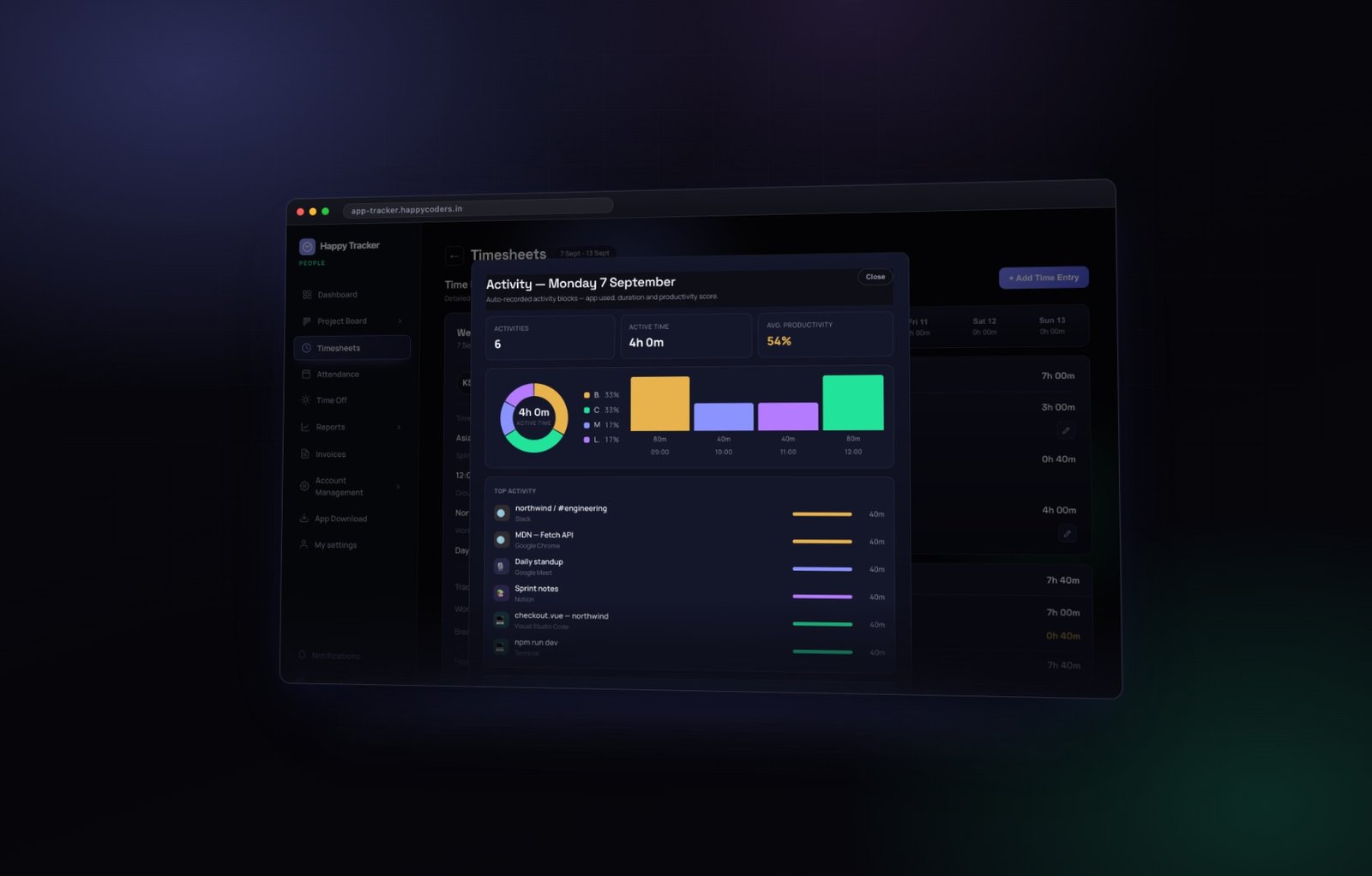
What the three tiles mean
How many activity blocks were recorded, how much of the day was genuinely active, and an average productivity score across those blocks. Active time is almost always lower than tracked time, for everybody, in every company — because thinking, reading, listening in a meeting and talking are all work, and none of them move a mouse.
Top activity
Underneath, the applications are ranked by time, each with the window title alongside. So you can see it was the code editor on a particular file, or the browser on a particular document — not merely that an editor was open somewhere on the machine.
The timeline, and fixing a wrong category
Below that the whole day is laid out in order: every block with its start and end time, its category, its own score and the task it was booked against. Sometimes a block lands in the wrong category — a browser used for research reads as browsing, and a video call in a browser reads the same way. Each row has a dropdown, so an owner or admin can reclassify a block as a meeting, a break or learning, and the scores recalculate.
It counts activity, never keystrokes. Nothing anybody types is recorded, and there is no key logging anywhere in this product, on any plan, under any setting. Every employee can see their own activity in their own timesheet — a record somebody cannot see is a record they cannot correct, and one they have every reason to resent.
Idle time, shown rather than deleted
Idle time is measured too: a stretch with no keyboard and no mouse at all. Not slow — nothing. And it is shown to you rather than quietly subtracted from the hours, which is a deliberate choice we would defend.
Some idle time is somebody thinking through a problem, reading a long document, or listening in a meeting. Some of it is a timer left running over lunch. The software cannot tell the difference and does not pretend to. It shows you, and you decide — or you set the timer to stop itself after a period you choose, which most teams do at around ten minutes.
Productivity, measured the same way for everybody
All of that rolls up into a score out of a hundred, built from four separate measurements that the report shows alongside the total rather than hiding behind it.
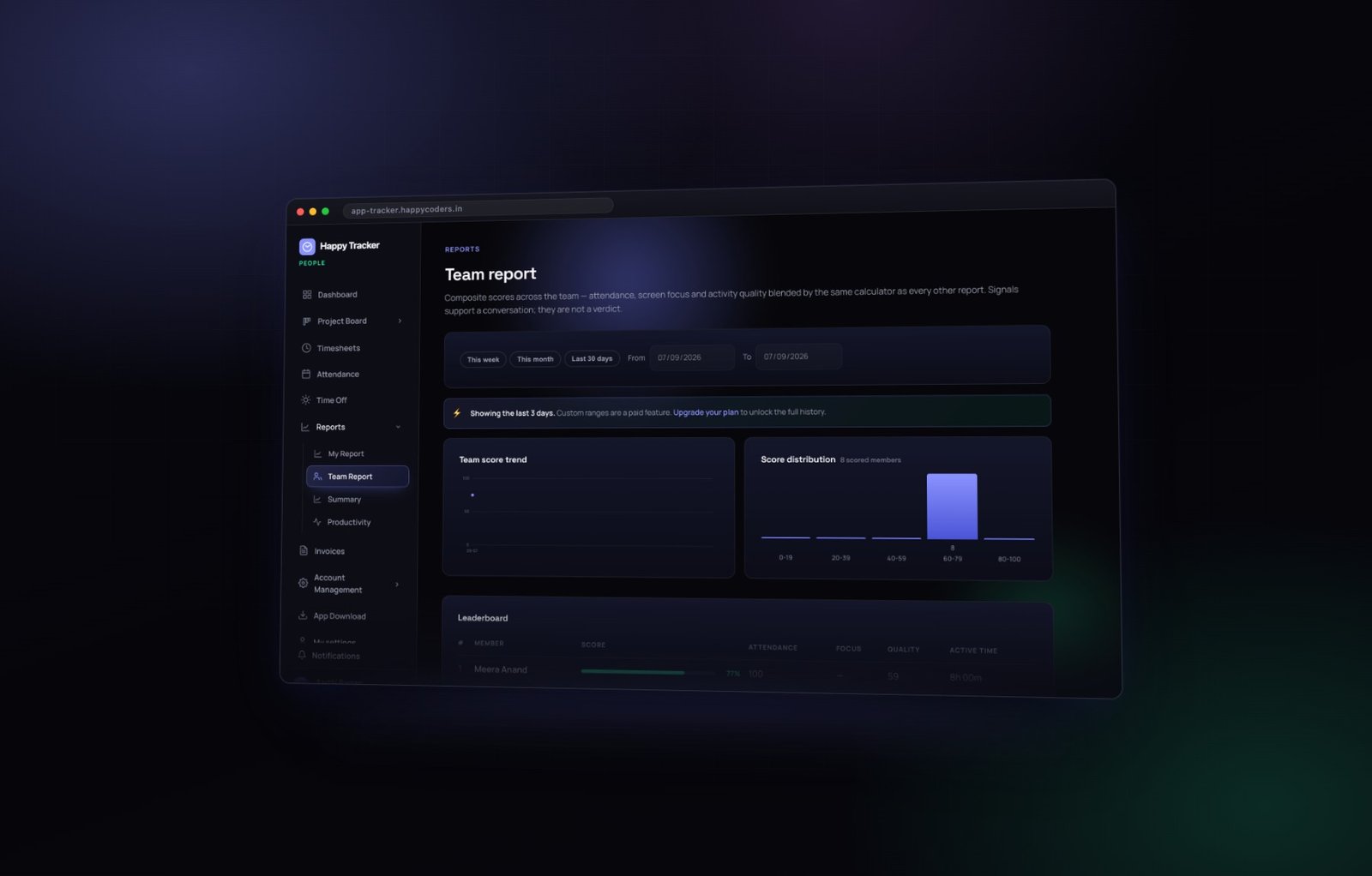
- Attendance — how consistently somebody turned up and tracked, measured against the work schedule, with approved leave and company holidays excluded so nobody is punished for time off you granted.
- Focus — how long they stayed in one application before switching.
- Quality of time — the share of tracked time in productive categories rather than browsing or idle.
- Active time — the raw input time behind the tracked hours.
We kept the parts visible on purpose. A single opaque number invites argument and cannot be acted on; four visible measurements usually explain themselves. Focus is the one people misread most — a low focus score means a lot of application switching, which for a developer deep in one codebase is worth a look, and for a manager who lives in chat and email all day is simply what the job is.
Used well, this is not a ranking to read out in a meeting. It is how you notice that somebody is drowning in interruptions, or that a project is quietly eating more of the team than anyone planned for. Compare somebody against their own history over a month, not against the person beside them over an afternoon.
Attendance, leave and holidays in the same place
Where timesheets answer how many hours, attendance answers who was here. Both are built from the same tracked time, so they cannot disagree with each other — which removes a reconciliation most companies do by hand every month.
The month grid shows one row per person and one column per day, each cell a coloured dot. Green is present, red is absent on a working day, grey is a non-working day, and an approved leave day is marked as leave rather than as an absence. If your attendance report punishes people for leave you approved yourself, nobody in the company will trust it, and they will be right not to.
Four settings decide what a day means
The work schedule says which days of the week you work and how long a normal day is. The holiday calendar removes specific dates. Leave policies say how many days each type of leave gives. And an approved leave request spends them.
Here is the case that catches people out. Somebody takes Monday to Friday off, and the Wednesday in the middle is a company holiday. They should spend four days of leave, not five, because the Wednesday was never theirs to spend. Happy Tracker gets that right automatically — but only because it knows about the Wednesday. If your holiday list lives in a spreadsheet, somebody does that subtraction by hand twelve times a year and occasionally gets it wrong in the direction that annoys an employee.
And an invoice at the end of it
For an agency, the point of all of the above is the invoice. Choose a client and a date range, generate, and the billable time for that period becomes an invoice — grouped by period, or itemised by task.
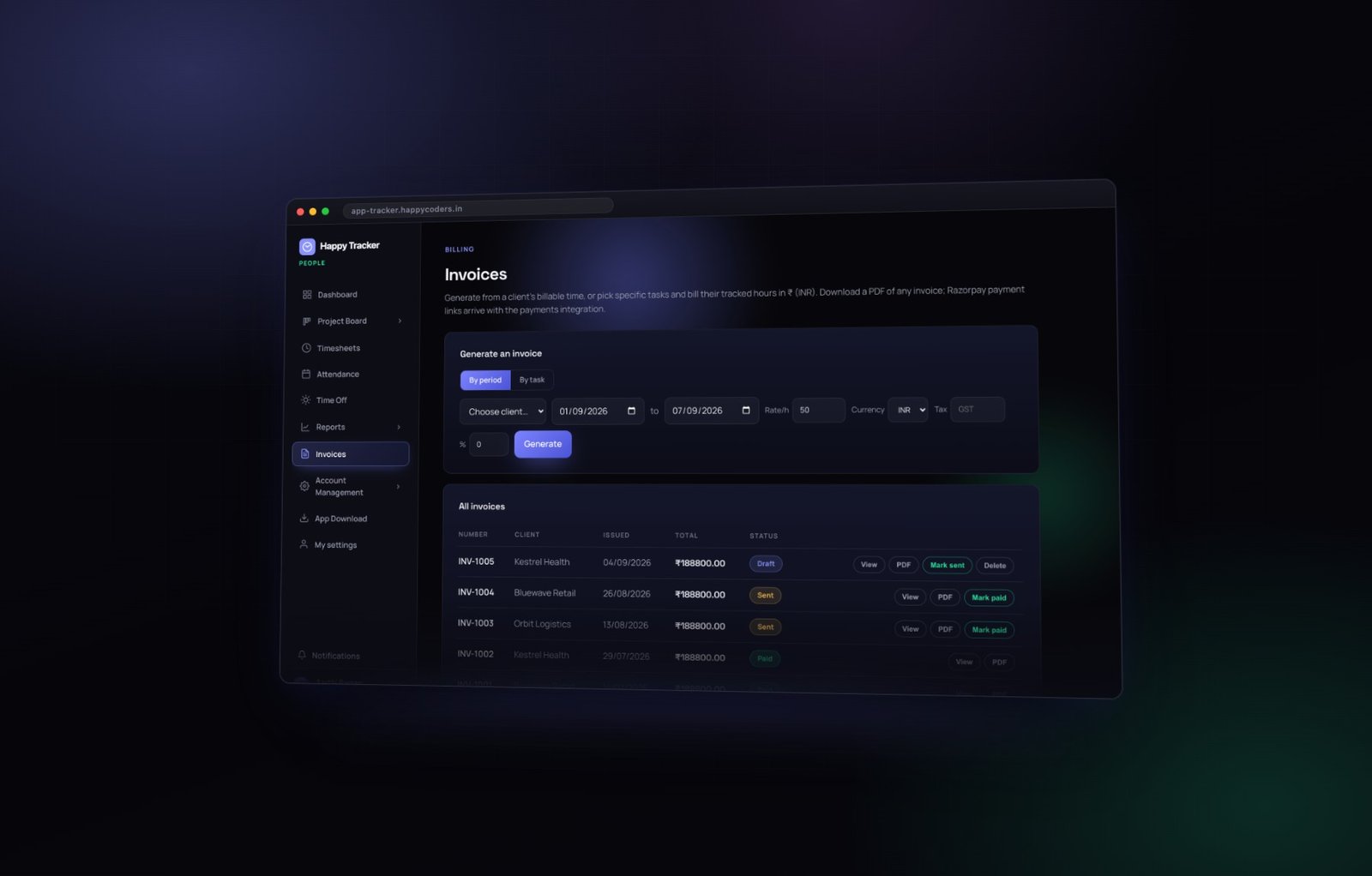
Nothing is retyped, which is where both errors and arguments normally come from. Every line traces back to a real tracked hour you can show the client, and the invoice number is generated in sequence so there are no gaps to explain to an accountant.
By task, almost always
A single line reading “Development — 84 hours” invites a question. The same hours itemised by task rarely does, because the client recognises their own requests in the list. It is a longer invoice and a much shorter conversation, and most agencies should take that trade.
The setting that decides everything
Only time on projects marked billable can ever reach an invoice. That flag is set when the project is created, and if an invoice comes out short it is almost always the reason. Mark internal work non-billable honestly — worked hours minus billable hours is your internal load, and you want to see it growing in a report rather than in the bank balance six months later.
And you decide how much of it runs
Everything above is governed from one page, by you. Whether screenshots are taken at all, how often, at what quality, whether they are blurred on the device before upload, how long they are kept before automatic deletion, how long a machine may sit idle before the timer stops, whether the timer closes itself at the end of the day, which devices your team may track from, and whether one account may run the tracker on more than one machine.
Our advice is to start loose. Screenshots at a longer interval with on-device blur enabled, idle auto-off around ten minutes, reminders on, automatic clock out on. You can always tighten later, and most teams find they never need to. A capture every thirty seconds does not tell you more than one every ten minutes; it tells you the same thing at twenty times the storage cost, with a team who feel watched rather than trusted.
And whatever you switch on, tell your team before you do. Everything here is designed to be visible to the person being tracked, and it works far better introduced openly than discovered by accident. Most rollouts that go badly go badly for that one reason.
What it costs
Happy Tracker is free for up to five users, with no card and no time limit. Not a countdown trial that expires and locks your data — a real plan you can stay on indefinitely, including the desktop apps, the board, timesheets and the reports.
Paid plans are a single payment per user for the year, in rupees. There is no automatic renewal and no card kept on file, so a plan simply ends at the close of its term unless you choose to buy another. You will never see a charge you did not ask for. And if you change your mind within seven days of any payment — a new plan, a renewal or extra seats — we refund it in full, without asking why.
What scales with the plan is the number of users and projects, how often screenshots are captured, the image quality, and how long activity and captures are retained before they are pruned. Time tracking, timesheets, the project board and the reports are included on every plan, including the free one.
Where to start
- Create a workspace and set your organisation profile and currency.
- Set the work schedule — working days and expected hours.
- Add the year’s holidays in one sitting.
- Create your leave types with their allowances.
- Add clients, then projects, each marked billable or internal.
- Set the tracking rules, and press Save policies.
- Invite your team with the right role each.
- Get the desktop app onto every machine before you rely on any activity report.
That order matters. Six settings decide what every number in the product means, and fixing them after forty people are already tracking is far more work than getting them right in the first hour.
You can do all of it free, for up to five users, without giving us a card. See the plans, or start straight away.