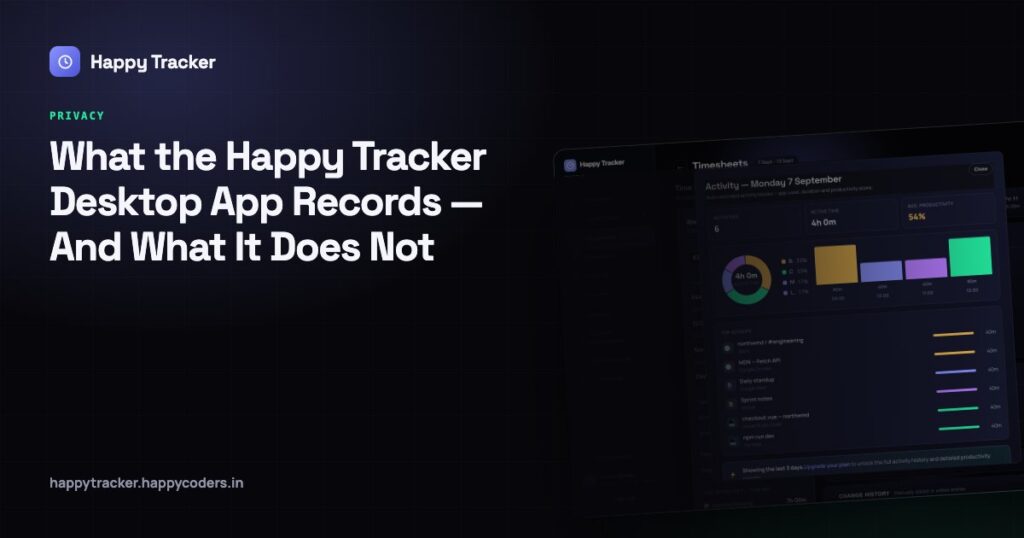
Any product that records what people do at work should be able to say precisely what it collects, in plain words, without anybody having to read a legal document to find out. Most cannot, which is exactly why teams tense up when monitoring software appears on their machines — and why so many rollouts turn into a conversation about surveillance rather than about work.
So here is the complete answer for Happy Tracker. What is recorded, what is never recorded under any circumstances, when it stops, who can see it, what you as an administrator control, and how to introduce it to a team without the first week being difficult.
The one sentence that matters most
Recording happens only while somebody is clocked in.
Not while the machine is switched on. Not while the app is merely open. Not in the evening, not at the weekend, and not during a break. The timer is the switch, and the person holds it.
Say that first when you introduce this to a team, because it answers the question everybody is actually worried about. The rest of this post is detail underneath it.
What is recorded
While the timer runs, the desktop tracker records five things.
- The application in front, and the title of its window — so a code editor on a particular file, or a browser on a particular page.
- How much real keyboard and mouse activity there was in each short block of a few minutes.
- Stretches with no input at all — idle time.
- Screenshots, but only if your organisation has switched them on.
- Which project and task the timer was running against.
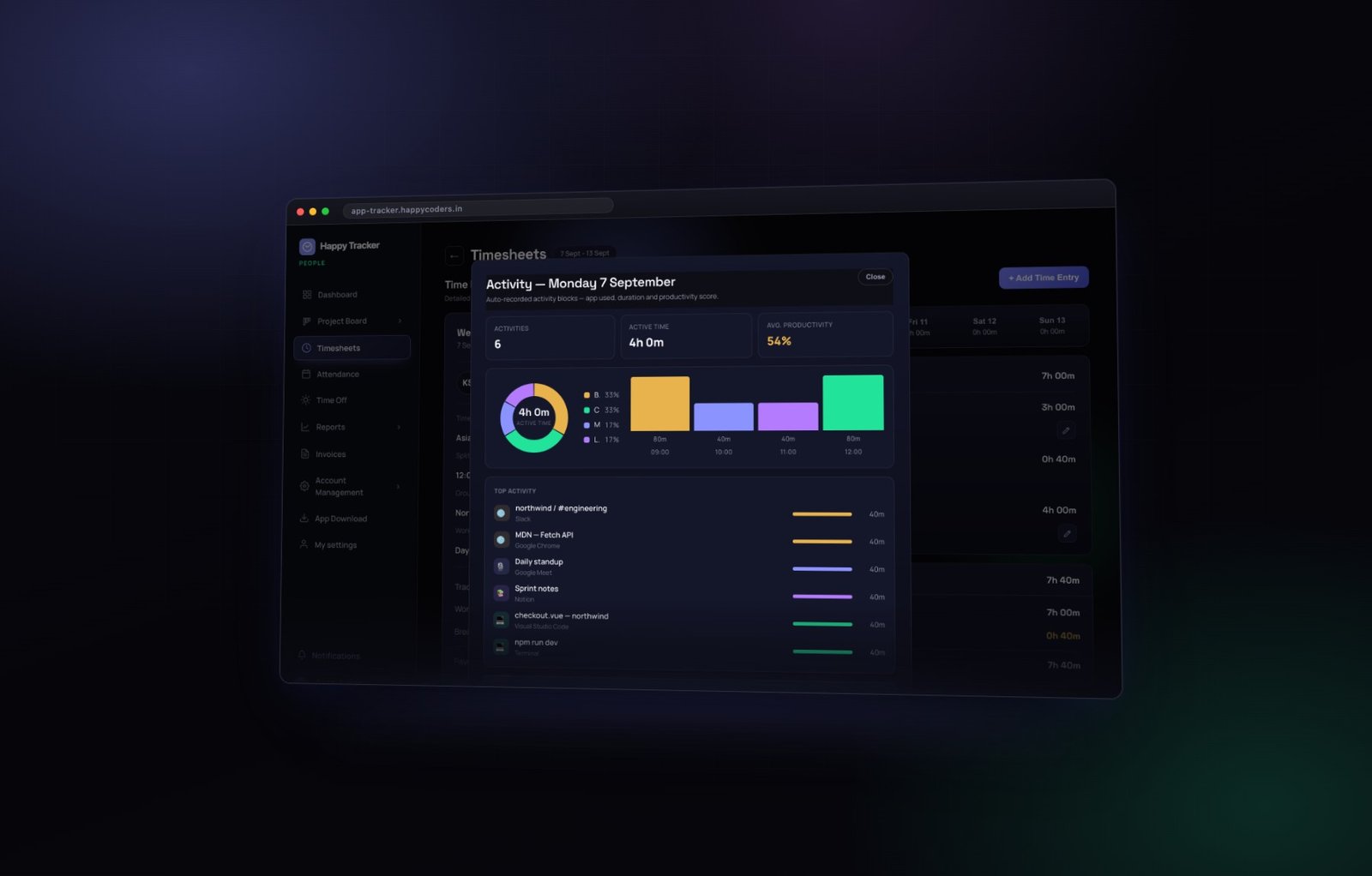
How a block becomes a number
Every few minutes the tracker closes one block and starts another. Each block carries the application, the window title, and how much input there was during it. From that it gets a score and a category — coding, design, communication, browsing, meetings, or general.
Roll those blocks up and you have everything else: the ring chart on the day view, the productivity score on the reports, the per-task activity on the board. There is no other source of data anywhere in the product, and nothing is entered by hand.
Why the window title is included
This is the field people ask about most, so it is worth being direct. The window title is what makes activity useful rather than trivia. “Visual Studio Code” tells you almost nothing; “checkout.vue — northwind” tells you which project the hour belonged to and lets the same hour be defended to a client.
It is also the field to think hardest about when you decide whether to enable screenshots, because between them they are the two things that carry real content.
What is never recorded
This list matters more than the first one, and it is worth reading out loud to a team who are anxious.
- Nothing you type. There is no key logging anywhere in this product, on any plan, under any setting. The score knows there was typing; it does not know what was typed.
- No audio and no webcam. The tracker does not request access to either, and could not use them if it did.
- No location.
- No browsing history beyond the title of the window that happened to be in front while the timer was running.
- No files, no clipboard, no passwords.
- Nothing at all while on a break or clocked out.
- Nothing when the app is closed.
The activity score comes from how much input there was, not from what the input was. That distinction is the entire design. A team that understands it usually stops worrying within a day; a team that is never told it will assume the worst, and they are not wrong to.
When recording stops
Capture is tied to the timer, and three things stop the timer.
The person stops it
Clocking out, or taking a break. Break time is recorded separately, never counted as worked hours, never billable, and screenshots pause for its duration. Teaching people to take a break rather than leave the timer running is the single most useful habit in the whole product.
Idle auto-off
If there is no keyboard and no mouse for a period you set, the timer stops by itself. Around ten minutes suits most offices. Set it much shorter and it will stop during meetings and while people read, and they will spend the day restarting it — which is worse than a little idle time in your reports, because a timer people do not trust is a timer they stop using properly.
Automatic clock out
The longer-horizon version. It closes a session left running at the end of the day, so somebody who forgets on a Friday evening does not return on Monday to a weekend of tracked time.
Entries closed by the system are marked as such, so a corrected timesheet never looks like somebody clocked out normally when they did not. That distinction matters when a manager is deciding whether to ask about a day.
Who can see it
Every employee can see their own hours, their own activity and their own screenshots, in their own timesheet, without asking anybody for permission.
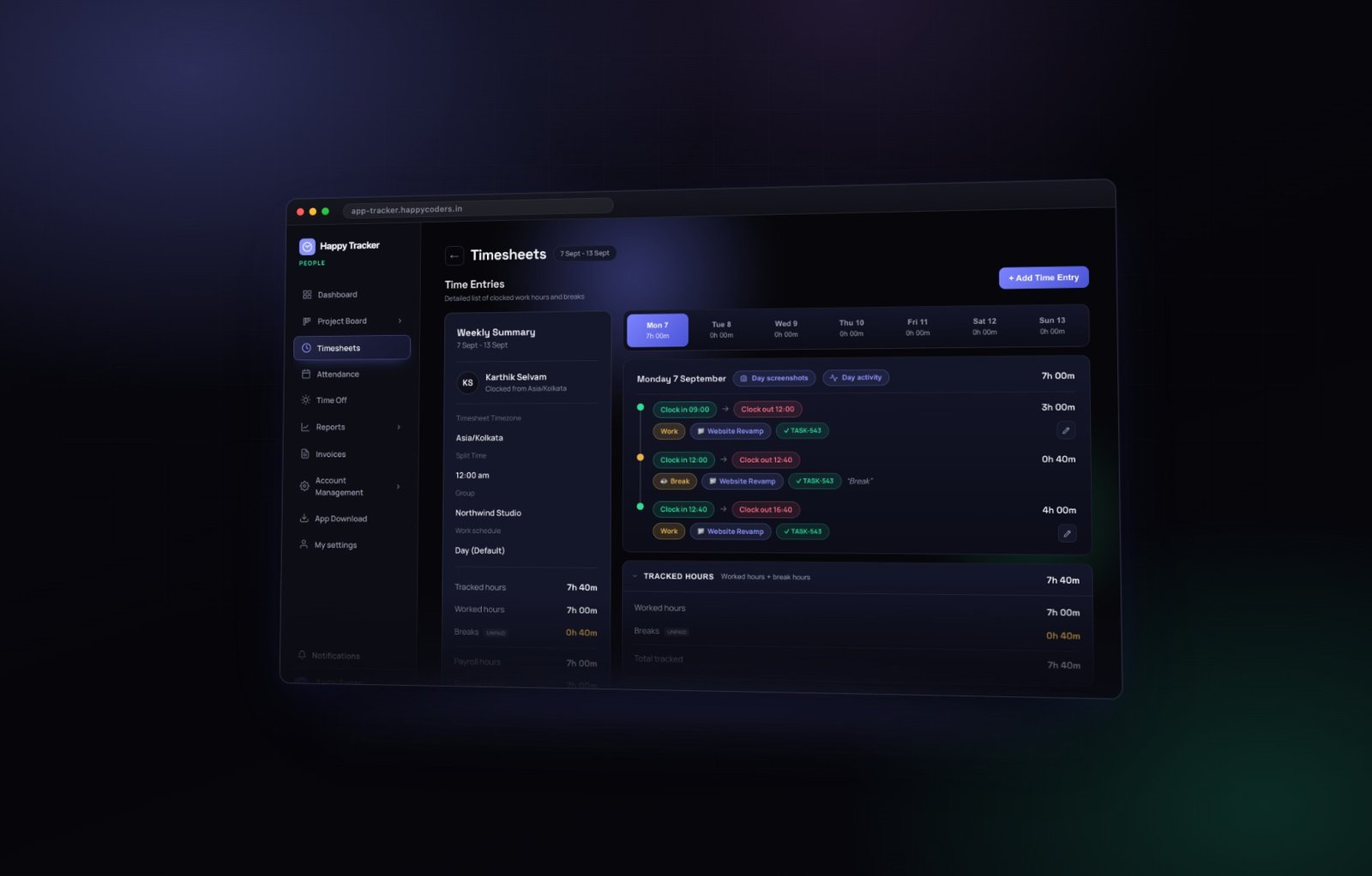
This matters more than it sounds, and it changes three things.
- Mistakes get corrected by the person who knows what happened. A wrong project on a Tuesday afternoon is obvious to them and invisible to you.
- Arguments become conversations. Two people looking at the same screen disagree far less than two people describing it from memory.
- The data stops being something done to them. A record somebody can open themselves is a shared record; one they cannot is a file about them.
Managers see their own team. Admins and owners see the organisation. Nobody outside your workspace sees any of it, we do not sell personal data, and we do not use it for advertising — that is in the privacy policy, not just in a blog post.
And a way to check
The People page has a Switch button on every row. It signs you in as that person so you can see exactly what they see, without their password. An amber banner stays on screen the whole time and every switch is logged. If you are unsure what an employee can see about their colleagues, spend ten seconds looking rather than guessing.
What you control
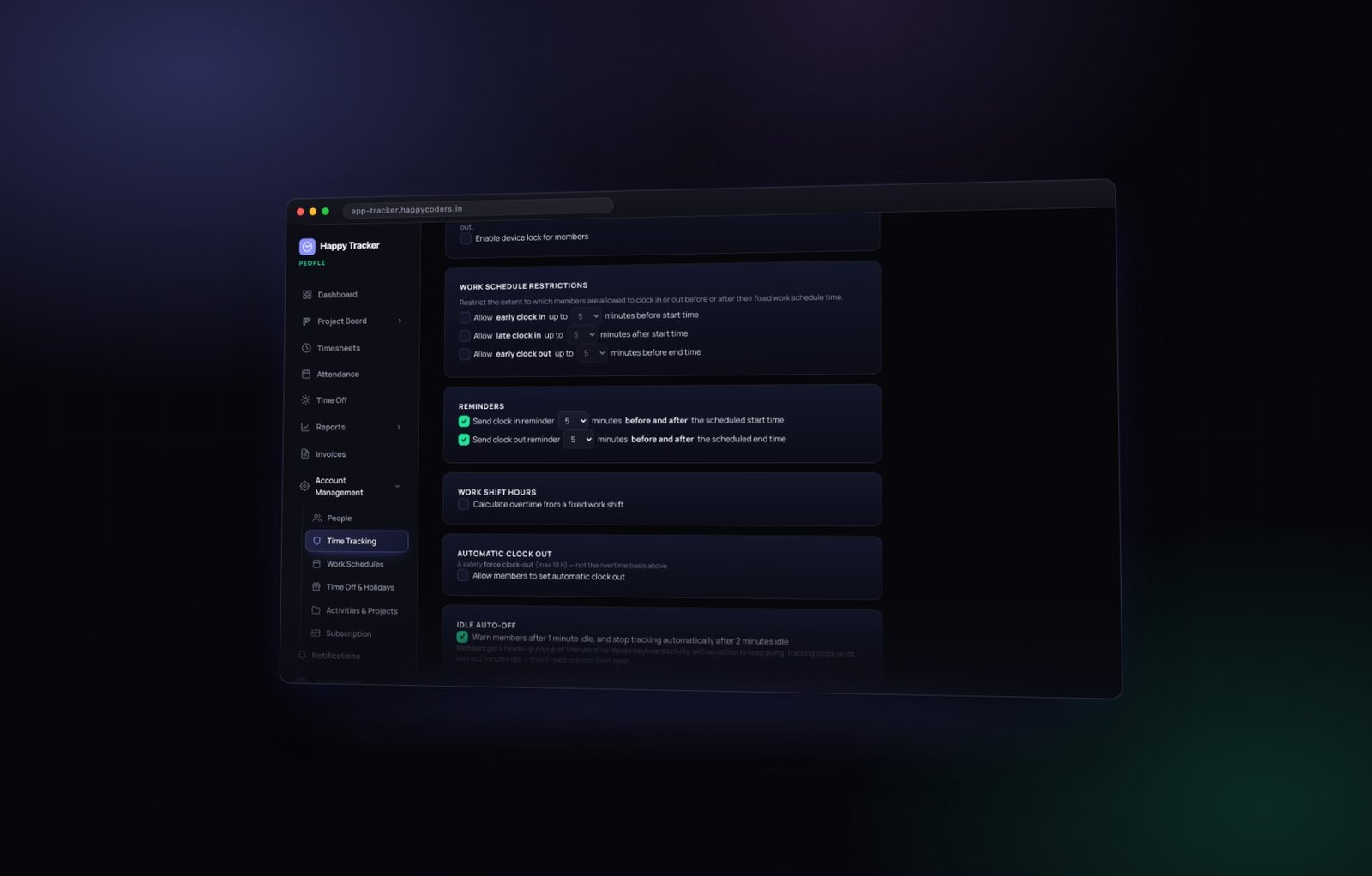
All of it is governed from one page, and nothing is switched on by default that a team would find surprising.
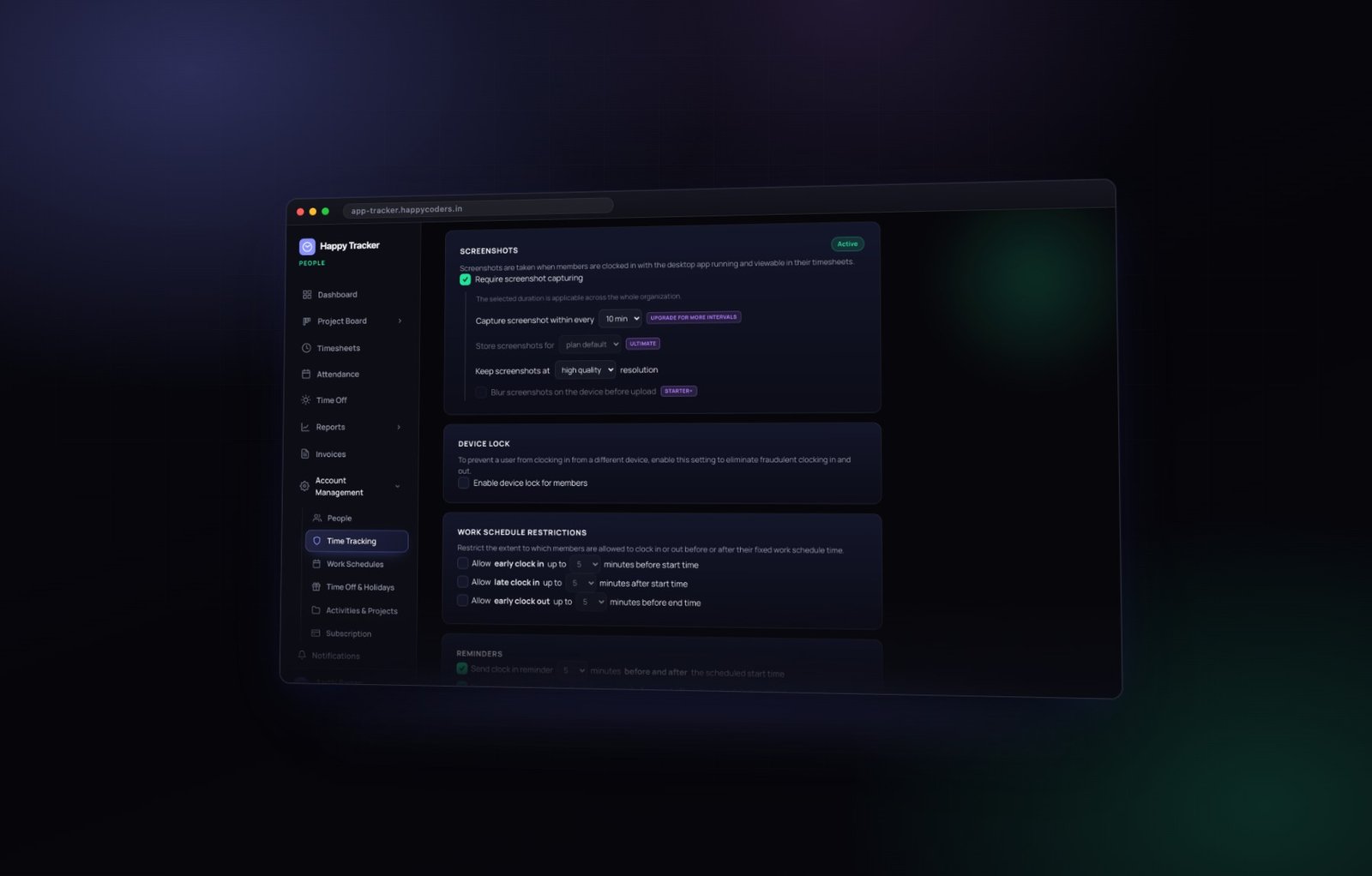
Whether screenshots happen at all
A single tick. With it off, the tracker still records applications, activity and idle time, but takes no images at all. Plenty of teams run it exactly like that and get most of the value — activity answers “was this hour real”, and screenshots answer “prove it to somebody outside the company”. If you never need the second, do not turn it on.
How often
The capture interval applies across the whole organisation rather than per person. A longer interval is usually the better choice: it gives you a fair sample of the day, which is what a client or an auditor actually wants.
Capturing constantly gives you thousands of near-identical images, a storage bill, and a team who feel watched. Nobody has ever won a client dispute because the screenshots were every minute rather than every ten.
Blurred before it ever leaves the machine
This is the setting worth knowing about, and the one that changes the ethics of the whole feature. With on-device blur enabled, the image is blurred on the employee’s own computer before it is uploaded. The readable version never leaves their machine.
So the content of an email, a private message, or a form filled in during a break is simply not transmitted anywhere. You still get proof that somebody was working at their machine. You do not get a copy of what was on their screen. For most companies that is exactly the right trade, and it is the configuration we would recommend by default.
How long they are kept
Captures are pruned automatically once they pass your retention window. Old screenshots are a liability rather than an asset — nobody has ever needed one from fourteen months ago, and keeping it means keeping something you would rather not have if anything ever goes wrong.
Pruning never touches the time entries themselves. The hours stay; it is only the images behind them that age out. Your timesheets, reports and invoices are unaffected.
Which devices can track
You can require the desktop app for clocking in, company-wide, with a per-person override for the handful of people who genuinely need the browser. And device lock keeps one account on one tracker at a time, so a single login cannot be recording in two places.
Where the recording surfaces
It is worth knowing which screens actually show this data, because “what is recorded” and “where can somebody see it” are different questions.
In the timesheet
Every day has a Day activity button and a Day screenshots button. Open a person’s day and you have the activity behind the hours you are about to approve. That is the normal way to use it — not as a monitoring dashboard somebody stares at, but as context when a number needs explaining.
In the reports
The same blocks feed the productivity report, which lists time by person and by task with the screenshot count for each. That is the report to open when a client asks what the twenty hours on their project went into.
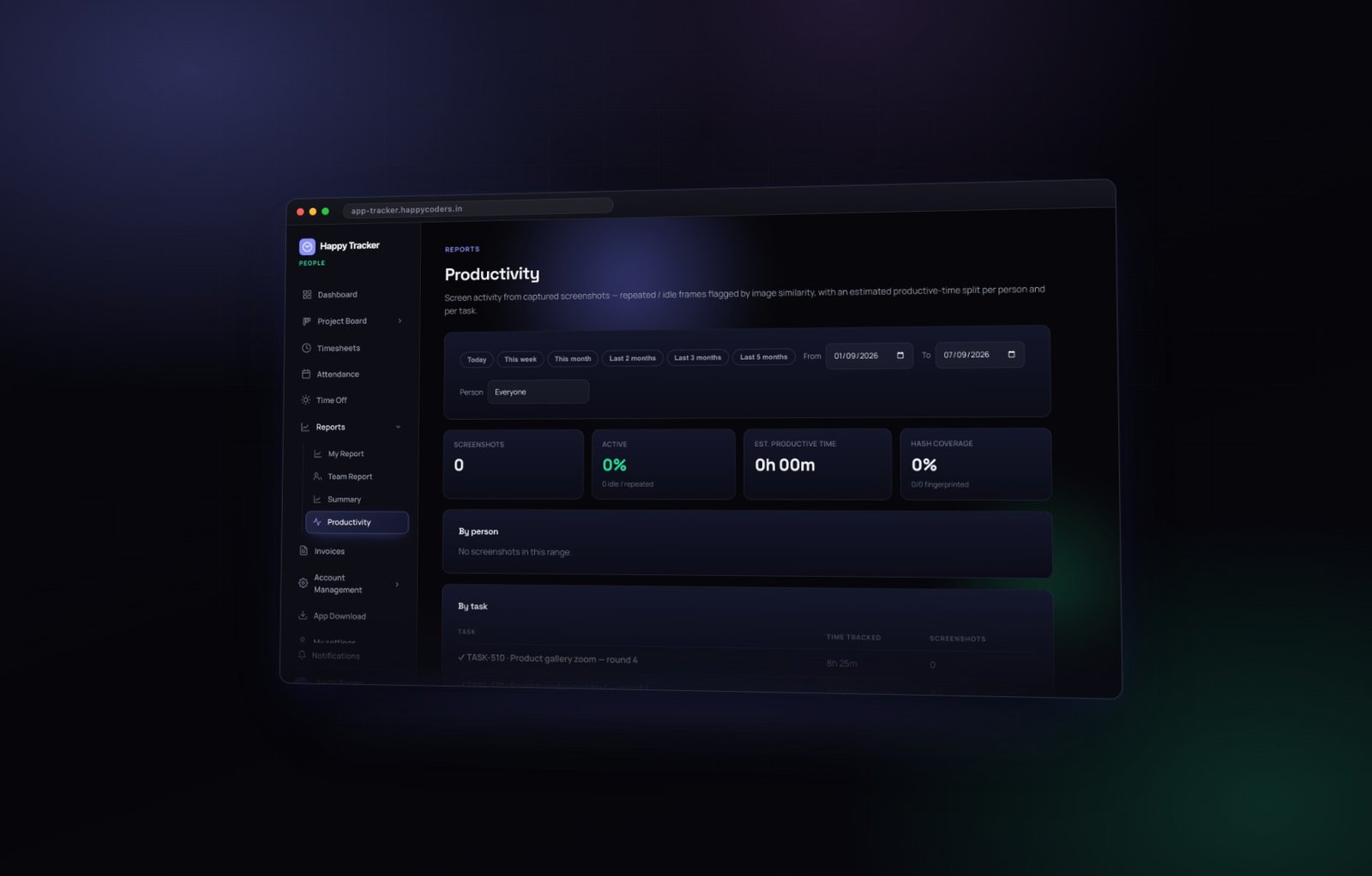
And they feed the four sub-scores on the team report — attendance, focus, quality of time and active time — which are shown separately rather than collapsed into one opaque number.
On the board
Per-task activity is what makes estimate against actual work without anybody logging time twice. The timer ran on the card, so the card knows.
What this is not
It is worth being equally clear about what the product deliberately does not do, because buyers sometimes arrive asking for these.
- It is not a keylogger. We will not add one.
- It is not continuous screen recording. Captures are periodic stills, at an interval you set.
- It does not score people against each other by default. The reports show each person’s own history first.
- It does not delete idle time silently to make hours look better than they were.
- It does not run when somebody is not working.
How to introduce it without alarming anybody
The technology is the easy half. Most rollouts that go badly go badly for cultural reasons, and almost all of them share one cause: the team found out afterwards.
- Tell them before you switch it on. Not the day of — a few days before, with room for questions.
- Say the four things plainly: what is captured, when it is captured, who can see it, and what it will and will not be used for.
- Lead with when it stops. Only while clocked in; not on breaks; not in the evening; not when the app is closed.
- Show them their own view. Nothing settles it faster than somebody seeing that they can open their own activity and their own screenshots themselves.
- Start loose. Longer screenshot interval, blur on, idle auto-off around ten minutes. You can tighten later; you rarely need to.
- Say what it will not be used for. If you are not going to rank people on it, say so, and then do not.
What not to do
- Do not enable it quietly and hope nobody notices. Somebody always notices, and then the conversation is about trust rather than about work.
- Do not use a single low day as evidence of anything.
- Do not read productivity scores out in a group meeting.
- Do not set the screenshot interval to the shortest available because you can.
Common questions
Can an administrator read what I typed?
No. Nothing typed is recorded anywhere in the product. If screenshots are enabled they may show text that was on screen at the moment of capture — which is precisely why on-device blur exists, and why we recommend it.
Does it track me outside work?
No. Nothing is recorded when you are clocked out, on a break, or when the app is closed.
Can I see everything that was recorded about me?
Yes, in your own timesheet, without asking anybody. Every session, every activity block, and every screenshot taken of your machine.
What happens to it when I leave the company?
The account is deactivated rather than deleted, so the hours already tracked stay in the company’s history — the same as any other work record. Screenshots continue to age out on the retention schedule.
What if the score is unfair to my role?
It probably is, for some roles, and that is a known limitation rather than a secret. The score measures input activity, so work that is mostly thinking, reviewing or talking scores lower. Managers should compare somebody to their own history rather than to a colleague in a different job.
Questions an employee is entitled to ask
If you are on the receiving end of this rather than administering it, these are reasonable things to ask, and a company using the product properly can answer all of them in a sentence.
- Are screenshots on, and how often? Both are visible to you in your own timesheet — count the captures on any day.
- Is on-device blur enabled? If it is, the readable image never left your machine.
- How long are captures kept? There is a retention window, and after it they are deleted automatically.
- Who can see my activity? You, your manager, and admins. Nobody outside the workspace.
- What is the score used for? Ask directly. A company that intends to rank people on it should say so, and one that does not should say that too.
If a company cannot answer those, the problem is the company rather than the software. Every one of them is visible in the product to anybody who looks.
The short version
Applications, window titles, activity level, idle time, and screenshots if you enable them — captured only while somebody is clocked in, visible to that person in their own timesheet, blurred on their own machine if you want, and deleted automatically after a window you choose.
Nothing typed. No audio, no camera, no location, no files. And nothing at all outside working time.
The full detail is in our privacy policy, and you can see every one of these controls yourself on the free plan — up to five users, no card.