Every month, in most companies, the same three questions come up. Was that a holiday? Did she take a half day? Why does his attendance say absent when he was on leave you approved yourself?
None of it is difficult and all of it is slow, and it recurs for one reason: the underlying rules were never written down anywhere the software could read them. They live in a spreadsheet, in an email thread, and in one person’s memory.
Four settings fix it permanently. This is how to set them, in the right order, and what each one changes downstream.
The four things that decide a day
- The work schedule — which days of the week your company works, and the expected hours in a day.
- The holiday calendar — the specific dates the whole company is off.
- Leave policies — the types of leave you offer and how many days each gives.
- Approved leave requests — which spend those days.
Set the first three once, at the start of the year, and the fourth takes care of itself as the year goes on. Skip any of them and somebody does arithmetic by hand every month.
Start with the work schedule
Account Management, then Work Schedules. Pick the days your company works and the hours in a normal day.
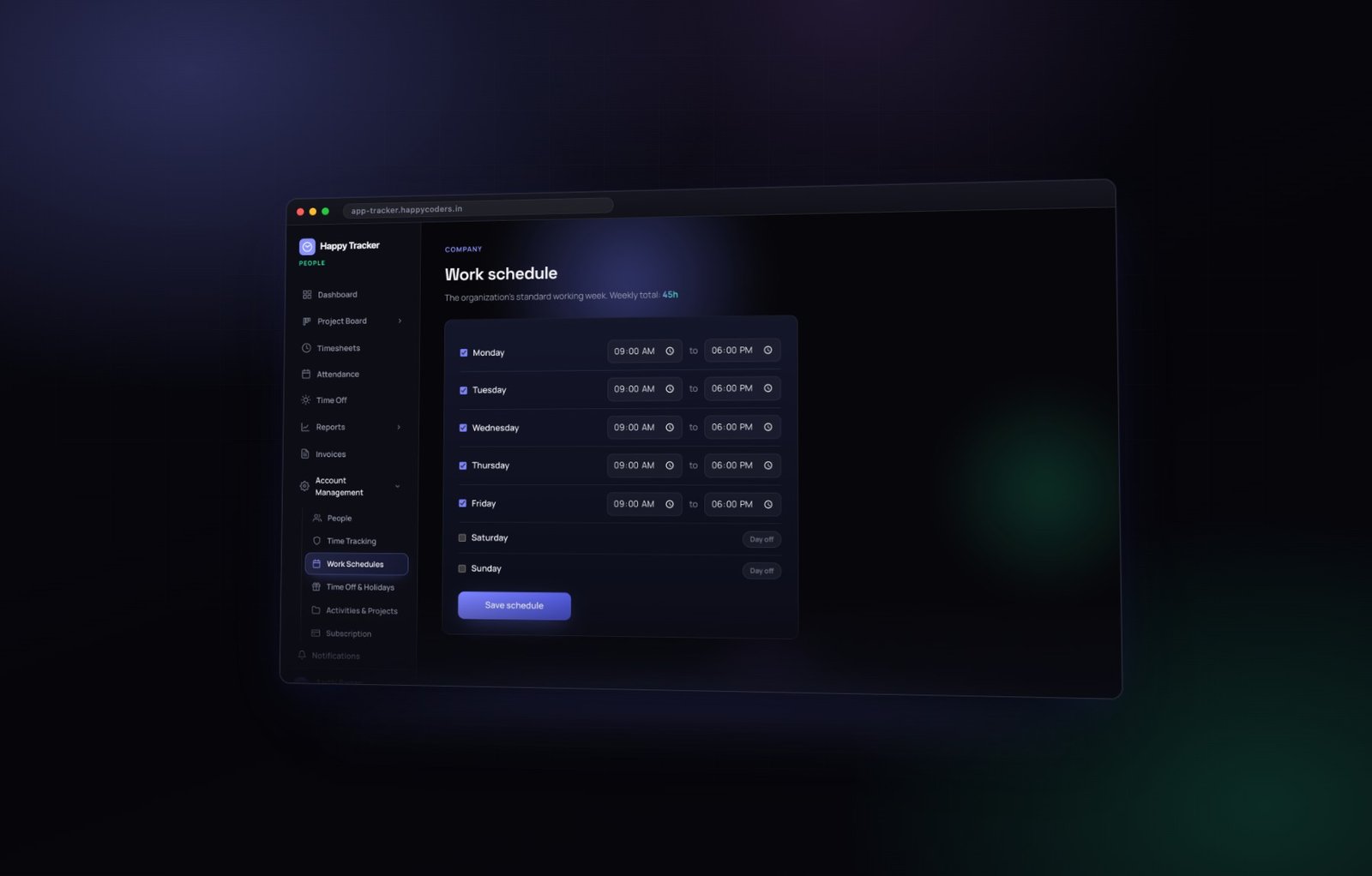
For leave specifically, this matters because a leave request counts only working days. Somebody taking Friday to Monday off spends two days of leave, not four — but only if the product knows about your weekend.
It also decides which days can count as an absence at all. On a six-day working week, a Saturday with no tracked time is an absence. On a five-day week it is not. Get this wrong and your attendance report will be confidently incorrect.
Then the leave types
Account Management, Time Off and Holidays, then the Leave policies tab. Each type has a name, a yearly allowance in days, and a colour.
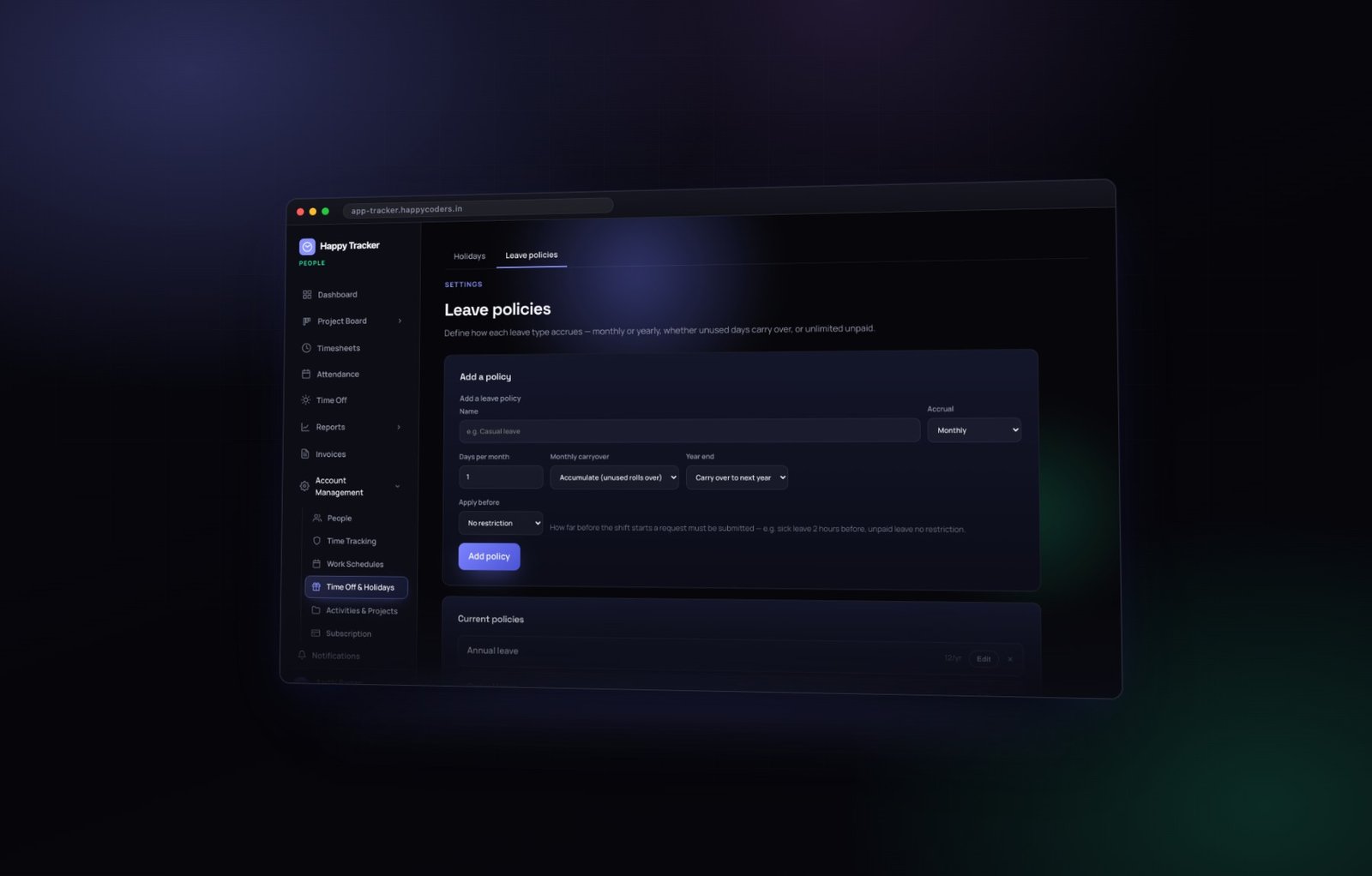
Annual, casual and sick are the usual three. Add whatever else you genuinely offer — bereavement, marriage, unpaid, compensatory off. Save a type and it appears in everybody’s Apply for leave dropdown immediately, with no further step and no republishing of anything.
Each type is counted on its own
Somebody who has used all their casual leave still has their annual leave, and the balances table shows each type in its own column with a total taken. Set the allowances to match what your offer letter actually says, because this is the number your team will quote back at you in March — and if the two disagree, the offer letter wins and you have an awkward conversation.
Half days
A request can be a full day or a half day. Half days count as half against the balance, which is what makes them worth offering — an afternoon for an appointment should not cost somebody a whole day of their allowance, and if it does, people take the whole day.
Changing an allowance later
You can change one at any time and it applies from that moment onwards. Raising annual leave from twelve to fifteen gives everybody three more days from today.
It does not retrospectively rewrite requests that were already approved, which is exactly what you want. Last year’s approvals should not move because this year’s policy changed, and a product that silently recalculated history would be doing you no favours.
Deleting a leave type never throws away the requests made against it. The type is archived: it stops appearing for new requests, and every past request keeps its history on that person’s record. Leave records are precisely the kind of thing you cannot afford to lose, and this behaviour is deliberate.
Then the holiday calendar
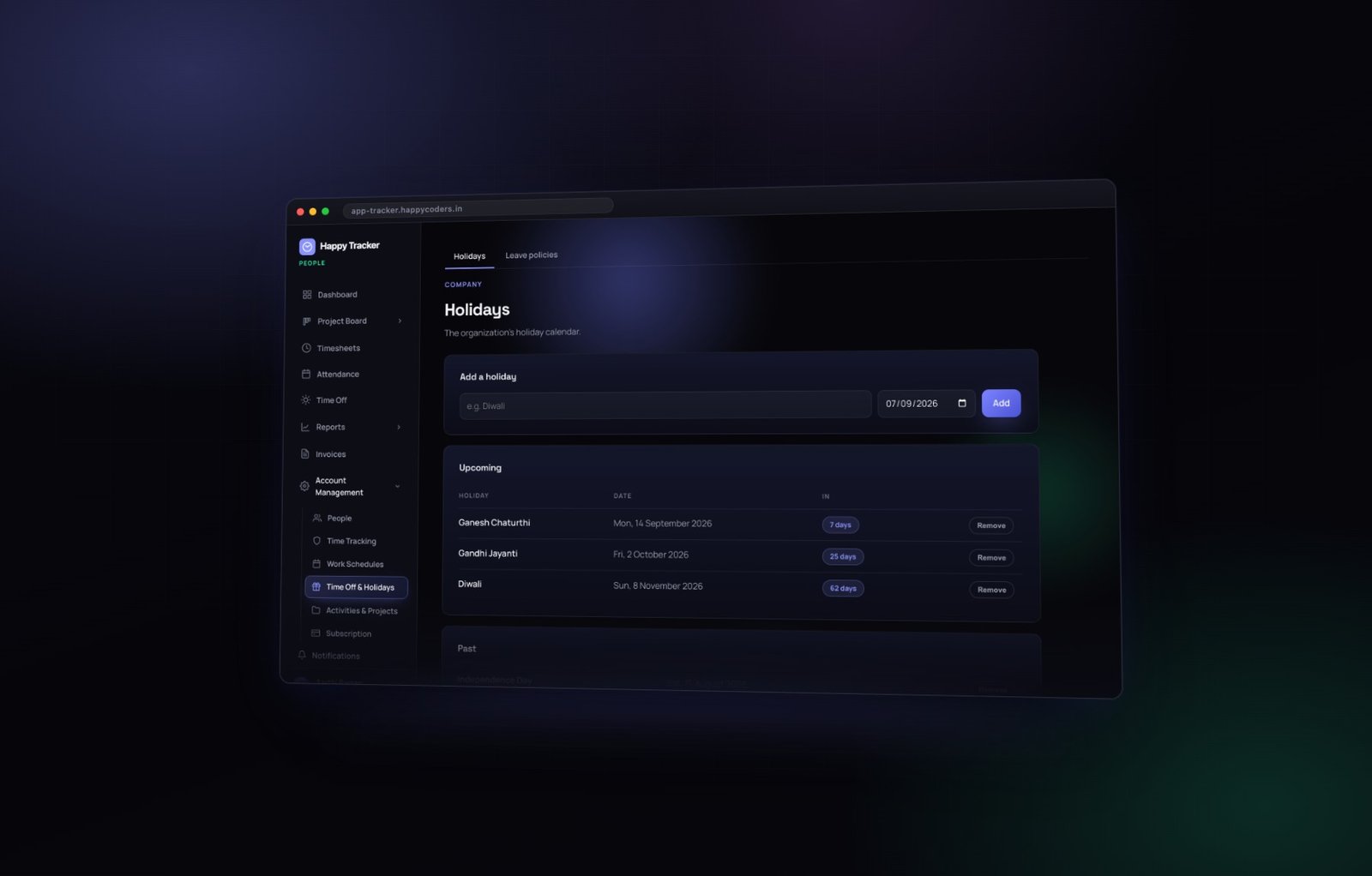
The Holidays tab, in the same place. Add every day the whole company is off, with a name and a date. Do the whole year in one sitting — it takes ten minutes.
What a holiday actually changes
- On attendance, it becomes a non-working day, so nobody shows as absent for a day the office was shut.
- Inside a leave request, it is not counted against the person’s balance.
- On the dashboard, the next few appear under upcoming holidays, which is more useful when planning a deadline than it sounds.
- In attendance reporting, it stops a company-wide holiday looking like a company-wide absence, which is the kind of thing that makes a whole report untrustworthy.
The case that catches everybody out
Somebody takes Monday to Friday off. The Wednesday in the middle is a company holiday. They should spend four days of leave, not five, because the Wednesday was never theirs to spend.
Happy Tracker gets that right automatically — but only because it knows about the Wednesday. If your holiday list lives in a spreadsheet, somebody does that subtraction by hand twelve times a year and occasionally gets it wrong in the direction that annoys an employee, which they then remember for considerably longer than you do.
Leave the past ones alone
The list splits into upcoming and past, and each row can be removed. Removing a holiday that has already been counted does not rewrite the attendance calculated with it, so all you achieve is a mismatch between the calendar and the record.
How it looks to your team
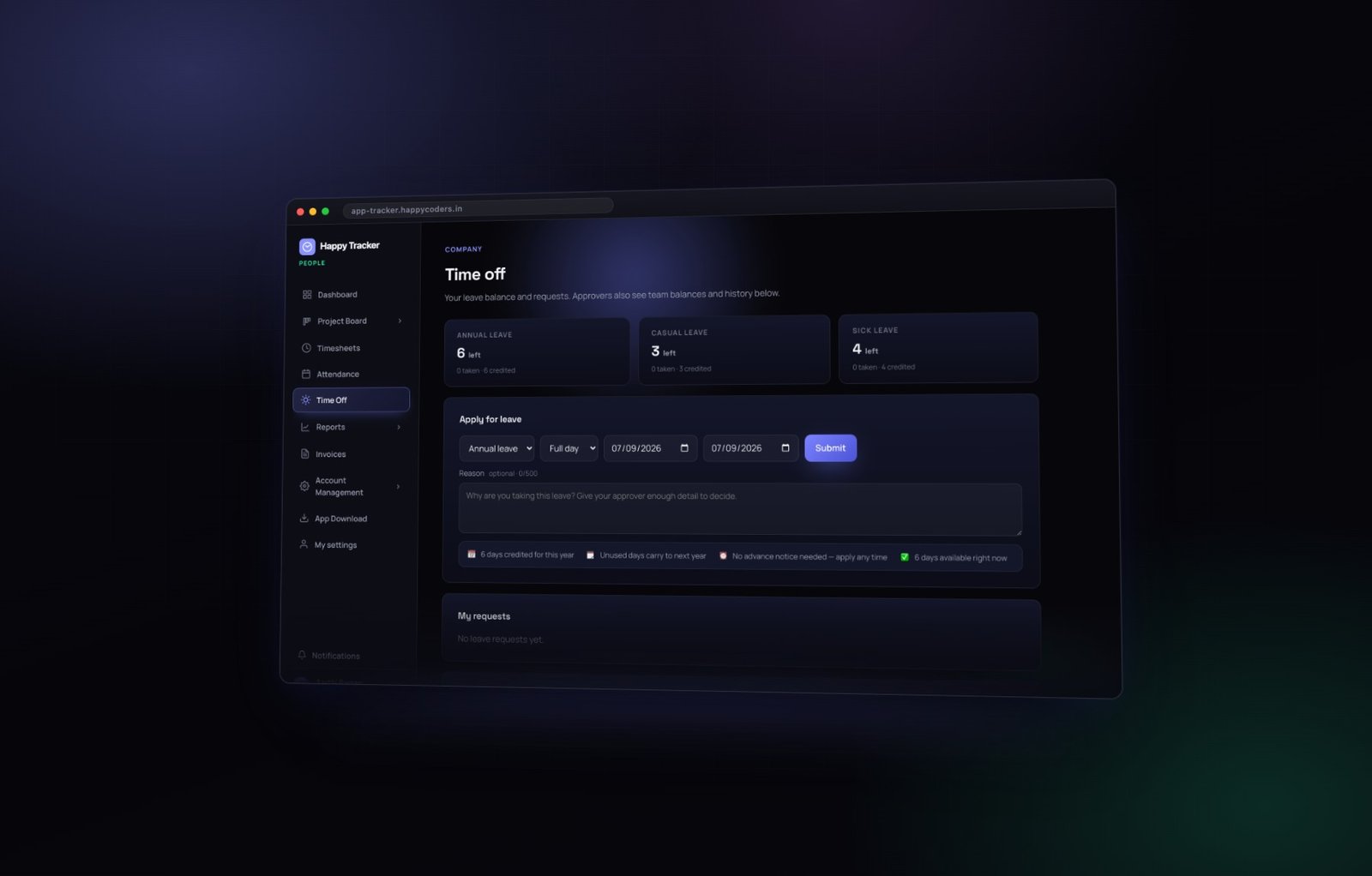
On the Time Off page an employee picks a leave type, a date range, full day or half day, and gives a reason.
What happens on submit
The request appears in My requests as pending, and their balance is not touched. That matters: a pending request never makes somebody’s balance look wrong, so nobody has to mentally subtract requests that might not be approved.
A pending request can be cancelled by the person themselves. An approved one has to be rejected by a manager, and the days come back.
What a manager sees
Awaiting your approval, with the person, the type, the dates, the day count and the reason. Approve, and the days are deducted and the dates marked as leave on attendance. Reject, and the balance is untouched.
A rejected request is not deleted. The person still sees it in their history, so there is always a record of what was asked and what was decided — which protects both sides.
Team balances
One row per person, one column per leave type, and a total taken. This is the fastest way to answer “how much annual leave does she have left”, and it is worth checking before you approve anything in December.
And on the attendance grid
This is where the four settings finally show their work.
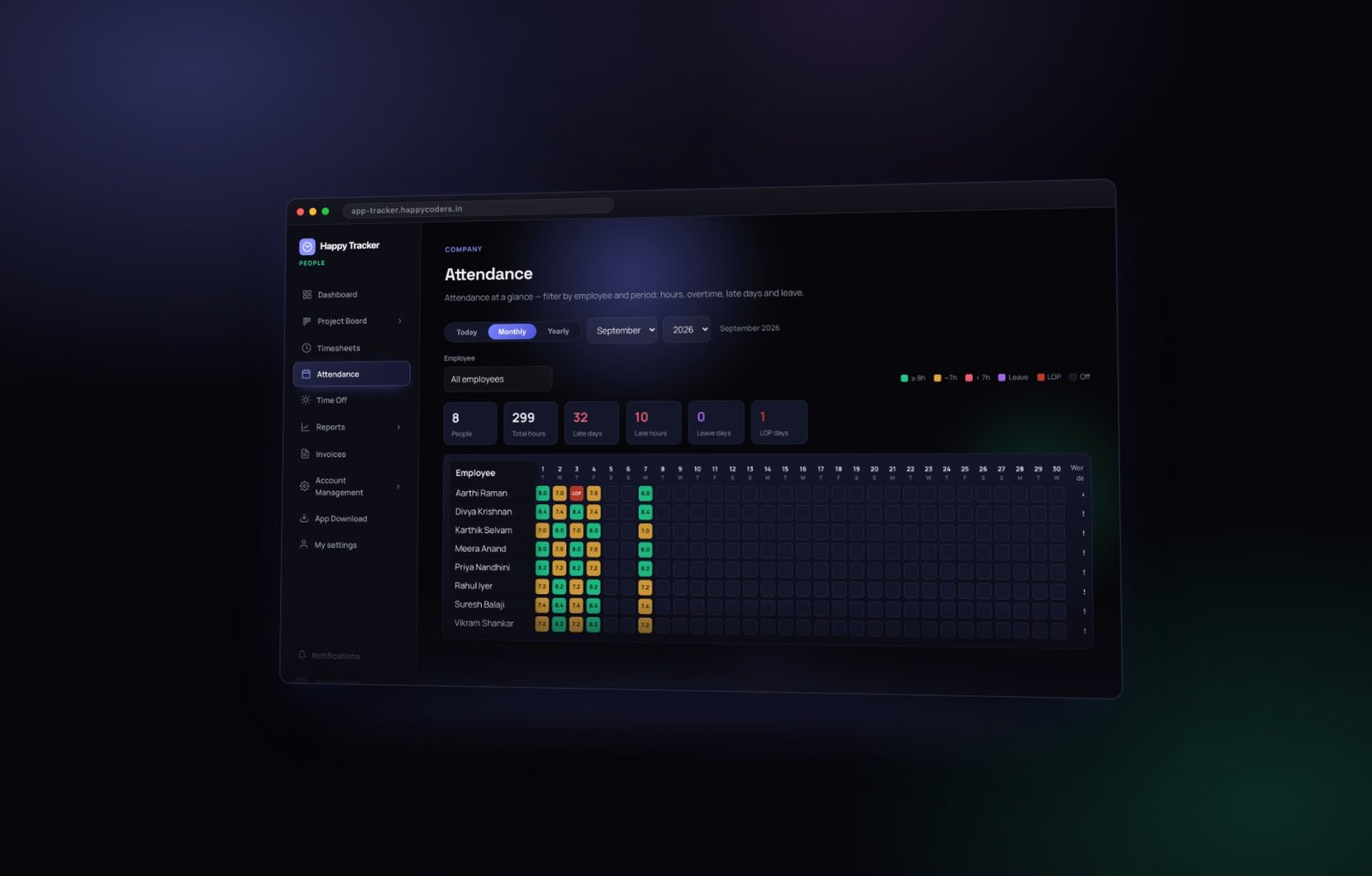
Green is present, red is absent on a working day, grey is a non-working day, and an approved leave day is marked as leave rather than as an absence.
If your attendance report punishes people for leave you granted yourself, nobody in the company will trust the report — and they will be right not to. Getting these four settings straight is precisely what stops that happening.
The monthly view is for checking a specific day. The yearly view gives twelve columns and each person’s totals, which is what you want when somebody asks how a person’s attendance looked over the year.
Edge cases worth knowing before somebody asks
Leave spanning a weekend
Friday to Monday is two days of leave on a five-day week, because Saturday and Sunday are not working days. Nobody has to remember to subtract them.
Leave spanning a holiday
Monday to Friday with a holiday on Wednesday is four days. The holiday was never theirs to spend.
Leave spanning a month end
A request from the twenty-eighth to the third is counted as the working days inside it, across both months. The balance is annual rather than monthly, so nothing resets in the middle.
Somebody with no balance left
They can still submit; the approver sees the balance and decides. The product does not block the request, because unpaid leave and exceptions are real things and a tool that refuses to represent them just gets worked around in email.
Leave in the past
It can be submitted and approved retrospectively, which matters for sick leave that nobody was in a position to file on the morning it started.
Somebody who leaves the company mid-year
Deactivate them. Their approved leave stays on the record, which is what you want for the final settlement conversation.
A worked example, end to end
Priya asks for Monday the fourteenth to Friday the eighteenth. The company works Monday to Friday, and the sixteenth is a company holiday.
- She picks Annual leave, full day, the fourteenth to the eighteenth, with a one-line reason.
- The request appears in her My requests as pending. Her balance does not move.
- Her manager sees it under Awaiting your approval, with the dates and a day count of four — the sixteenth is excluded automatically.
- The manager approves. Four days come off her annual leave balance.
- On the attendance grid, the fourteenth, fifteenth, seventeenth and eighteenth show as leave. The sixteenth shows as a non-working day, the same as it does for everybody else.
- At month end, none of those five days count as an absence, and the payroll export treats them correctly without anybody adjusting anything.
Every step of that is automatic, and every step of it depends on the four settings being right beforehand. That is the whole argument for spending the first hour properly.
A monthly routine that works
- Approve timesheets weekly, so the month is already four approved weeks.
- Open the attendance grid for the month and scan for red.
- Check each red cell against leave — anything left is a genuine absence worth asking about.
- Export payroll-ready hours: regular, overtime and unpaid break time separated.
- Keep the export. It is your record of what you paid and why.
Who can change what
An employee applies for their own leave and can cancel their own pending requests. A manager approves for their team. An admin or owner approves for anybody, and they are the only roles that can edit leave policies, the holiday calendar or the work schedule.
That separation is deliberate. Approving somebody’s leave and deciding how much leave the company gives are different jobs, and they should not be the same permission.
All of it is included on the free plan for up to five users. Set it up free before your next leave season.