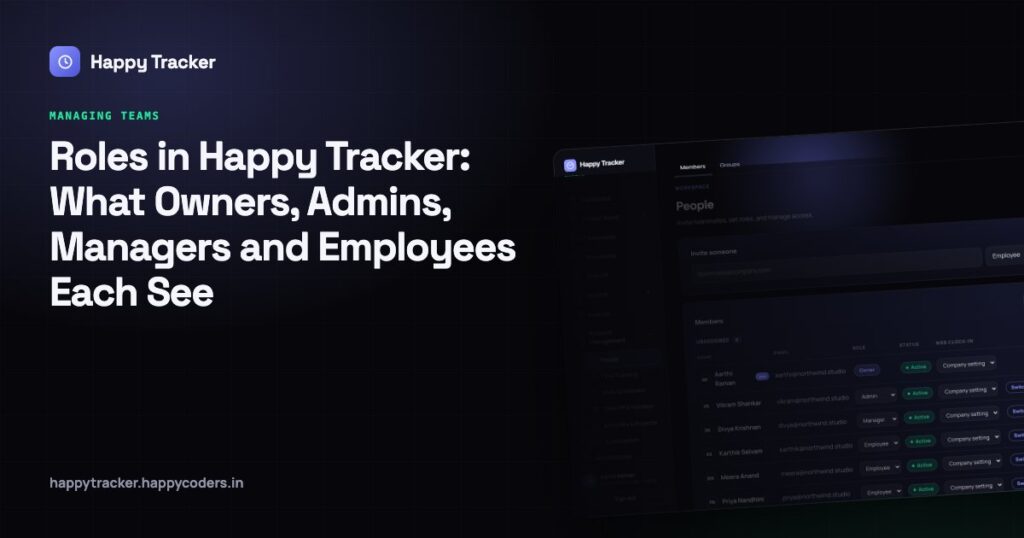
Choosing the right role at invite time saves a great deal of explaining later. Getting it wrong is the single most common reason somebody messages you saying they cannot see something they are certain they should — and the second most common reason somebody can see something they should not.
There are four roles. Here is exactly what each can do, and the three features around them that most teams do not discover until the day they need them.
Employee
Sees their own work and nothing else.
- Their own timesheet, in My View, with their own clock in and clock out.
- Their own activity blocks and their own screenshots.
- My Report — their own score, categories and tasks.
- The project board, and the tasks assigned to them.
- Time Off, to apply for leave and see their own balance and history.
- App Download and their own settings.
They do not see other people’s hours. They do not see the team reports. Account Management does not appear in their sidebar at all — not greyed out, not empty, simply absent.
Sign in as one at least once
Most of your company will be this role, so it is worth seeing it. Evaluating the product only from the admin seat gives you a misleading picture of what your team actually experiences, and it is the reason a lot of rollouts hit avoidable friction in week one.
Manager
Everything an employee sees, plus their team.
- Team View on timesheets, with everybody’s hours.
- The team report, the summary report and the productivity report across the team.
- The approvals queue — for timesheets and for leave.
- The ability to correct a team member’s time entry, with the correction logged.
What a manager still cannot do is change any of the organisation’s settings. They cannot invite people, change roles, edit the tracking policies, touch the holiday calendar or alter leave allowances.
That separation is deliberate. Approving hours and setting the rules by which hours are recorded are different jobs, and a manager who can quietly change the rules and then approve against them is a manager nobody can audit.
Admin
Adds all of Account Management — people and roles, tracking policies, work schedules, projects and clients, leave rules, holidays, and the organisation profile.
An admin can do essentially everything an owner can apart from billing. In most companies this is the operations or HR person who actually runs the workspace day to day, and it is the right role for whoever is going to answer questions about it.
Owner
An admin who also controls the plan, the seats and the billing, and who cannot be removed from the workspace.
Most teams want exactly one owner and one or two admins. More owners is not more safety — it is more people who can change what you are paying for.
The owner’s own weeks read as approved automatically, because there is nobody above them to sign their time off. Everybody else’s week has to be approved by somebody who is not them.
A table you can hand to a new admin
- See own hours and activity — everybody.
- See the team’s hours — manager, admin, owner.
- Approve timesheets and leave — manager, admin, owner.
- Correct somebody else’s entry — manager, admin, owner (always logged).
- Invite people and change roles — admin, owner.
- Edit tracking policies, schedules, holidays, leave types — admin, owner.
- Create and archive projects — admin, owner.
- Change the plan and buy seats — owner only.
- Be removed from the workspace — everybody except the owner.
Why there is no delete button for a person
There is only Deactivate, and this catches people out often enough to be worth explaining properly.
A deactivated member cannot sign in, and their seat is freed for somebody else — so deactivating people who have left genuinely saves you money at renewal. But every hour they ever tracked stays exactly where it is, in your timesheets, your reports and your invoices.
What deleting would actually do
Tear holes in your own history. Last year’s invoice would stop reconciling. A report covering a period they worked in would quietly change. An audit trail would reference a person who no longer exists.
The product does not offer that, on purpose, and no setting turns it on. If somebody has genuinely never tracked anything and was invited by mistake, deactivating them costs nothing and leaves no trace anybody will notice.
The per-person override
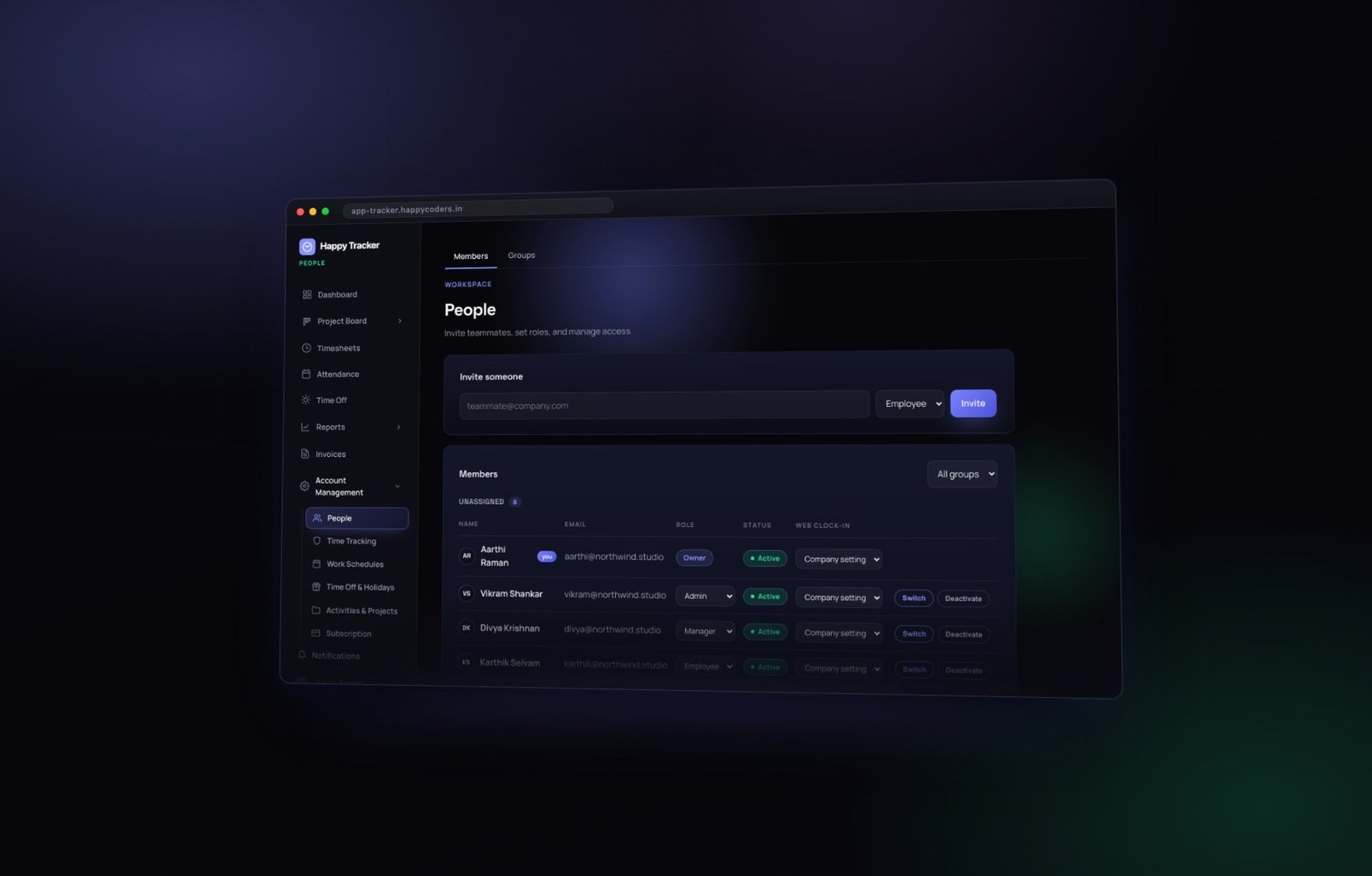
The last column in the members table decides whether that person may start their timer in a browser or must use the desktop app. It has three settings: follow the company rule, always allow, or never allow.
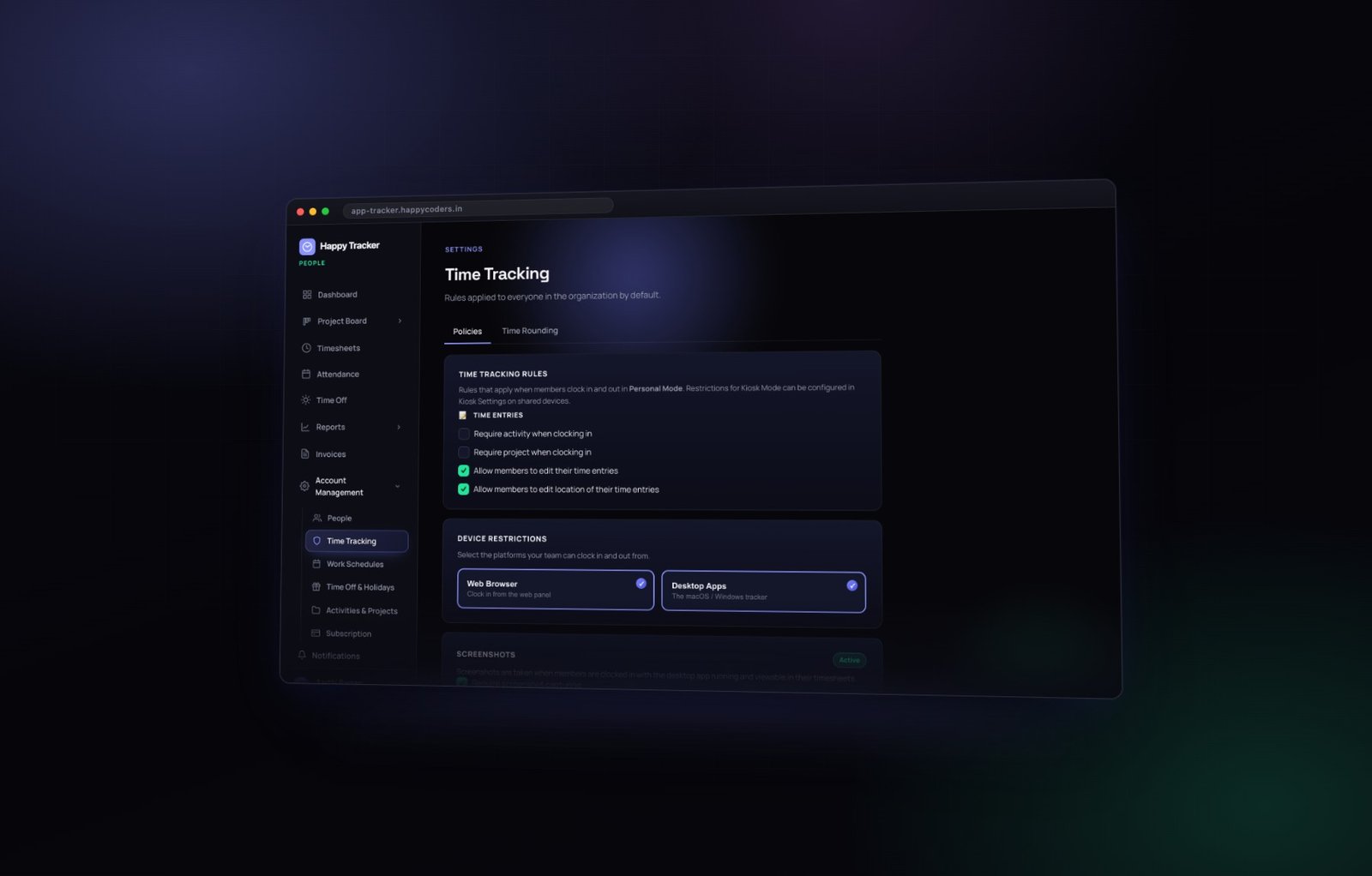
Company setting means whatever the organisation’s Time Tracking page says. The other two override that rule for this one person, in either direction.
Why an override matters
It is how an owner keeps browser clock-in for themselves while the rest of the company is desktop only. It is how one contractor is restricted while nobody else is. It is how the person who travels constantly and works from a borrowed laptop is not blocked by a rule aimed at somebody else entirely.
A rule with no exceptions is the kind that gets worked around, and a product that forces one is a product people build workarounds for. Better to grant the exception visibly, in a column everybody can see, than to have somebody quietly sharing a login.
Seeing the app as somebody else
Each row also has a Switch button. It signs you in as that person so you can see exactly what they see — without their password, which you neither have nor need.
An amber banner stays on screen the whole time so you cannot forget you are doing it, and every switch is written to the audit log with who did it and when.
When to use it
- Somebody says they cannot see a report. Look, rather than guess.
- Before rolling out a permission change, to check what it actually does.
- When onboarding a new admin, to show them what an employee experiences.
- When debugging a support question that only happens for one person.
It is not a monitoring feature and it should not be used as one. Everything it shows is already visible to that person; the point is that you can see it without asking them to share a screen.
Groups, once the list stops fitting on a screen
Groups divide a larger company into departments, and become a filter everywhere else — on the dashboard, on the timesheets, and in the reports.
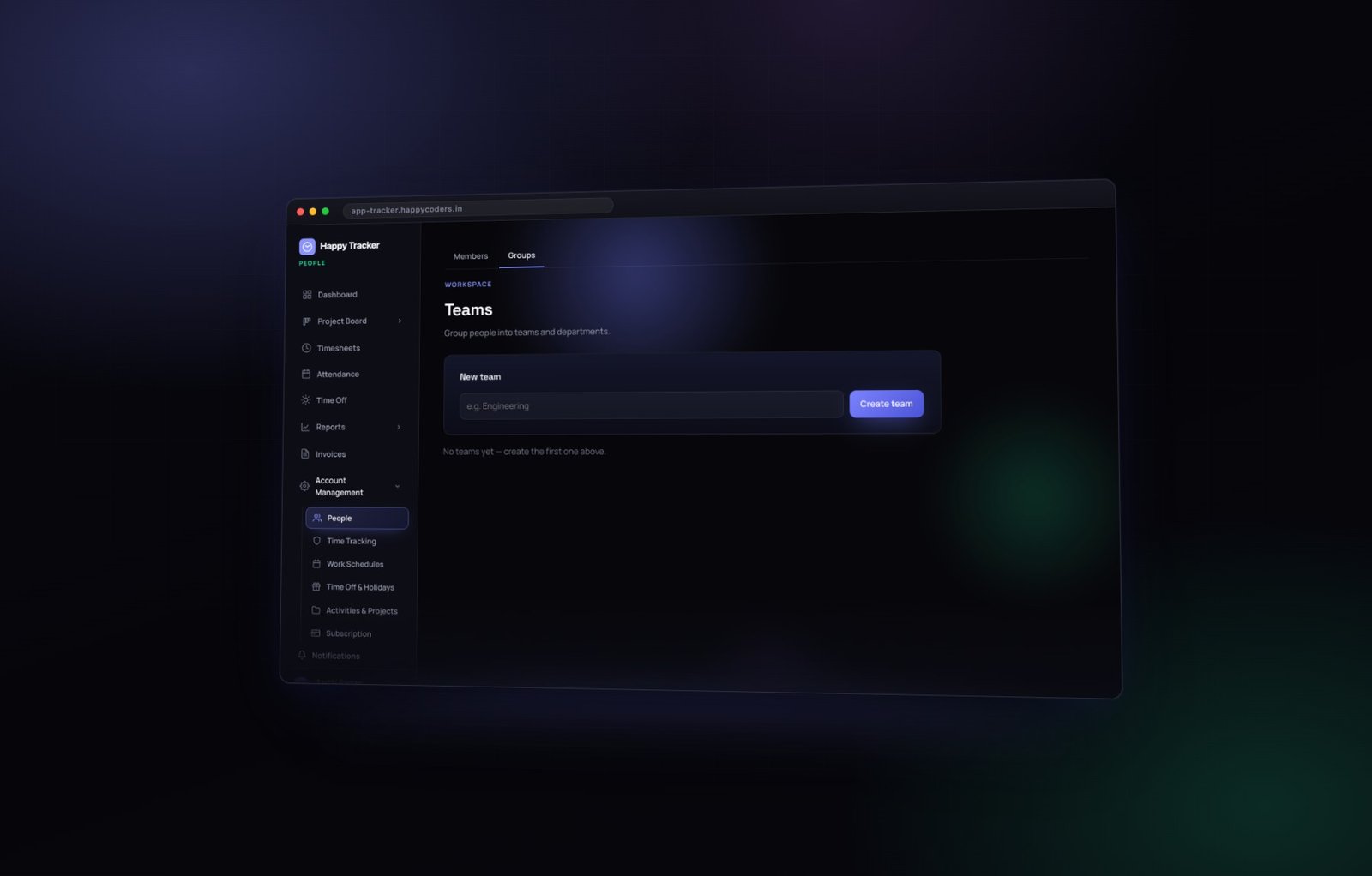
On a team of eight they are not worth the effort. On a team of eighty they are the difference between a dashboard that answers your question and one you scroll through.
Anybody you have not put in a group sits under Unassigned, which is a useful way to spot people who joined and were never sorted — usually the same people whose role was never reviewed either.
Choosing roles for a real team
Abstract permission tables are easy to read and hard to apply. Here is how the four roles usually land in practice.
A studio of eight
One owner — whoever pays the bill. One admin — whoever actually runs the workspace, often the same person. Everybody else an employee. No managers at all, because with eight people the owner approves everything and the extra layer buys nothing.
An agency of thirty
One owner. One or two admins in operations. A manager per delivery team, approving their own people’s hours and leave. Groups set up by team so the dashboard is usable.
A company of a hundred
One owner, two or three admins, a manager per department, and groups doing real work as filters everywhere. At this size the per-person overrides start mattering too, because there will always be a handful of people whose situation the company rule does not fit.
Working with contractors
Employee role, added to the projects they work on and no others. The project members list is doing most of the access control here, not the role — a contractor who can only pick two projects cannot book time against anything else.
Changing somebody’s role later
The role column is a dropdown, so promoting somebody takes one click and applies immediately. Three things are worth knowing.
- Historical data does not change. Hours they tracked as an employee stay exactly as they were.
- Approvals they made stay attributed to them, even after a role change.
- Demoting somebody removes access immediately, including to reports they were looking at a moment ago. Tell them first.
Common questions
Can a manager see somebody outside their team?
No. Team View shows the people they manage. If somebody needs to see the whole company, they need admin.
Can an employee see who edited their timesheet?
Yes. Corrections are recorded in the change history on their own day view, with the name of whoever made them. Editing is safe precisely because it is visible.
What happens to a manager’s team when they leave?
Deactivate them and reassign the group or the approvals to somebody else. The historical approvals they made stay attributed to them, which is correct.
Can I have two owners?
You can promote a second person to owner, but think about whether you want two people able to change the plan. An admin can do everything else.
What gets logged, and why it matters
Permissions are only half the story. The other half is what happens when somebody with permission does something.
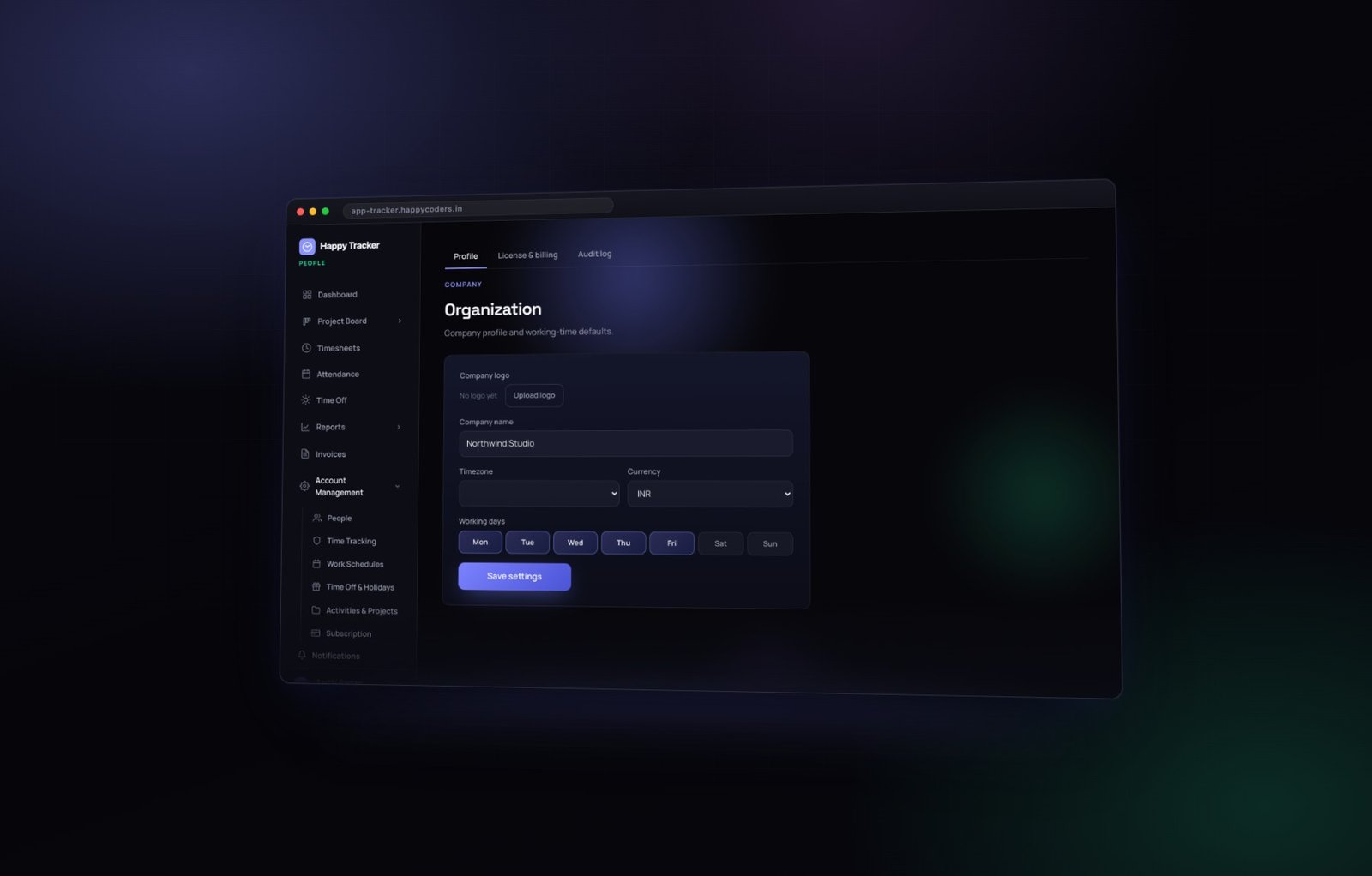
Every change an admin or owner makes to a setting is written to the audit log, with who did it and when. So are role changes, manual time entries, corrections to somebody else’s timesheet, and every use of the Switch button.
Why you want this even in a small company
Not because anybody is suspected of anything. Because six months from now somebody will ask why the screenshot interval changed, or why a week that was approved is suddenly not, and the alternative to a log is a conversation nobody can win.
Nothing in the product can edit the audit log, including the owner. That is the entire point of having one.
What is not in it
Ordinary work. Clocking in, moving a card, writing a comment. The log records changes to the system and to other people’s records, not everything everybody does — which keeps it short enough to actually read.
A short summary
- Employee — their own work only.
- Manager — their team’s hours, reports and approvals.
- Admin — all of the above, plus every setting.
- Owner — all of that, plus billing, and cannot be removed.
- Deactivate rather than delete; the history stays and the seat is freed.
- Use the per-person override for genuine exceptions instead of loosening the company rule.
- Use Switch to check what somebody sees, rather than guessing.
You can set all of this up on the free plan, for up to five users, without a card. Start free.