Clocking in from a browser records an hour. The desktop app records what the hour contained — the applications, the activity level, the idle time, and the screenshots if your organisation has them switched on.
Everything detailed in the reports comes from here. Getting it onto every machine is the step that decides whether the rest of the product is genuinely useful or just a stopwatch with a nice interface, and it is also the step most often left half done.
This is the full guide: download, install on each platform, permissions, signing in, the daily routine, every message the app can show you, and how to run the rollout so it finishes in a day rather than dribbling on for three weeks.
Why the desktop app exists at all
It is worth being able to answer this when somebody asks, because “because we said so” is not a good rollout strategy.
A browser tab cannot see which application you are using, whether the machine is active, or whether you stepped away. That is not a limitation of any particular product — a browser is not allowed to know those things, and rightly so.
So a browser timer can tell you that seven hours passed. Only an application running on the machine can tell you what those seven hours contained. If the reason you wanted time tracking was to know where the time went, the desktop app is not an optional extra; it is the whole feature.
Download it
Sign in to the web app and click App Download in the sidebar. There are three builds.
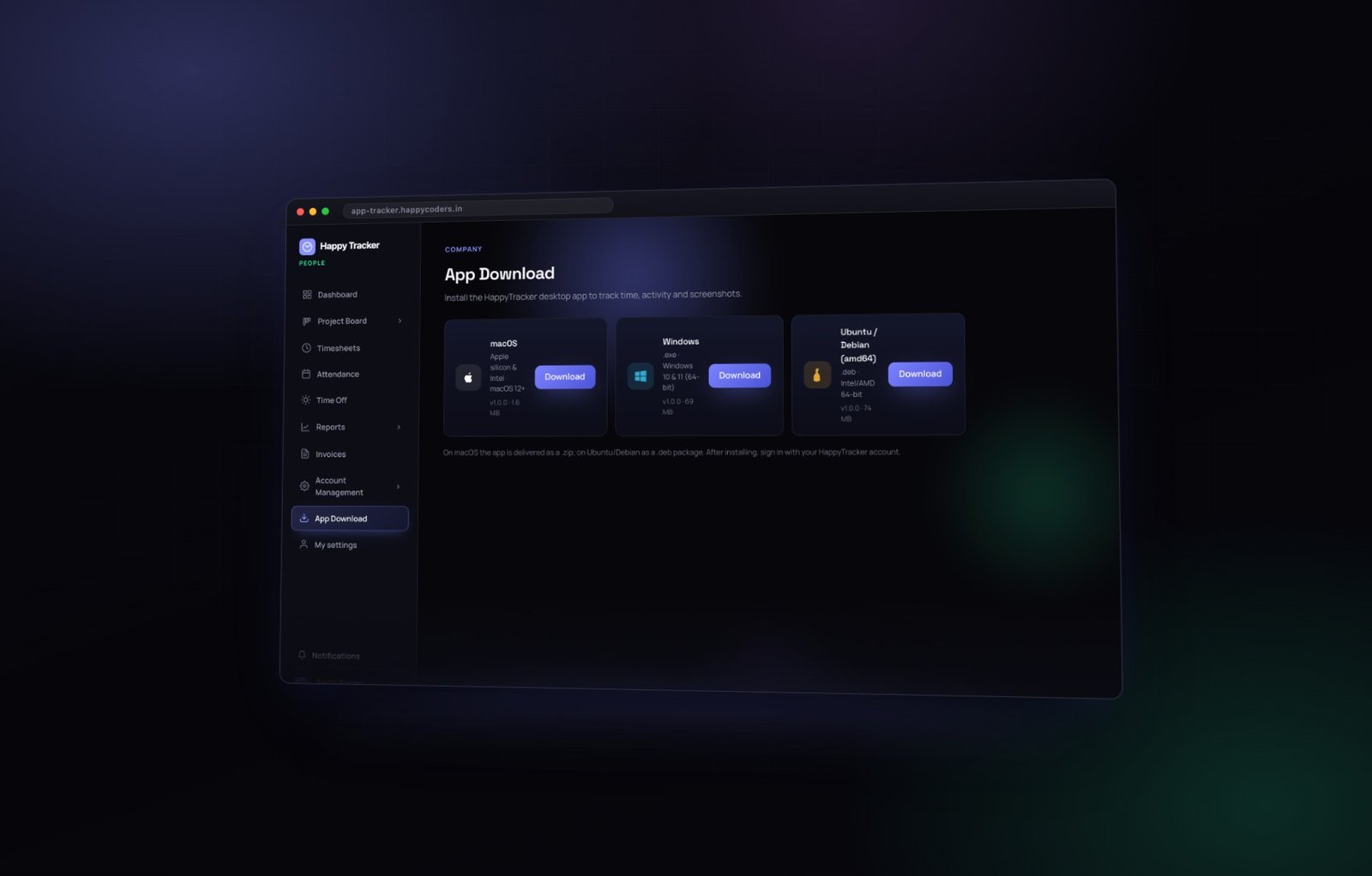
Take the one that matches the machine you are sitting at. There is nothing to configure in the download itself — the app picks up your organisation’s rules from the server the moment you sign in, so a company that changes its screenshot interval does not need anybody to reinstall anything.
Installing on a Mac
You get a disk image. Open it and drag the app into your Applications folder, then open it from Applications rather than from the disk image, so it runs from the right place.
The first-launch warning
The first time you open it, macOS may warn that it was downloaded from the internet. That is normal for any application distributed outside the App Store. Right-click the app, choose Open, confirm once, and macOS will not ask again on that machine.
Screen Recording
On first run it asks for Screen Recording permission, which is what screenshots need. Grant it in System Settings when the prompt appears.
macOS only applies a new Screen Recording permission when the app next launches. After granting it, quit the tracker completely — command Q, not just closing the window — and open it again. Skip this and the app will keep telling you capture is blocked even though you granted it, which is the single most common support question we get from Mac users.
Accessibility
It also asks for Accessibility, which is how it notices that you are active. This one is easy to skip because nothing obviously breaks — the timer still runs.
But almost nothing is recorded behind it, and the person’s activity will look empty. If somebody reports a full day of hours and zero activity, this permission is the first thing to check, and it will be the answer nine times out of ten.
Installing on Windows
An ordinary installer. Run it, allow the standard Windows prompt, and it installs like any other program. Sign in and you are ready — there are no extra permissions to grant.
If your company uses a managed Windows environment, the installer can be pushed the same way as any other application. Nothing about it needs a per-machine configuration file.
Installing on Ubuntu
A Debian package. Install it, then open the tracker.
The first time it captures the screen the system asks which display you want to share, because that is how screen access works on modern Linux desktops. Choose your main display and it remembers the choice.
On a multi-monitor setup you can change which screen is captured later from the app itself, without reinstalling. If somebody’s screenshots are all of an empty second monitor, that is the setting to change.
Signing in
Use the same email address and password as the web app. There is no separate account.
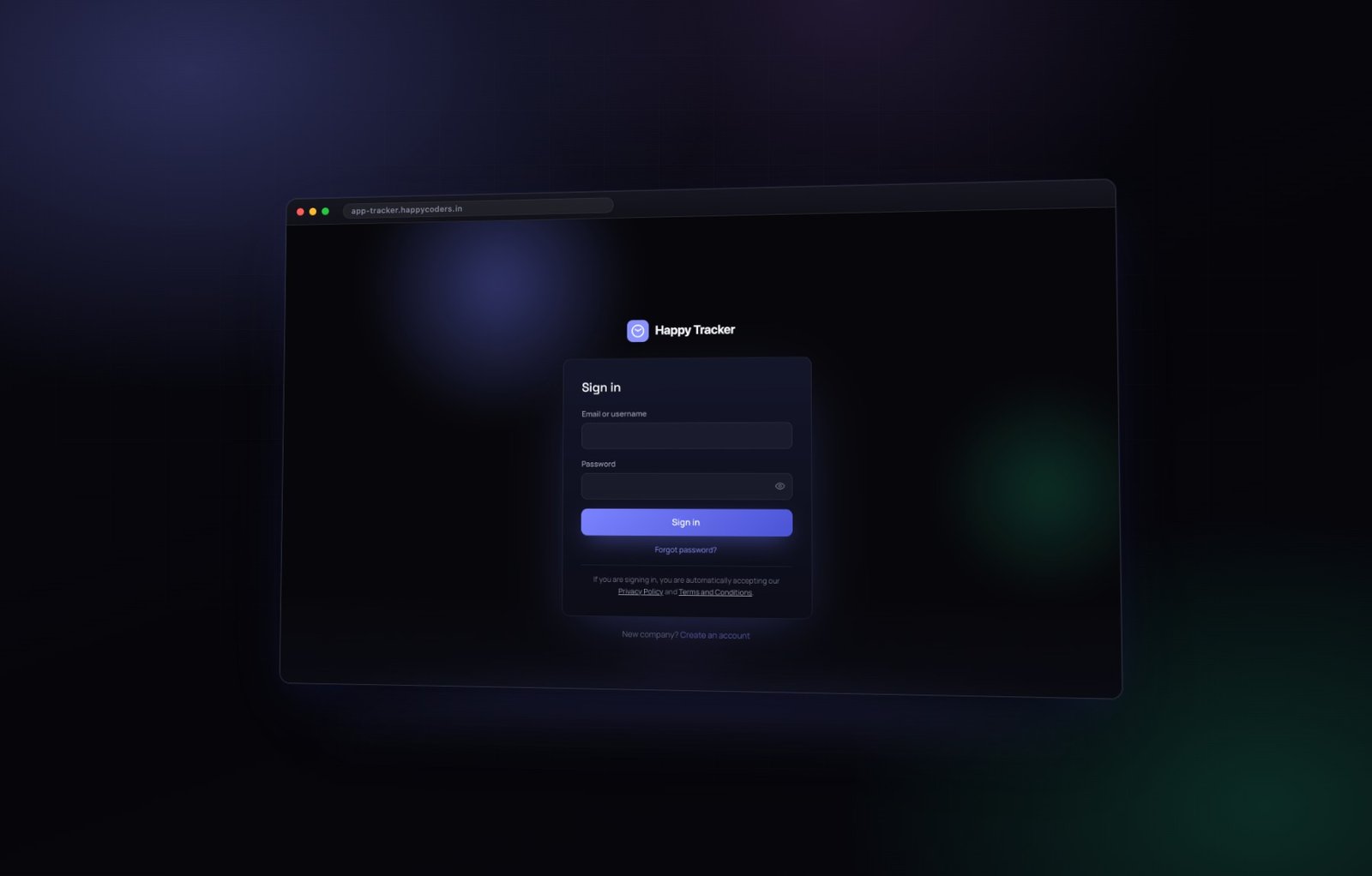
If you have just been invited, set your password from the invitation link in your email first. Nobody, not even your administrator, can set or read your password for you — which is why “can you just tell me their password” is a request the product cannot fulfil for anybody.
One account, one machine
If your company has device lock switched on, your account runs the tracker on one machine at a time. Signing in on a second computer signs the first one out and tells you why.
That is intended, and it exists so a single login cannot be recording in two places at once — which would quietly make every number downstream arguable. The browser is not affected: you can still sign in on the web from a phone to check your own timesheet.
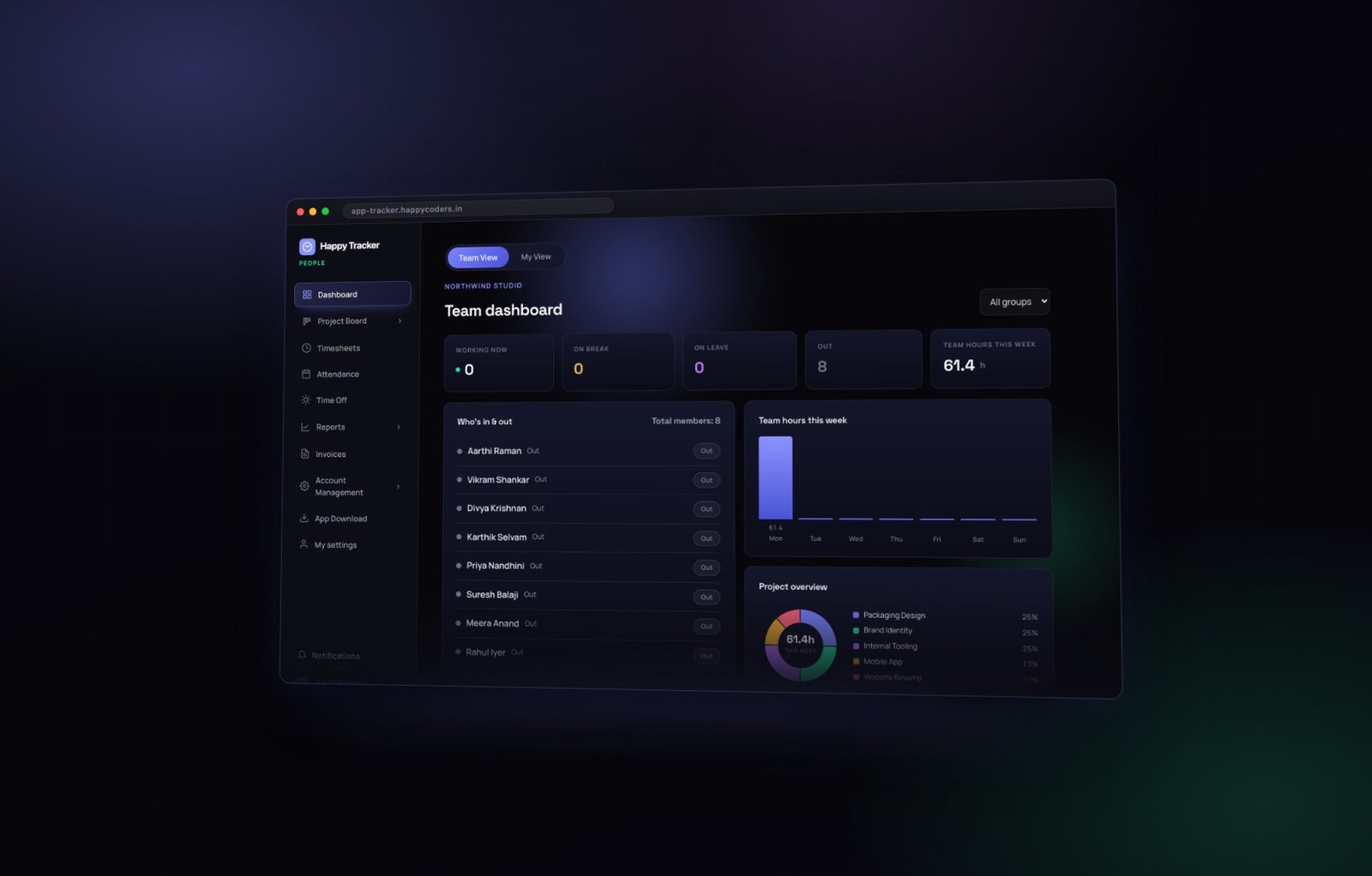
The daily routine to teach your team
- Open the tracker when you start work.
- Pick the project and the task you are about to work on.
- Press Start. The timer runs in the background, and the window can be shrunk to a small floating timer that stays out of the way.
- Change the task as you move on. This is the one habit that matters most — it is what puts hours against the right piece of work instead of one long block nobody can account for later.
- Take a break rather than leaving the timer running when you step away. Break time is recorded separately, never counted as worked hours, and screenshots pause while you are on one.
- Press Stop at the end of the day.
Everything tracked appears on the website within a minute or two, under Timesheets in My View, with the activity behind it on the same screen.
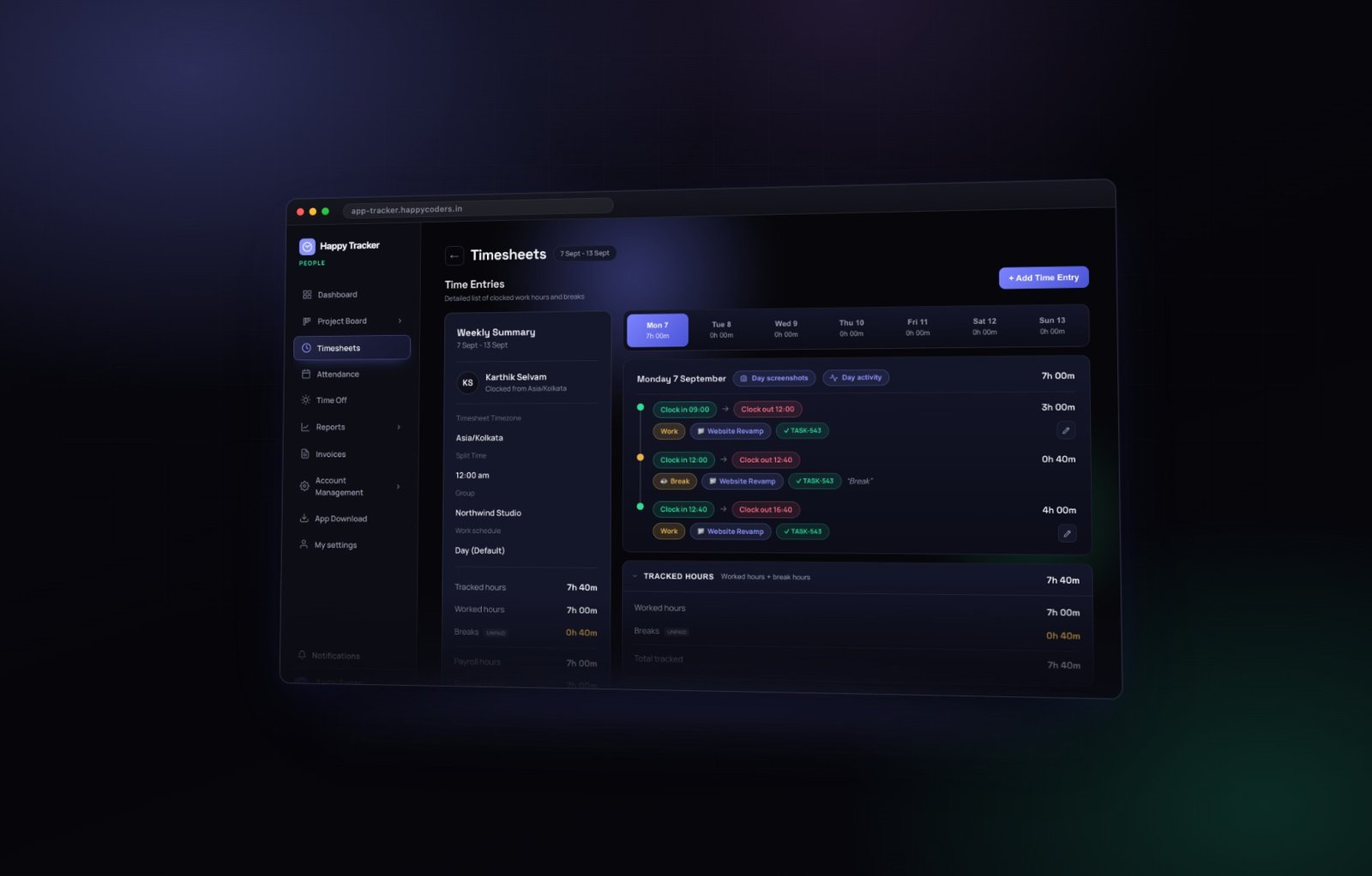
Your team can see exactly what their manager sees about their own day. That is worth pointing out explicitly during the rollout, because it is the fact that turns this from monitoring into a shared record.
What every message means
The app is deliberately blunt about problems rather than failing silently. Here is the complete list and what to do about each one.
The network connection was lost
The most common message, and the least alarming. The tracker already retried three times before showing you anything, so if you see it the connection has genuinely been down for several seconds — a dropped wifi, a firewall closing an idle connection, or the server briefly unreachable.
Check your internet; it usually clears by itself. Your tracked time is not lost.
Signed out, please log in again
Your session ended. Sign in again. If it happens repeatedly on the same machine, tell your administrator — that is not normal and is worth investigating.
This account is already being tracked on another desktop
Device lock. You are signed in on a second machine — sign out there and try again here. If you no longer have the other machine, an administrator can help.
Please verify your email before using the desktop tracker
The account has not been confirmed yet. Open the web app, verify from the link that was emailed to you, then sign in on the tracker again.
macOS is blocking capture until you allow it
Screen Recording permission is missing, or was granted while the app was already running. Grant it, then quit the tracker completely and open it again.
Screen capture needs macOS 14 or later
That Mac needs a system update before screenshots will work. Time tracking and activity still work in the meantime, so it is not urgent unless you rely on captures.
You were idle, so tracking stopped automatically
Not an error — idle auto-off doing its job after a period with no keyboard and no mouse. Press Start when you are back. If it is happening during meetings, ask your administrator to lengthen the idle window; ten minutes suits most offices, two or three does not.
You forgot to clock in
The reminder, shown when the working day has started and no timer is running. It repeats every few minutes until you either clock in or dismiss it, so starting the timer is usually the quicker option.
Your organization does not allow clocking in from the web
You are trying to start the timer in a browser at a company that requires the desktop app. Use the app — or ask an administrator for the per-person override if you genuinely need browser access.
Keeping it running
Installation is a day. Keeping the tracker healthy across a team is a habit, and it is a small one.
Updates
New builds appear on the App Download page. There is no forced update and nothing breaks on an older build, but newer ones carry fixes worth having — and a build old enough to predate a feature will simply not have it.
A new machine
Install, sign in, grant the permissions again. Permissions are per machine, not per account, so a new laptop always needs them granted afresh — this catches people out reliably.
When somebody changes their password
The desktop app signs out and asks them to sign in again. Nothing is lost.
Machines that sleep
A machine that sleeps with the timer running will show a long idle stretch. Idle auto-off usually catches it; automatic clock out catches the rest. Neither loses the time already tracked.
Checking it is actually working
The most common quiet failure is an app that is installed, signed in, and recording almost nothing because a permission was skipped. It is invisible until somebody reads a report.
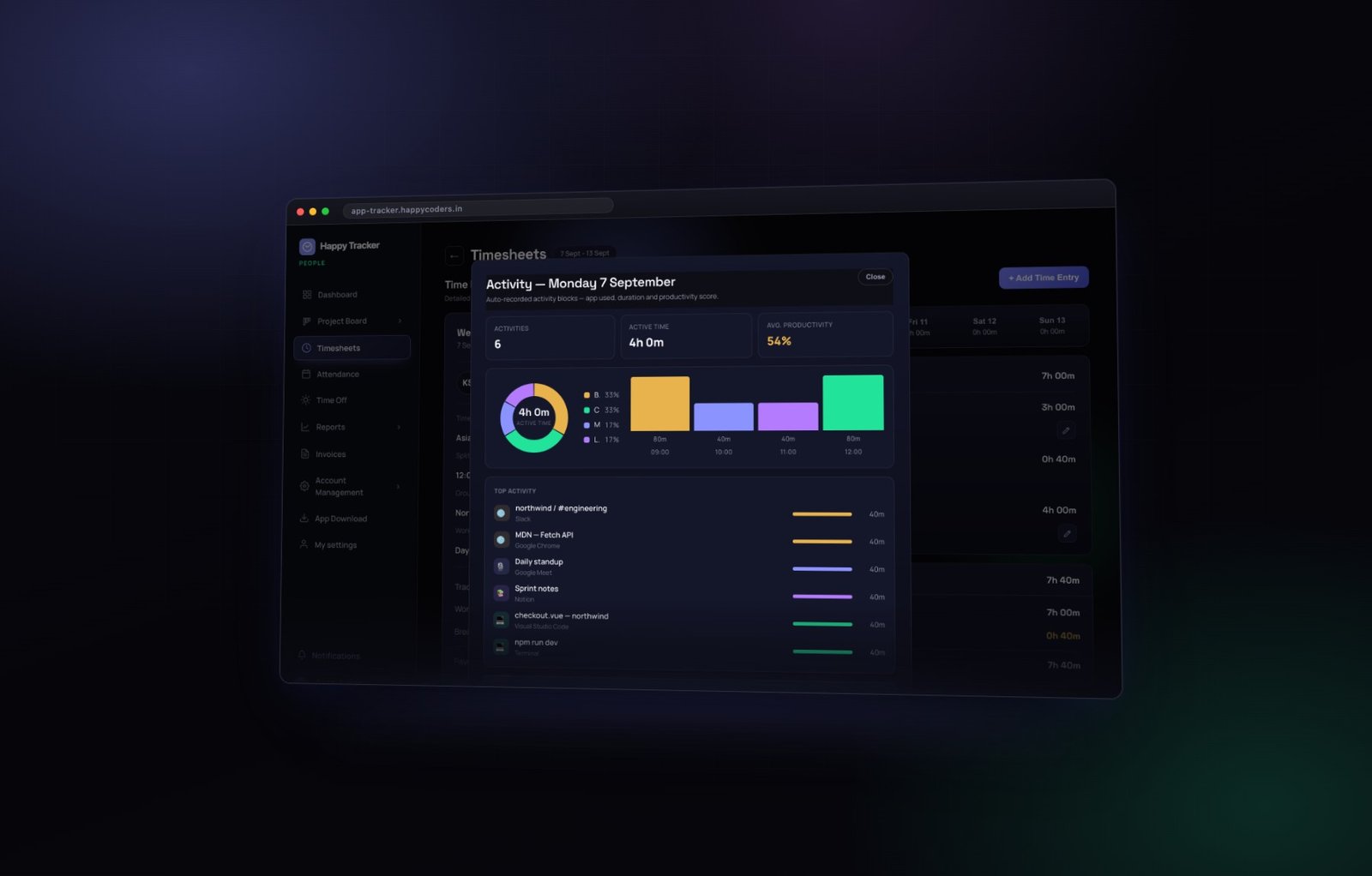
Ask somebody to track for an hour, then open their day activity. You should see activity blocks with real application names and window titles. If the panel is empty while the hours are there, the tracker is running without the access it needs.
A quick diagnosis table
- Hours, no activity at all — Accessibility permission missing on macOS, or the app is an old build.
- Activity, no screenshots — either screenshots are off for the organisation, or Screen Recording was granted without restarting the app.
- Screenshots of the wrong screen — on Ubuntu, the wrong display was chosen at the first capture prompt.
- Nothing at all, timer will not start — check whether the organisation requires the desktop app and the person is trying the browser.
- Everything stops after a few minutes — idle auto-off set too short.
What good looks like after a fortnight
- Everybody has the app installed and signed in on their own machine.
- Nobody is showing hours with zero activity — that means permissions are granted everywhere.
- People are switching task during the day rather than tracking one long block.
- Breaks are being used rather than the timer left running through lunch.
- Nobody has needed to ask what is being recorded, because you told them before you started.
If all five are true you can start relying on the reports. If any of them is not, fix that first — every report downstream is only as good as what the tracker was allowed to see.
Running the rollout
The difference between a rollout that finishes in a day and one that drags for three weeks is almost entirely about doing it together rather than one person at a time.
- Send the App Download link to everybody at once, with a short note about what the app records and when it stops.
- Ask people to install and sign in on the same day, so problems surface together and you solve each one once.
- Check the activity report the next morning. Anybody showing hours but no activity has missed a permission — catch it in week one, not month three.
- Watch for anybody still clocking in from the browser after a few days. Usually it means the install did not work rather than that they are avoiding it.
- Only then decide whether to require the desktop app for clocking in. Turning that on before everybody has it installed locks out the people who most need help.
A note for the person running it
Expect one or two machines to be awkward. An old Mac that needs an OS update, a locked-down corporate Windows build, a Linux desktop with an unusual display setup. Budget for that rather than treating it as a failure of the rollout.
The desktop apps are included on every plan, including the free one for up to five users. See the platforms.