Nobody targeted your site. That is the first thing worth understanding, and it usually comes as a relief and a disappointment at the same time. WordPress runs something like four in ten websites, which makes it worth automating an attack against. Scripts crawl the entire internet, testing every site they find for the same short list of known holes, and they do not know or care whose business is on the other end.
Which is good news, because a fully automated attack is also fully preventable by a short list of boring measures. We have cleaned up a number of these — for clients, and once memorably for a friend’s pharmacy site that had been quietly serving casino links to Google for six weeks. Every single one traced back to something on the checklist below.
This is not an alarming post. It is the list, in the order that matters, plus how to tell whether it has already happened to you.
How sites actually get in trouble
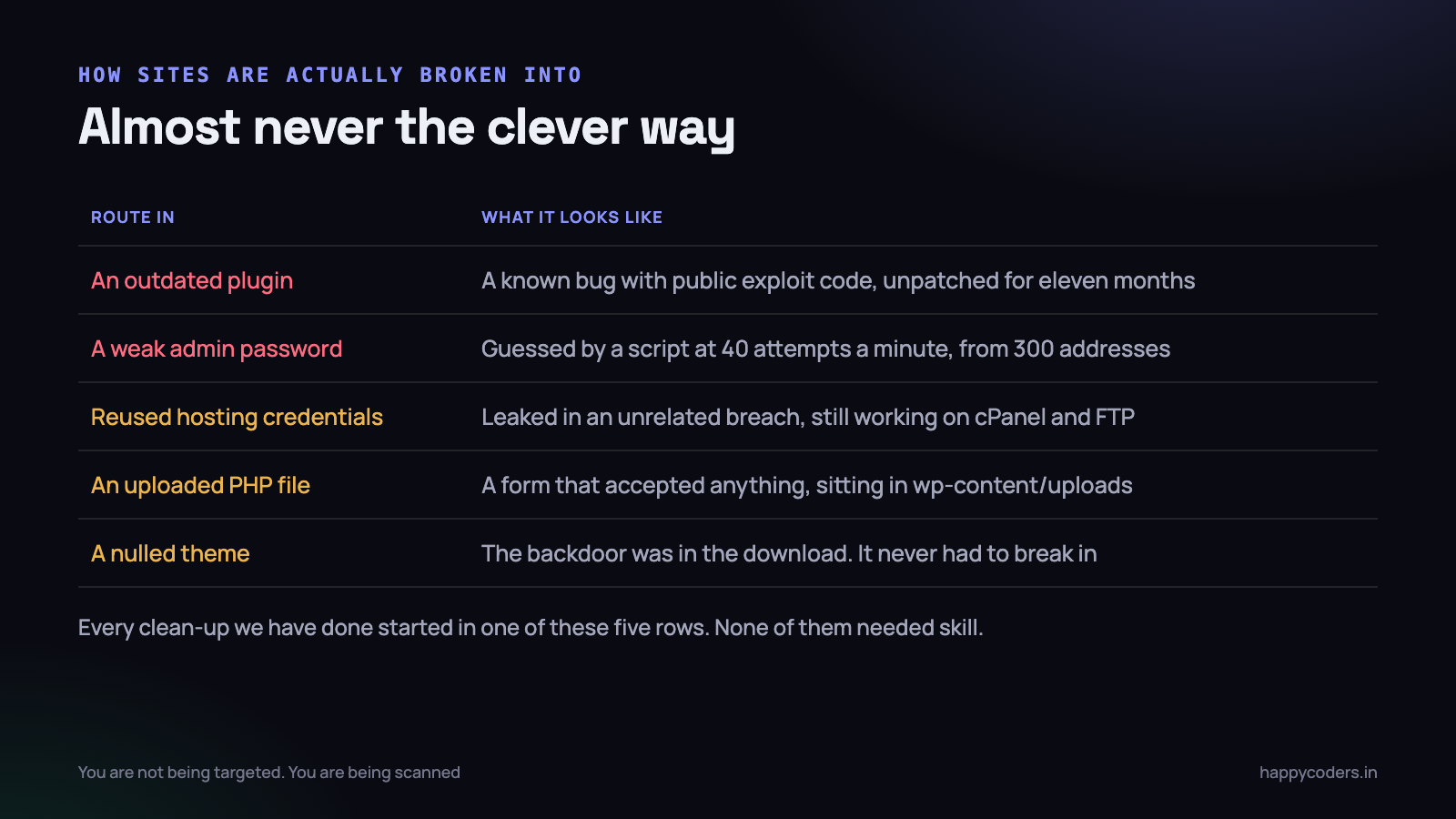
Real break-ins are dull. There is no clever exploit chain, and the attacker never looked at your site before the script did.
An outdated plugin
This is the big one, by a wide margin. A plugin ships a security fix. The fix is public, because responsible disclosure means the details get published a few weeks later. Within days there are scanners testing every WordPress site on the internet for that exact version.
Your site is running the version from eleven months ago, because updating felt risky and nothing was obviously broken. A scanner finds it in an afternoon sweep, and you are not hacked by a person — you are hacked by a cron job.
A weak or reused admin password
Login pages get hammered constantly. A modest site will see hundreds of attempts a day, spread across many addresses so no single one looks unusual. The passwords tried are from public breach lists, ordered by how often they worked elsewhere.
If your admin password is your company name and a year, it will be tried in the first hundred attempts. If it is a strong password you also use on a forum that got breached in 2021, it is already on the list.
Reused hosting credentials
Your cPanel, FTP and database passwords are not part of WordPress and are often forgotten entirely. They were set once during setup, written into a client email, and never changed. Anyone with FTP access does not need to defeat any WordPress security at all — they can edit the files directly.
A stray uploaded PHP file
A form plugin that accepted file uploads without checking what was in them. A theme feature that let contributors upload “documents”. A file manager plugin installed for one job in 2022 and never removed. The result is a PHP file sitting in wp-content/uploads that the web server will happily execute when someone requests it.
This is the same class of problem we covered in PHP file upload security — the checks most tutorials start with are the ones that do nothing.
A nulled theme or plugin
A premium theme downloaded free from a site that removed the licence check. Something else was added while the licence check was being removed. This one never needs to break in, because you installed it yourself and gave it full access to your database.
If a site runs a nulled plugin, no amount of hardening helps. The attacker is already inside, invited, running with full privileges. Replace it with a legitimate copy or remove it — that is the entire fix.
The checklist
Nine items. Most take a few minutes. Done properly, they close every route above.
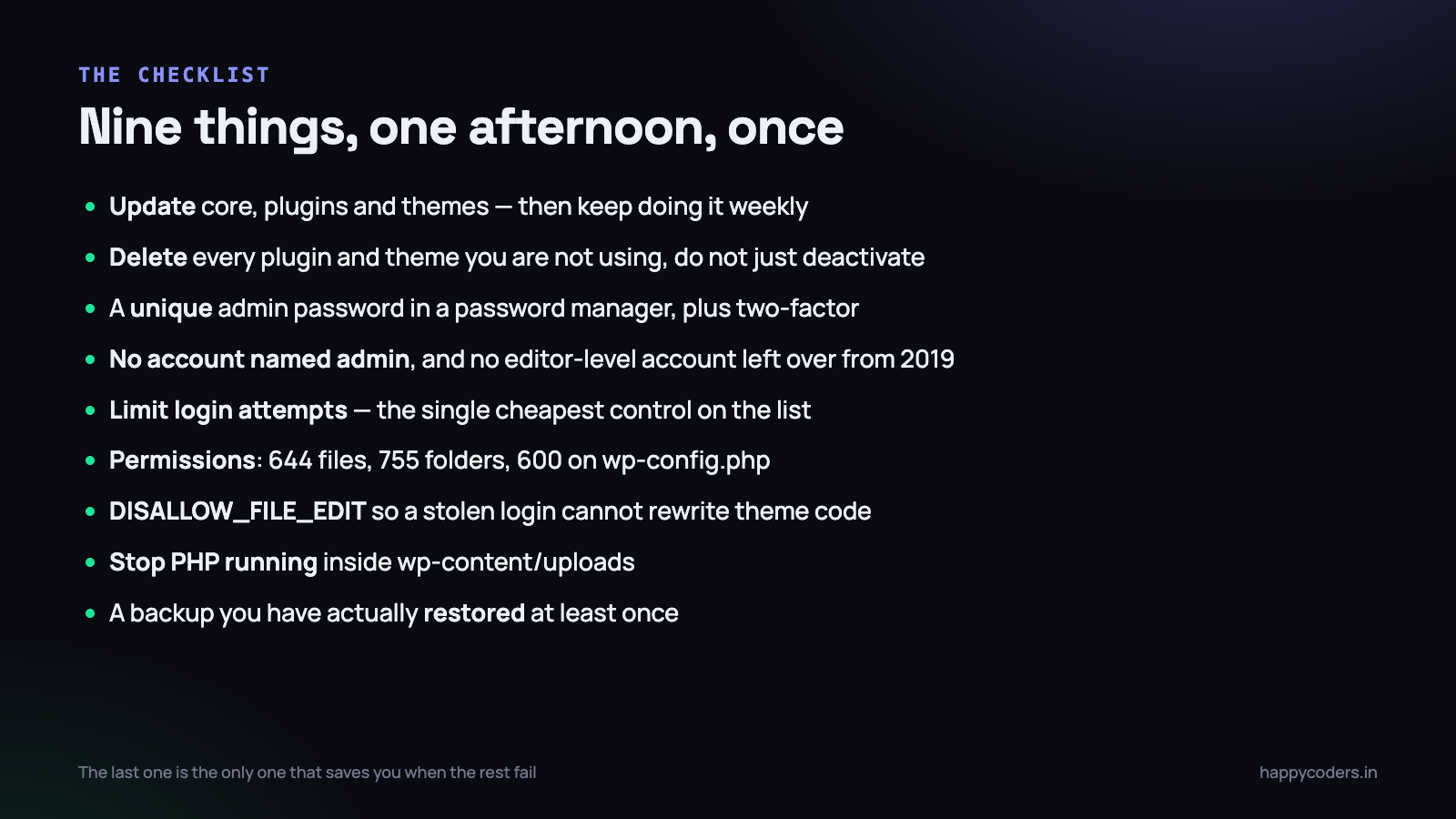
1. Update everything, and keep updating
Core, plugins, themes, and the PHP version underneath. The fear of updates breaking a site is understandable and mostly solved by having a backup you trust and updating in small batches rather than all at once after a year of avoidance.
Enable automatic updates for core minor releases and for plugins you have no customisations in. Check the rest weekly. Ten minutes on a Monday, permanently, is less work than one clean-up.
Delete abandoned plugins outright. If the last update was three years ago, it is not stable — it is unmaintained, and the next disclosed bug in it will never be fixed.
2. Delete what you are not using
Deactivated is not removed. The files are still on disk, still reachable by URL, and still vulnerable. A deactivated plugin with a known hole in it can still be exploited on many configurations.
Remove every plugin you are not using. Remove every theme except the active one and one default fallback. A typical site we look at has twenty-six plugins installed and eleven doing anything.
3. One unique, strong admin password
Generate it in a password manager, twenty characters, never used anywhere else, never sent over WhatsApp. Then turn on two-factor authentication for every administrator account. A free plugin does this in five minutes, and it makes password guessing irrelevant even if your password does leak.
4. Audit the user list
Go to Users and read every row. Delete accounts belonging to people who left. Demote anyone who does not need to install plugins — an Editor cannot install code, an Administrator can. Get rid of any account literally called admin, which halves the work for a guessing script by removing the username half of the problem.
Check what each account’s email address is, too. An attacker who gains access sometimes changes an existing admin’s email rather than creating a new account, precisely because a new user is easier to spot.
5. Limit login attempts
The cheapest control on the list. A plugin that locks out an address after five failed attempts turns password guessing from a viable attack into a waste of the attacker’s time. It also shows you the attempts in a log, which is useful on its own.
Do not rename the login page and consider that a security measure. It reduces noise in your logs and stops nothing, because the endpoint is still reachable.
6. File permissions
The rule is 644 for files, 755 for directories, and 600 or 640 for wp-config.php. Anything set to 777 is a problem — it means any user on that server, including another compromised account on shared hosting, can write to it.
# From the WordPress root, over SSH
find . -type f -exec chmod 644 {} \;
find . -type d -exec chmod 755 {} \;
chmod 600 wp-config.php

# Find anything world-writable, which should be nothing
find . -perm -o=w -not -path "./wp-content/cache/*"
7. Turn off the built-in file editor
WordPress lets an administrator edit theme and plugin PHP from the dashboard. That means a stolen admin login is not just a content problem — it is the ability to write arbitrary code on your server through a browser.
Two lines in wp-config.php, above the “stop editing” comment, and you lose nothing you use in practice.
define('DISALLOW_FILE_EDIT', true);   // no theme/plugin editor
define('DISALLOW_FILE_MODS', true);   // no installs or updates from the dashboard
The second line is stricter and worth it on a site you deploy to properly. Skip it if the client installs their own plugins, because it will block their updates too.
8. Stop PHP executing in the uploads folder
This single rule neutralises the uploaded-shell route entirely. Even if a bad file gets written into wp-content/uploads, requesting it returns a 403 instead of running it. Put a .htaccess file in that folder on Apache.
# wp-content/uploads/.htaccess
<Files *.php>
  Require all denied
</Files>
On nginx the equivalent goes in the server block, denying PHP handling for anything under the uploads path. Either way, test it afterwards by uploading a harmless text file renamed to .php and confirming you get a 403 rather than a blank page.
9. A backup you have actually restored
This is the one that saves you when everything else fails, and it is the one most often untested. A backup nobody has ever restored is a hope, not a backup. We have seen daily backups running faithfully for two years that turned out to contain files but no database.
- Store it off the server. A backup in the same hosting account is gone when the account is.
- Keep several. A site can be compromised weeks before anybody notices. A single most-recent backup may contain the problem.
- Test a restore once. Restore to a staging subdomain, log in, click around. Put a calendar reminder to repeat it every six months.
- Know how long it takes. “About two hours” is a useful thing to be able to tell a client at 9pm.
If you have not set this up at all, our walkthrough on backing up a WordPress site covers the mechanics.
Your hosting account is part of the site
One thing the checklist above does not cover, because it sits outside WordPress entirely. On cheap shared hosting it is common to run five or six client sites in one account, all under one public_html. That is convenient and it means all of those sites share a security boundary.
One outdated plugin on the least important site in that account gets an attacker file access to every other site in it. We have seen exactly this — a dormant site nobody had touched in two years was the way in, and four live sites were reinfected from it twice before anyone thought to look at the neighbour.
- One site, one hosting account, or at least separate Linux users. It costs a few hundred rupees a month more and it contains the damage.
- Delete sites you no longer run. An old campaign microsite is pure liability once nobody is updating it.
- Keep PHP current. Hosts leave old versions available for compatibility, and an unsupported PHP version stops getting security fixes entirely.
- Check who has hosting access. The developer who built the site in 2021 very likely still has the cPanel password.
Am I already compromised?
Worth checking tonight, whether or not anything looks wrong. Most compromised sites look completely normal to their owner, because the point is usually to serve spam links to search engines or redirect only mobile visitors arriving from Google. The owner, logged in on a desktop, sees nothing at all.
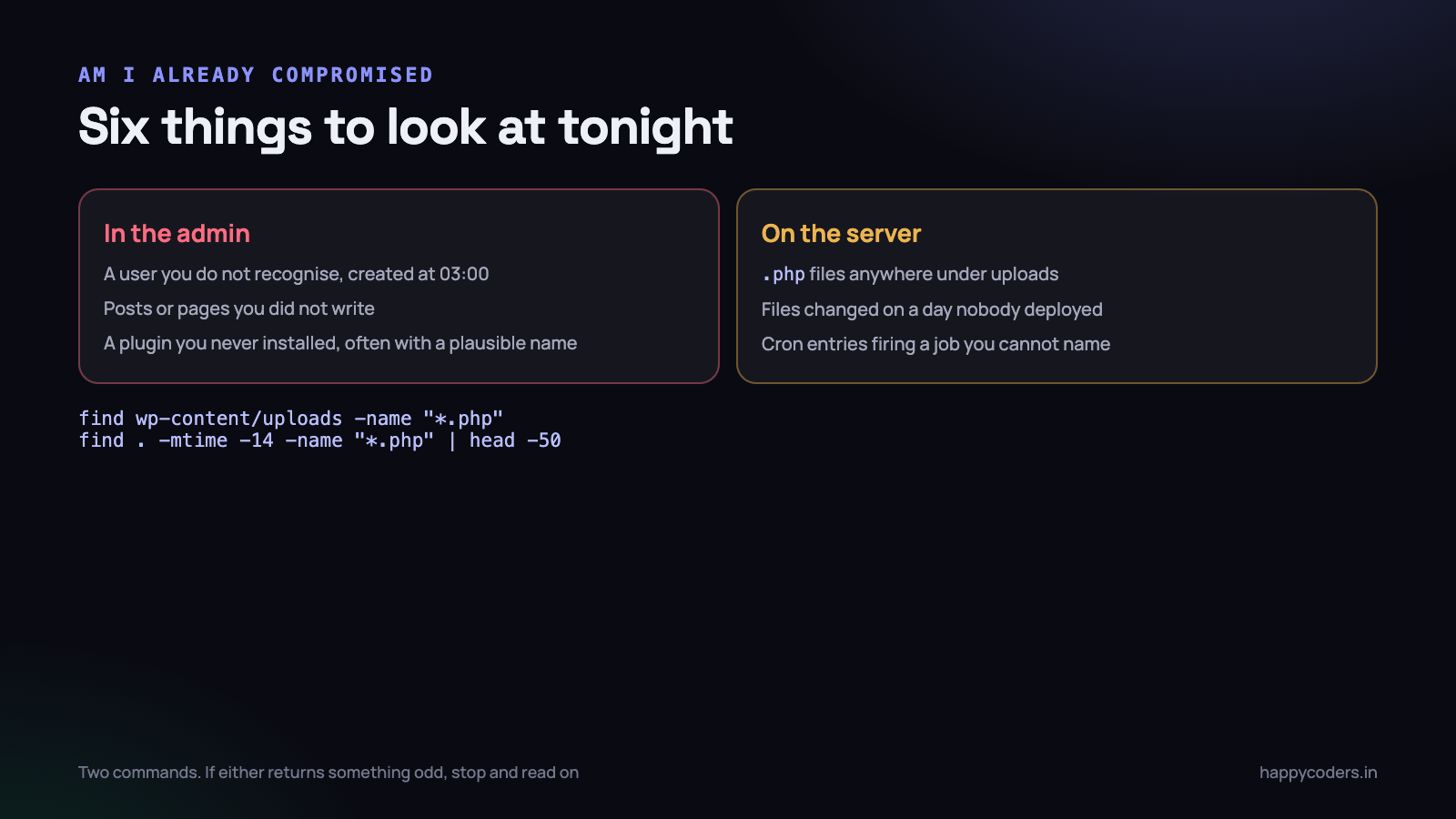
- An administrator you do not recognise. Sort Users by registration date and look at the newest. An account created at 3am that nobody remembers creating is the clearest signal there is.
- Posts or pages you did not write. Check for drafts as well as published items, and look at the total post count against what you expect.
- A plugin you never installed. They are usually given dull, plausible names. If you cannot remember installing it and cannot find it in the plugin directory, that is your answer.
- PHP files under uploads. There should be zero. This is the highest-value check on the list and takes one command.
- Files modified on a day nobody deployed. Core files especially — those change only when WordPress updates.
- Unexpected scheduled tasks. A cron entry firing a function you cannot trace is how re-infection survives a clean-up.
# Any PHP under uploads: should print nothing
find wp-content/uploads -name "*.php"

# What changed in the last 14 days
find . -name "*.php" -mtime -14 -not -path "./wp-content/cache/*" | head -50

# Compare core against the official release
wp core verify-checksums
That last command is the most useful single thing in this post. WP-CLI compares every core file against the official checksums and lists anything altered or added. On a clean site it prints one line saying the checksums match.
Also test what a stranger sees. Open your site in a private window from a phone on mobile data, and search for your business name on Google to check what the results actually show. Redirects that only fire for visitors arriving from search are common precisely because the owner never triggers them.
If it has happened, do this in order
The order matters far more than the speed. The most common mistake is rushing to delete suspicious files, which destroys the evidence you need to find out how they got there — and guarantees a repeat.
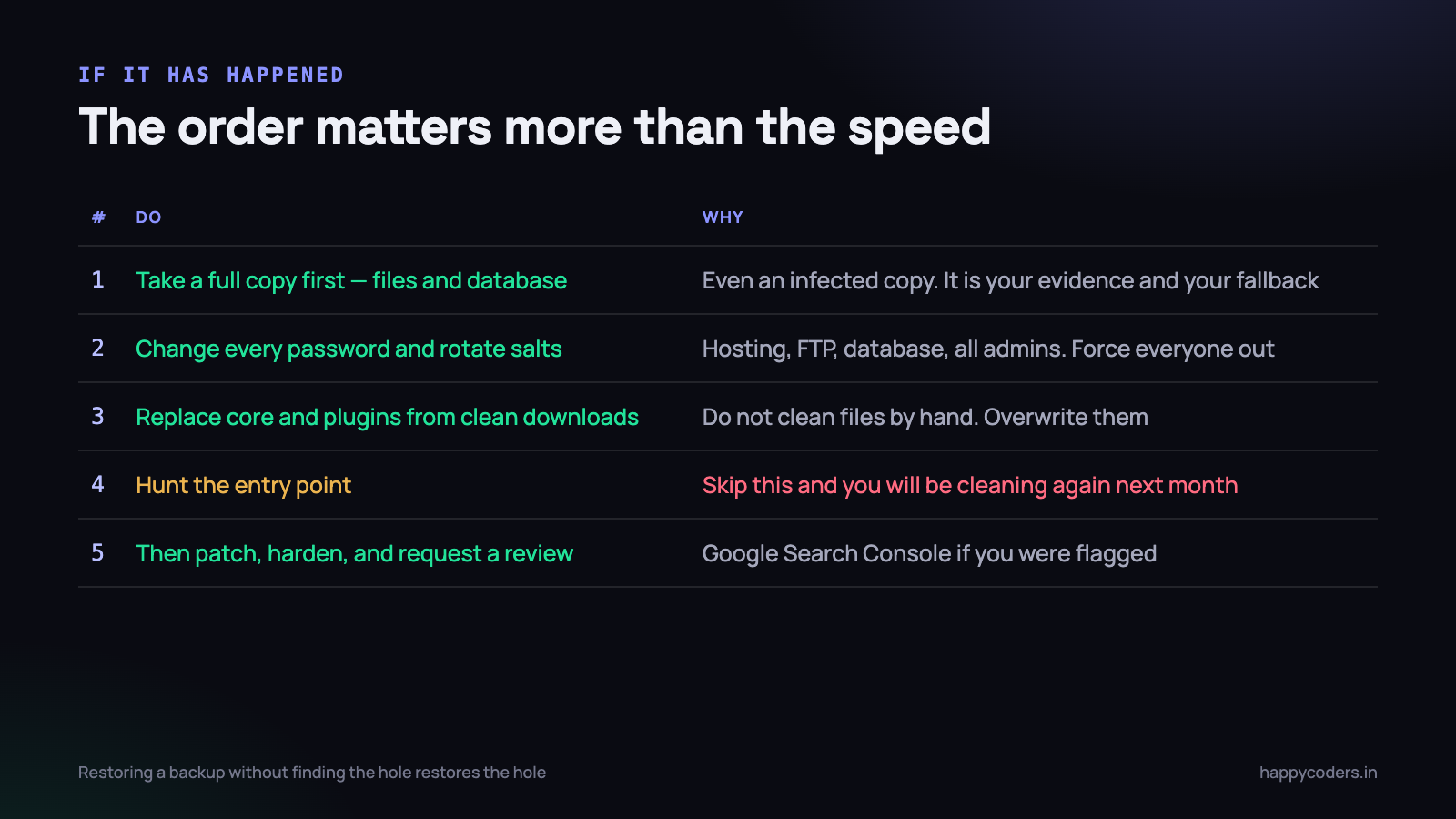
- Take a complete copy first. Files and database, infected and all, downloaded off the server. This is your evidence, your ability to recover a page you delete by mistake, and your record of timestamps.
- Take the site offline if it is serving malware. A maintenance page for a few hours is better than search engines indexing spam or visitors getting warnings.
- Change every password. Hosting, FTP, SSH, database, every WordPress administrator. Then rotate the authentication salts in
wp-config.php, which invalidates every existing session and throws out anyone logged in with a stolen cookie. - Replace rather than clean. Delete
wp-adminandwp-includesentirely and reinstall core from a fresh download. Reinstall every plugin and theme from official sources. Do not try to find and remove injected lines by hand — you will miss one. - Find the entry point. Read the access logs around the modification date of the earliest changed file. Look for POST requests to odd paths. This step is the one people skip, and skipping it means the same hole is still open.
- Clean the database. Check the options table for injected script tags, check for unexpected users, and check the scheduled tasks. Do this after the files, because a file can recreate a database entry.
- Harden, then ask for a review. Work the checklist above properly. If Google flagged the site, request a review in Search Console once it is actually clean, not before.
If the site handles payments, customer records or anything regulated, involve somebody who does this professionally and preserve the logs. A clean-up and an investigation are different jobs, and doing the first one badly makes the second impossible.
What is not worth your time
A fair amount of standard WordPress security advice is theatre. It costs effort, gives a feeling of progress, and stops nothing.
- Hiding the WordPress version number. A scanner identifies WordPress and its version from a dozen other signals. This only stops a human doing it by hand, and no human is doing it by hand.
- Changing the database table prefix on an existing site. Fiddly, risky, and it defends against one narrow injection scenario you should be preventing properly anyway.
- Moving the login URL. Quieter logs, same exposure. Rate limiting and two-factor are the controls that work.
- Installing four security plugins. They conflict, they duplicate work, they slow the site, and each one is another body of code that can itself have a vulnerability. Pick one and configure it.
What to do on Monday morning
Two hours once, then ten minutes a week. That is the whole commitment.
- Run the three commands in the detection section. Twenty minutes, and you will know where you stand.
- Update everything, after taking a backup. Then set core minor updates to automatic.
- Delete every unused plugin and theme. Not deactivate — delete.
- Read the user list and remove or demote everybody who should not be an administrator.
- Install one login-limiting plugin and turn on two-factor for admins.
- Add the two
wp-config.phplines and the uploads rule. - Restore your latest backup to a staging subdomain and log into it. If you cannot, you do not have a backup, and that is the most important thing you will learn all week.
- Put a recurring ten-minute slot in the calendar for updates. The habit is what keeps the site safe; the afternoon of hardening only gets you to the starting line.
None of this is difficult and none of it is expensive. It is simply the kind of maintenance that has no visible result, right up until the week it is the only thing standing between a working business and a fortnight of unpaid clean-up.