
Pages Outside WordPress, Inside Your Sitemap
Our company site runs on WordPress, and for most of it that is fine: blog posts, service pages, a contact form. But when we rebuilt the pages for our own products, we did not build them in WordPress. They are plain HTML files in a folder called /product/, each one 12–40 KB, with no page builder, no theme and no plugins in the way.
That decision was the easy part. The work was everything around it: making WordPress’s sitemap know the pages exist, retiring the old WordPress versions without losing their search traffic, and stopping the theme and caches from getting in the way. This is the checklist we ended up with — it applies to any static folder you put next to a WordPress install, whether that’s a landing page, a microsite or a set of product pages.
Why put pages outside WordPress at all?
Our product pages had been ordinary WordPress pages. On a phone they looked like what they were: a blog post with a product name at the top. The design we wanted — full-width colour, a sticky download button, tables you swipe sideways, a different accent colour per product — was fighting the theme at every step.
- Design freedom. A plain HTML page has exactly the CSS you give it. Nothing from the theme leaks in.
- Speed. No PHP, no database, no plugin hooks — the web server just sends a file.
- Content as code. Our pages are generated by a short script from one data file, so a fact that changes (a price, a version number) changes on every page at once.
The trade-off is that WordPress no longer knows these pages exist. Everything below is about putting that knowledge back.
Step 1: check the folder name is free
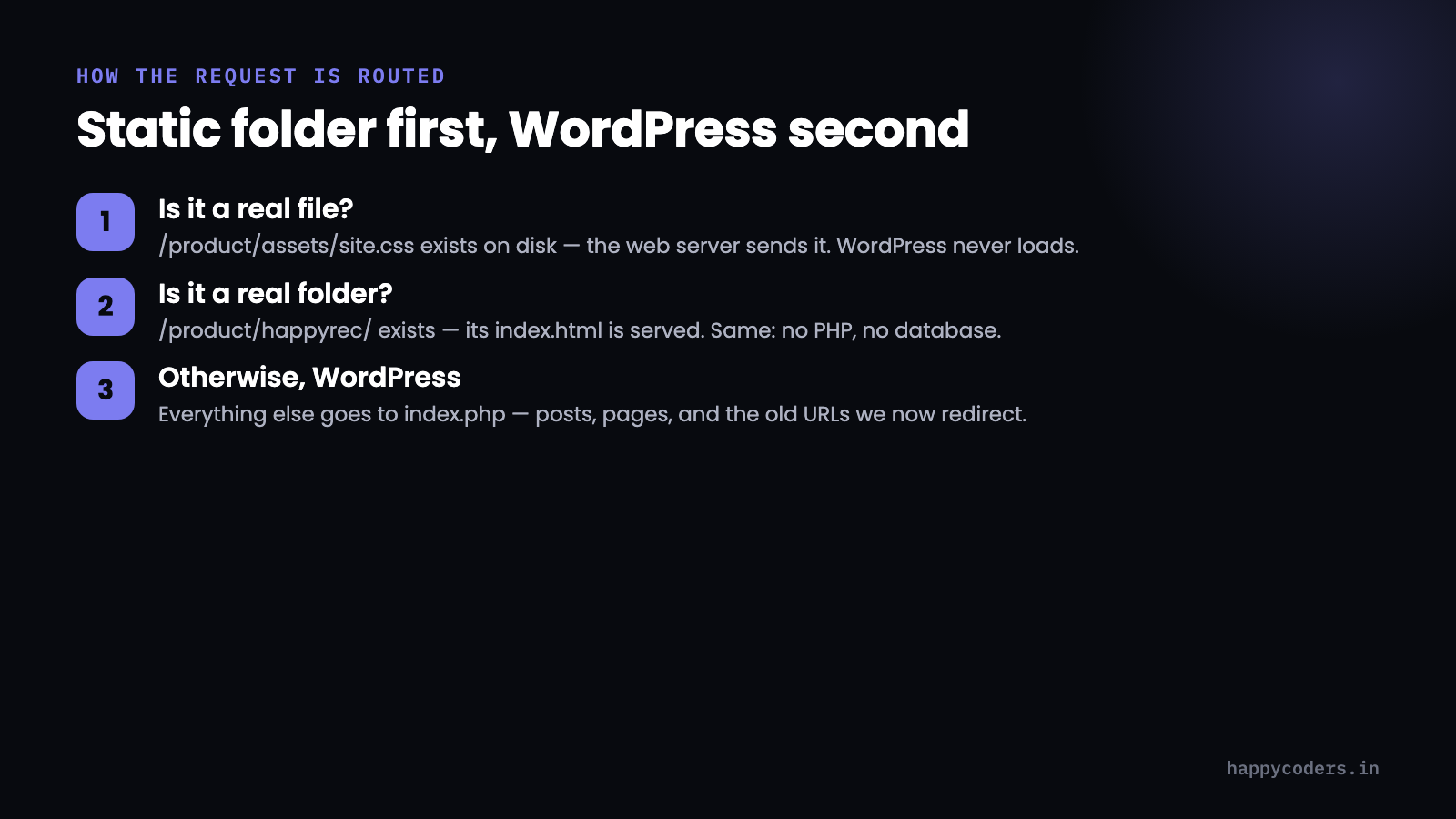
A standard WordPress .htaccess only hands a request to WordPress when no real file or folder matches it:
RewriteCond %{REQUEST_FILENAME} !-f
RewriteCond %{REQUEST_FILENAME} !-d
RewriteRule . /index.php [L]
That is what makes a static folder work — the web server finds /product/ on disk and serves it without WordPress ever loading. It is also a trap. A real folder silently wins over a WordPress page with the same slug. Our site already had folders called /happyrec/ and /happytracker/ from older work, and an earlier WordPress page we had tried to put at one of those addresses was simply invisible: the URL returned a 200, but with the wrong page. Before choosing a folder name, list the directories in your web root and search your pages for the slug.
Step 2: give the folder its own sitemap
Yoast builds its sitemaps from WordPress content, so it will never list a file it didn’t create. The cleanest fix is to let the static folder describe itself. Our build script writes a small /product/sitemap.xml next to the pages, listing every URL with the date it last changed:
<?xml version="1.0" encoding="UTF-8"?>
<urlset xmlns="http://www.sitemaps.org/schemas/sitemap/0.9">
  <url><loc>https://www.happycoders.in/product/</loc><lastmod>2026-11-23</lastmod></url>
  <url><loc>https://www.happycoders.in/product/happy-tracker/</loc><lastmod>2026-11-23</lastmod></url>
  ...
</urlset>
Step 3: add it to Yoast’s sitemap index
Search engines usually discover sitemaps through the index Yoast publishes at /sitemap_index.xml, which is also what your robots.txt points to. Yoast has a filter for adding extra entries to that index. We put it in a must-use plugin:
<?php
/**
 * Plugin Name: Product pages in the sitemap
 */
add_filter('wpseo_sitemap_index', function ($xml) {
    $file = ABSPATH . 'product/sitemap.xml';
    if (!is_readable($file)) return $xml;
    $mod = gmdate('c', filemtime($file));
    return $xml . "<sitemap><loc>https://www.example.com/product/sitemap.xml</loc>"
                . "<lastmod>{$mod}</lastmod></sitemap>";
});
Two details matter. The lastmod comes from the file itself, so it is always honest. And the code checks the file exists first, so deleting the folder later can never leave a broken link in your index.
Why a must-use plugin and not functions.php
The usual advice is “add this to your theme’s functions.php“. We avoid that for anything the site depends on:
- A theme update can overwrite
functions.phpand silently remove your change. - Switching themes removes it too, and nobody thinks to look there.
- A file in
wp-content/mu-plugins/loads automatically on every request, cannot be deactivated by accident from the Plugins screen, and survives both.
It is one PHP file. Removing the behaviour is deleting that file.
Step 4: retire the old pages without losing them
We already had WordPress versions of these product pages. Leaving them up would mean two pages saying the same thing at two addresses — search engines have to guess which one is the real one, and they often guess badly. Deleting them would break every link and bookmark pointing at them.
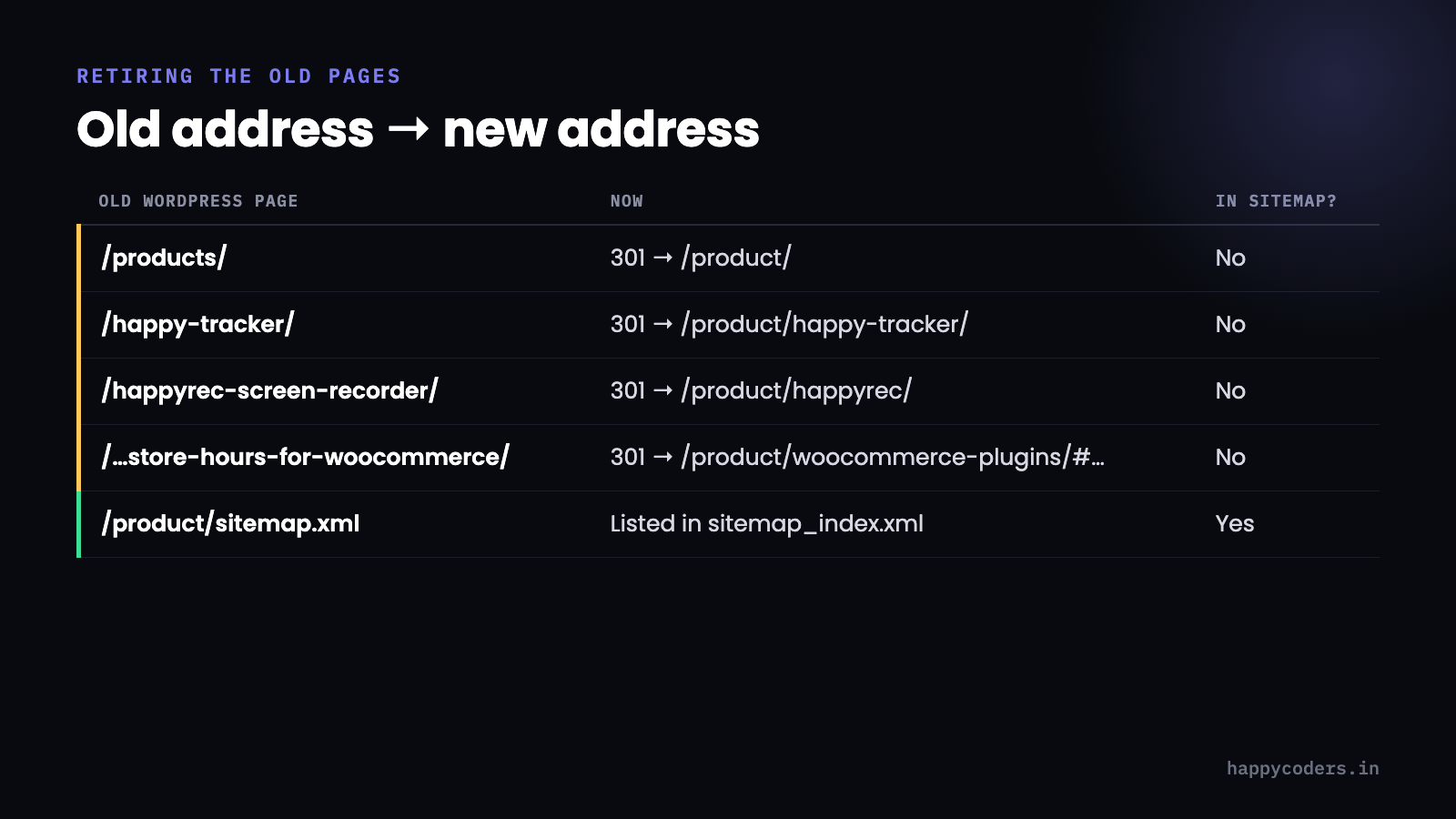
The answer is a permanent redirect from each old page to its new address. We did it in the same must-use plugin, keyed by the page’s slug and its ID, so a future page that happens to reuse a slug is not caught by accident:
const REDIRECTS = [
    'products'                 => '/product/',
    'happy-tracker'            => '/product/happy-tracker/',
    'happyrec-screen-recorder' => '/product/happyrec/',
];
const OLD_IDS = [3882, 3883, 3884];

add_action('template_redirect', function () {
    if (!is_page()) return;
    $id   = get_queried_object_id();
    $slug = get_post_field('post_name', $id);
    if (isset(REDIRECTS[$slug]) && in_array($id, OLD_IDS, true)) {
        wp_redirect(home_url(REDIRECTS[$slug]), 301);
        exit;
    }
}, 1);
Plugin pages that were merged into one new page redirect to an anchor on it — /product/woocommerce-plugins/#store-hours — so a visitor lands on the right section, not the top of a long page.
Step 5: take the old pages out of the sitemap
A redirected page should not be in your sitemap; you would be telling search engines “please index this” about a URL that says “I’ve moved”. Yoast has a filter for excluding posts by ID:
add_filter('wpseo_exclude_from_sitemap_by_post_ids', function ($ids) {
    return array_values(array_unique(array_merge((array) $ids, OLD_IDS)));
});
We kept the old pages as published WordPress content rather than deleting them. If we ever need to roll back, removing the plugin brings everything back exactly as it was.
Step 6: point the menu at the new pages
WordPress menus link to pages by ID, so after the redirect the menu still points at the old pages — every click would bounce through a 301. Replace those menu items with custom links to the new addresses. Visitors get there directly, and you stop sending your own internal links through a redirect.
Step 7: version your CSS by its content, not the date
This one caught us on the same day. Our stylesheet link carried the date as a version — site.css?v=2026-11-23 — so browsers would fetch a fresh copy each day. Then we redesigned the pages twice in one afternoon. The URL didn’t change, so anyone who had visited that morning kept the old CSS and saw a half-old, half-new page.
The fix is to version the file by a hash of what is in it. The build script computes it:
import hashlib
CSS_V = hashlib.md5(open("site/product/assets/site.css", "rb").read()).hexdigest()[:10]
# <link rel="stylesheet" href="/product/assets/site.css?v={CSS_V}">
Now the link changes exactly when the stylesheet changes, and never otherwise. Browsers can cache it for as long as they like.
Step 8: flush the page cache — but know which cache
A WordPress caching plugin caches WordPress pages: the homepage, the menu, the old product pages. It does not cache your static HTML at all, because WordPress never sees those requests. So after a change:
- Changed the static pages? Nothing to flush on the WordPress side. The browser cache is handled by the hashed CSS link.
- Changed the menu, redirects or homepage? Flush the WordPress page cache, or visitors keep seeing the old menu until it expires.
Step 9: bring along what the theme used to add
A WordPress page gets a lot for free from the theme’s header and footer, and most of it is invisible until it is missing. A static page gets none of it. Before you call the move finished, list what the theme was quietly adding and decide, one item at a time, whether the new pages need it:
- Analytics. Your Google Analytics tag lives in the theme or a plugin. Without it, the new pages are invisible in your reports — which looks exactly like “nobody visits them”. Paste the same tag into the static template.
- The favicon and app icons. Point them at the same files WordPress uses, so the browser tab doesn’t suddenly show a blank page icon.
- Chat widgets, cookie notices, call buttons. If your WordPress site shows a WhatsApp button or a cookie banner on every page, the static pages won’t unless you add it. Sometimes that’s a relief; it should still be a decision.
- Structured data. An SEO plugin adds organisation and breadcrumb markup automatically. Write your own — for product pages, a
SoftwareApplicationblock, aBreadcrumbListand, if the page has questions and answers, anFAQPage. - Canonical and social tags. Each page needs its own canonical URL and Open Graph title, description and image, or shares will show a bare link.
If you don’t use Yoast
The sitemap filter above is specific to Yoast, but the idea isn’t. Two approaches work everywhere:
- List both sitemaps in robots.txt. The robots.txt standard allows more than one
Sitemap:line. Add a second line pointing at your folder’s own sitemap, next to the one your SEO plugin (or WordPress itself) already publishes. - Submit it directly in Google Search Console. Add the folder’s sitemap URL on the Sitemaps screen. It takes a minute, and Search Console will tell you how many of its pages it has indexed — the quickest way to confirm the move worked.
Other SEO plugins have their own hooks for adding external sitemaps to their index; look for one before reaching for functions.php.
The checklist
- Confirm the folder name doesn’t collide with an existing folder or page slug.
- Generate a
sitemap.xmlinside the folder with reallastmoddates. - Add it to Yoast’s index with
wpseo_sitemap_index, in a must-use plugin. - 301 every old page to its new address — by slug and ID.
- Exclude the old pages from the sitemap with
wpseo_exclude_from_sitemap_by_post_ids. - Replace menu items with direct links.
- Version CSS and JS by content hash.
- Flush the WordPress cache when WordPress-side things change.
Then open /sitemap_index.xml and check the new sitemap is listed, request one old URL and check it answers 301, and load the new page on a phone.
You can see the result at happycoders.in/product. If you want a fast, hand-built section like this on your own WordPress site, talk to us.
Related articles

How to Set Up WordPress
WordPress is a popular CMS used to build websites easily without coding. To set it up, download WordPress from the official site and place i…

How to Install a Theme in WordPress
Installing a theme in WordPress is simple and user-friendly.Go to Appearance → Themes in your WordPress dashboard.Click “Add New” to browse …

How to Host a Website Using WordPress
Hosting a website using WordPress is simple and beginner-friendly. Start by choosing a reliable web hosting provider and registering a domai…