
Desktop App or Browser: Deciding Where Your Team Can Clock In
One day a manager opened the team’s screenshots for the day and found almost nothing. Five people had worked a full day. Only one of them had any screenshots or activity at all. The first question was the obvious one: is the tracker broken?
It wasn’t. Four of the five had clocked in from a web browser instead of the desktop app. One person had clocked in from the browser 22 times in the previous 20 working days and never once from the app. Two of them had never clocked out either; the daily hours limit closed their sessions for them at the end of the day.
The browser did exactly what it was asked to do. It started a timer. It just can’t do anything else, and nobody had decided whether that was acceptable. This post is about making that decision on purpose: where your team is allowed to clock in, what each choice costs, and the one loophole that almost every “desktop only” rule has until someone finds it.
What the browser can and can’t do
Happy Tracker, like most time trackers, works in two places. The web app runs in any browser and handles everything you manage: timesheets, the sprint board, leave, reports, invoices. The desktop app — on Mac, Windows or Ubuntu — is a small tracker that sits in the background while you work.
Only the desktop app can see the computer. That is not a product decision; it is how browsers are built. A web page is not allowed to take screenshots of your screen, see which application you’re using or notice that the keyboard has been idle for forty minutes. So a session started in the browser records a start time and an end time, and nothing in between.
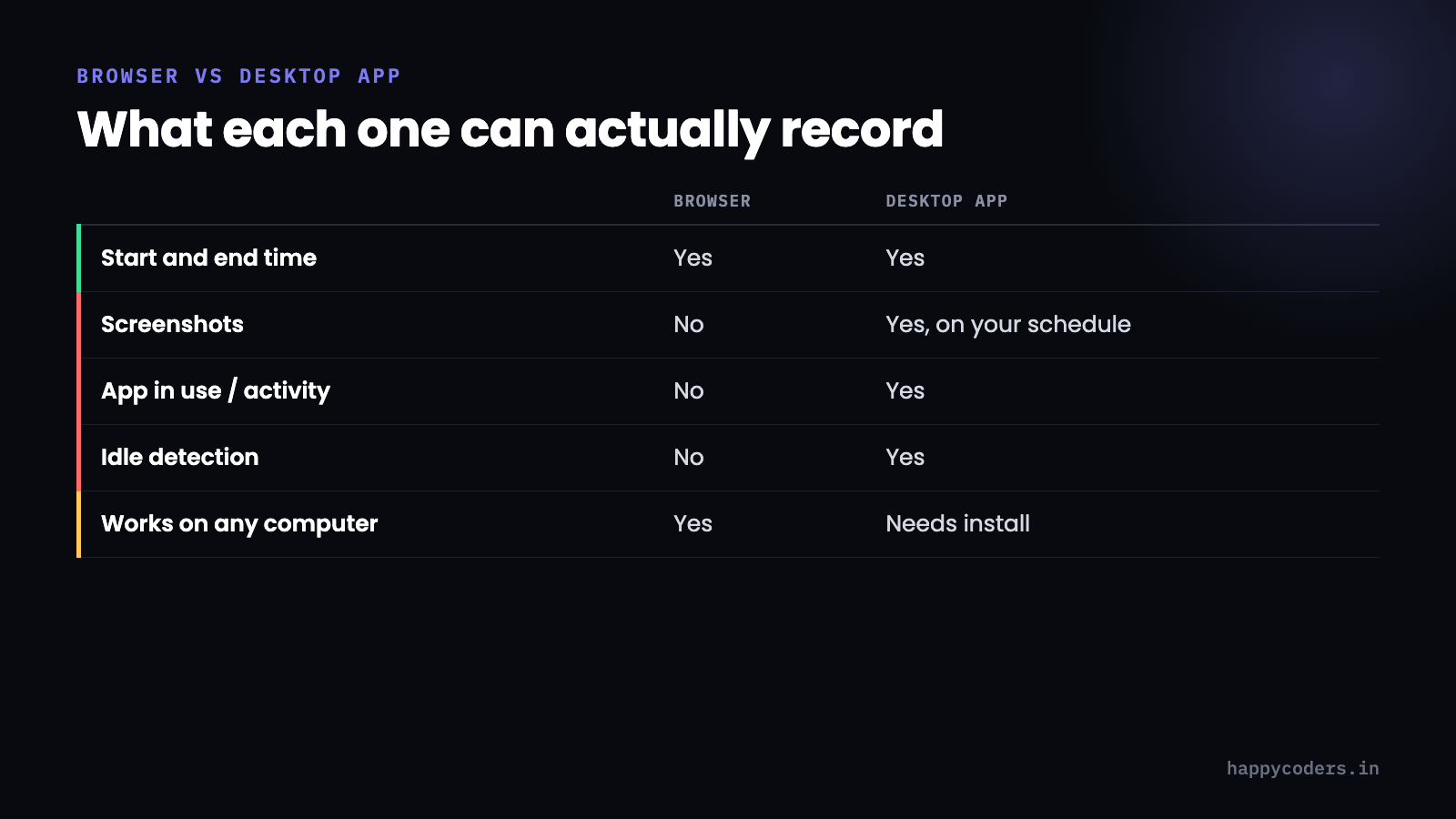
For some teams that is fine. If you track time for billing and trust your people, a timer is all you need, and a browser timer is the most convenient one there is. For others — teams that use screenshots and activity as proof of work for clients, or that have been burned by a timer left running in a forgotten tab — a browser clock-in is a gap in exactly the place they care about.
The three sensible policies
There are really only three choices, and each one suits a different kind of team.
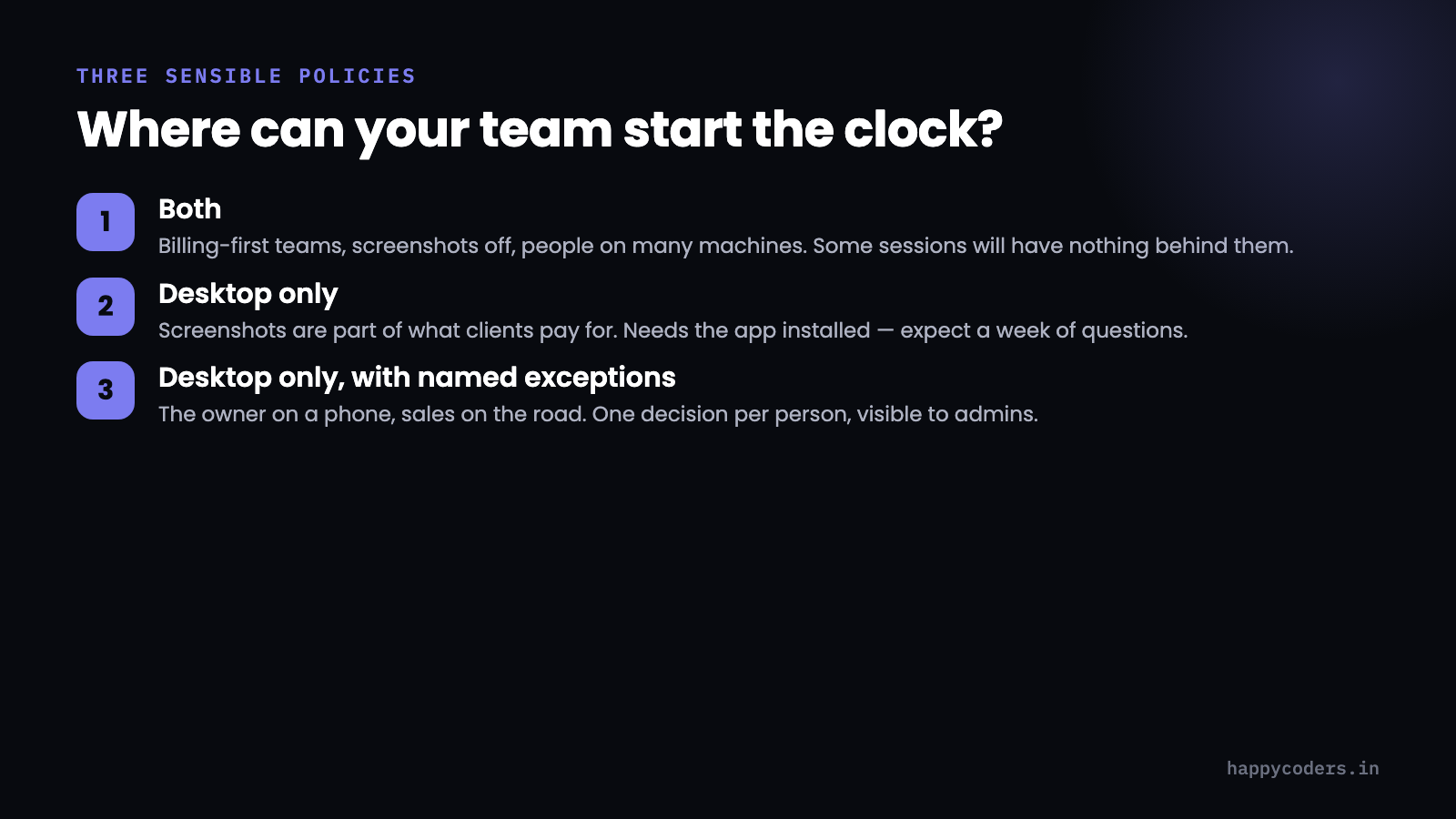
1. Both — browser and desktop
The default. Anyone can clock in anywhere. It’s the right choice when you track time mainly for billing and planning, when screenshots are off or optional, or when people work across many machines — a shared lab, a client’s laptop, a borrowed PC.
The cost: on any given day, some sessions have no activity behind them, and you won’t know which until you look.
2. Desktop only
Nobody can start a timer from the browser. The web app still works for everything else — people can see their timesheet, apply for leave, check the board — but clocking in happens in the tracker. This is the right choice when screenshots and activity are part of what you sell to clients, or part of how you manage a remote team.
The cost: people have to install the app, and the first week will produce some “I can’t clock in” messages.
3. Desktop only, with named exceptions
The company rule is desktop only, but specific people are allowed to use the browser. In practice this is where most teams end up. The owner who works from a phone between client meetings. A salesperson who is never at the same desk twice. Someone whose laptop is in for repair this week.
The exception is set per person, so it is a decision about one human being, visible to admins, rather than a hole in the rule that everyone can use.
The loophole: starting a timer is not only “Clock in”
Here is the part we learned the hard way. When we built the desktop-only rule, it blocked the browser’s Clock in button. That looked complete. A few weeks later a manager reported hours running with no screenshots for two people on a team that was set to desktop only — one of them had a five-hour gap, late morning to after four.
The cause took two clicks to reproduce. Clock in on the desktop app, which is allowed. Then open the browser and press Break, then Resume. Resuming from a break closes the old work session and opens a new one — and the new one was opened by the browser, so it was a browser session, with nothing recording it. The rule guarded the front door and left the side door open.
The fix was a principle rather than a patch: every action that starts the clock running must obey the rule — clock in, resume from a break, switch to another project. Each now checks where it was done from.
Just as important is what we deliberately did not block:
- Clocking out always works, from anywhere. A rule that can trap someone in a running session is worse than no rule.
- Starting a break always works, from anywhere. A break stops time accruing; there is nothing to police.
- Admins adding a manual entry still works. It’s a closed entry with a start and an end, and it’s how a manager fixes a forgotten day.
If you’re evaluating any time tracker that offers a desktop-only setting, this is the question to ask: what happens if someone resumes from a break in the browser?
When the desktop app is closed
There is a second gap, and no setting fixes it on its own. Suppose someone clocks in from the desktop app and then closes the app — or their laptop goes to sleep and never wakes. The session is open on the server, but nothing is reporting from the machine any more.
The answer is a rule on the server that notices silence. When the company has activity tracking switched on and the person is not one of the browser exceptions, a session that has reported nothing at all for twelve minutes is closed automatically. It’s closed at the moment it started — or at the last activity it did report — rather than at the moment someone noticed, so nobody is credited with hours the tracker never saw. And the timesheet says so.
Making it visible: how every session started and ended
A rule you can’t see is a rule nobody trusts. So every session on the timesheet now carries two small labels: where it started, and how it ended.
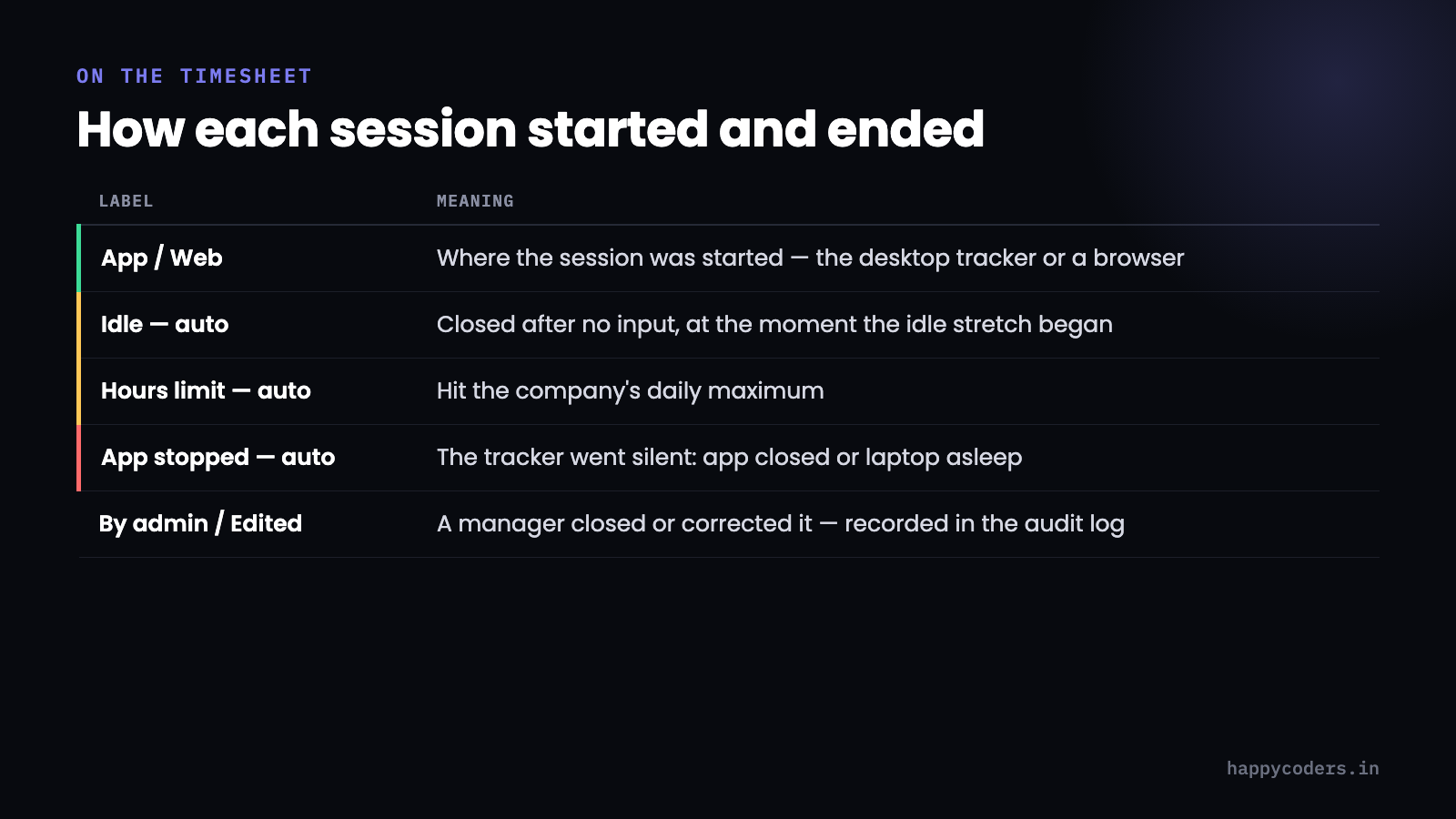
That turns an argument into a glance. “I worked all day” and “the timesheet shows nine hours” can both be true while the session was started in a browser and closed by the hours limit at seven in the evening. Seeing Web on the way in and Hours limit — auto on the way out tells the manager exactly what happened, and tells the employee why the screenshots are missing, without anyone having to accuse anyone of anything.
It is also the best way to decide whether you need the rule at all. Leave the policy on “both” for two weeks and look at the labels. If nearly everyone clocks in from the app anyway, the rule costs you nothing. If one person has twenty browser sessions and no app sessions, you have a conversation to have before you have a setting to change.
Rolling out “desktop only” without a bad week
- Look before you switch. Two weeks on “both”, reading the start and end labels, tells you who will be affected.
- Tell the team why. “Screenshots are part of what our clients pay for, and the browser can’t take them” lands better than a setting that changes overnight. If you’re about to switch monitoring on for the first time, say that too.
- Get the app installed first. Send the download link a week ahead, and check that everyone can sign in to it — on a Mac it needs two permissions, and the first sign-in is the moment to find out.
- Decide the exceptions by name. Owner, sales, whoever genuinely can’t run the tracker. Set them before the switch, not after the first complaint.
- Switch, and watch the “app stopped” label for a week. A lot of those early on usually means people are closing the app instead of clocking out, which is a habit, not a fault.
Questions people ask
Can people still see their timesheet in the browser?
Yes. Desktop only applies to starting the clock. Everything else in the web app — timesheets, leave, the board, reports — works as before.
What if someone’s laptop breaks?
Give them a browser exception for the week, or have a manager add their hours as a manual entry. Both are recorded, and both are easy to undo.
Does desktop only stop people from faking activity?
No setting can do that. It ensures the tracker is present when the clock is running, which is a different and more modest promise. What it removes is the easy, accidental gap: a timer in a forgotten tab.
Is there a mobile app?
No. A phone browser can clock in and out, which is exactly why the browser exception exists for people who work from their phones.
The decision, in one line
If screenshots and activity are part of the deal — with your clients or with your team — make the desktop app the only way to start the clock, close the side doors (resume, switch), never block clocking out, and name your exceptions out loud. If they’re not, leave both on and use the start and end labels to keep an eye on things.
Happy Tracker is our time tracker for service businesses — web, Mac, Windows and Ubuntu, free for up to five users. See how it works.
Related articles
The Project Is Going Over and You Have Not Told the Client
Week six, forty per cent over, and the conversation has not happened. How to have it now, and what the tracker should have told you in week …
What Your Time Data Says After Six Months
Four numbers worth an hour of your attention, and the one most agencies have never calculated.
Hiring Your First Employee: What Changes in How You Track Time
Tracking your own hours is bookkeeping. Tracking someone else’s is management. The four things that change on day one.