
Why Our Browser Recorder Saves Voice Notes as WAV, and How It Writes Them From an AudioWorklet
HappyRec’s free browser extension for Chrome and Edge has a voice-only mode: no screen, just your microphone, saved as an audio file. It offers up to three formats. WAV and WebM are always there, and M4A appears when the browser can encode it. The default is WAV, the largest of the three. That looks like an odd choice for a tool people use to send quick voice notes, so this post explains why we made it, and how a browser extension writes a WAV file at all, given that the browser’s own recorder cannot.
The short version
The setting carries its own explanation, as a comment next to the default in the extension’s settings file:
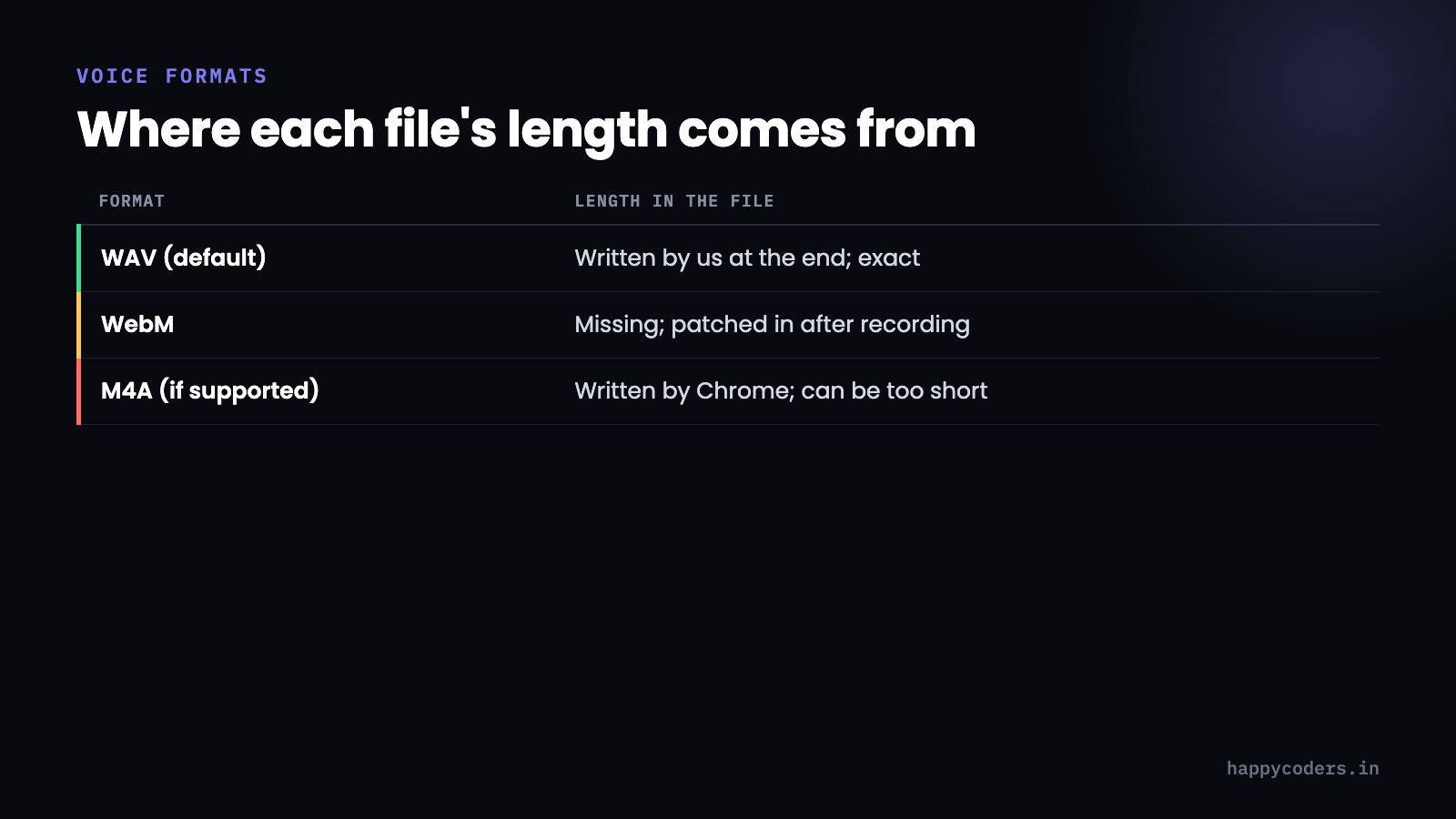
voiceFormat: 'wav', // wav | webm | m4a — WAV default: Chrome's M4A header reports a too-short durationAn audio file has two jobs. It must play, and it must tell the player how long it is, so the progress bar and the total time are right. Browsers record audio with MediaRecorder, and in Chrome the M4A files it writes carry a length in the header that is shorter than the actual recording. WebM has the opposite gap: MediaRecorder writes WebM with no length at all, and the extension has to patch it in after the recording stops. WAV has neither problem, because we write the file ourselves, and we write its header once, at the end, when the exact length is known.
So WAV is the default because it is the one format where the file is correct by construction. People who want smaller files can switch to WebM or M4A with one click, and the extension remembers the choice.
Why the browser cannot just write WAV
MediaRecorder is the browser’s built-in way to record a stream to a file, and it only produces compressed formats. Which ones depends on the browser, and the extension asks before it records, using MediaRecorder.isTypeSupported. That is also why M4A appears as an option in some browsers and not others. WAV is not on any browser’s list.
WAV, though, is about the simplest audio format there is: a 44-byte header followed by raw samples. If we can get the raw samples out of the browser, writing the file is easy. Getting the samples out, without stutters or gaps, is the interesting part.
Getting raw audio out: an AudioWorklet
Browsers process audio in a separate, high-priority thread, the audio rendering thread, in blocks of 128 frames. An AudioWorklet is a small piece of your own code that runs in that thread and sees every block as it goes past. The old way of doing this ran your code on the page’s main thread, where any busy moment in the interface could cause clicks and dropouts. A worklet avoids that.
Here is the extension’s worklet, in full:
class PcmRecorderProcessor extends AudioWorkletProcessor {
  constructor() {
    super();
    this.buffers = null;      // one Float32Array per channel
    this.filled = 0;
    this.capacity = 4096;     // frames per message to the page
    this.active = true;
    this.port.onmessage = (event) => {
      if (event.data === 'flush') { this.flush(); this.port.postMessage({ type: 'flushed' }); }
      else if (event.data === 'stop') { this.flush(); this.active = false; }
    };
  }

  flush() {
    if (!this.buffers || this.filled === 0) return;
    const out = this.buffers.map((b) => b.slice(0, this.filled));
    // transfer, don't copy: the buffers move to the page
    this.port.postMessage({ type: 'chunk', channels: out }, out.map((b) => b.buffer));
    this.buffers = null;
    this.filled = 0;
  }

  process(inputs) {
    if (!this.active) return false;            // lets the browser drop the node
    const input = inputs[0];
    if (!input || input.length === 0 || input[0].length === 0) return true;
    if (!this.buffers || this.buffers.length !== input.length) {
      this.flush();
      this.buffers = input.map(() => new Float32Array(this.capacity));
      this.filled = 0;
    }
    const frames = input[0].length;            // 128 frames per call
    if (this.filled + frames > this.capacity) this.flush();
    if (!this.buffers) this.buffers = input.map(() => new Float32Array(this.capacity));
    for (let c = 0; c < input.length; c++) this.buffers[c].set(input[c], this.filled);
    this.filled += frames;
    return true;
  }
}
registerProcessor('pcm-recorder', PcmRecorderProcessor);
A few choices in it are deliberate.
It batches. At 48,000 samples per second, 128-frame blocks arrive 375 times a second. Sending a message to the page for each one would flood the main thread. The worklet copies blocks into a 4,096-frame buffer and sends one message when it fills, about twelve times a second.
It transfers instead of copying. The second argument to postMessage is a list of buffers to transfer. Ownership of the memory moves to the page, so nothing is copied, and the worklet starts a fresh buffer.
It copes with the channel count changing. If the number of input channels changes, it flushes what it has and starts new buffers of the right shape, so a chunk never mixes mono and stereo.
It answers two commands. flush sends whatever is buffered and replies flushed. stop sends the remainder and makes process return false, which tells the browser the node is finished.
The routing trick: a node nobody listens to never runs
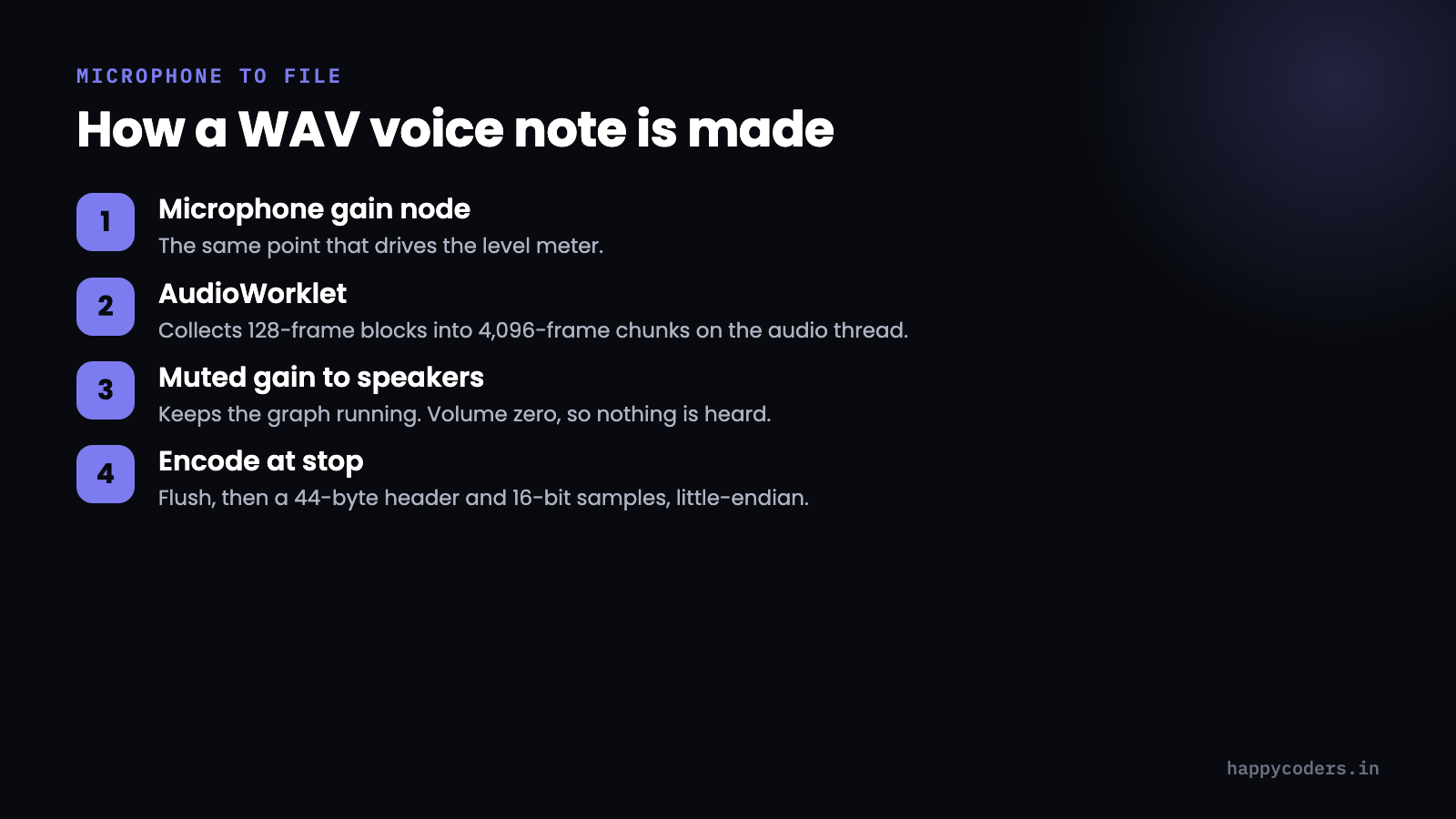
The worklet is fed from the microphone’s gain node, the same point in the audio graph that drives the level meter. But a node that is connected to nothing downstream is not processed at all. The browser renders the graph by pulling audio towards the speakers, and anything not on that path is skipped. So the extension connects the worklet to a gain node set to zero, and that to the speakers:
const node = new AudioWorkletNode(ctx, 'pcm-recorder', { numberOfInputs: 1, numberOfOutputs: 1 });
const sink = ctx.createGain();
sink.gain.value = 0;              // silent: nobody should hear their own mic
this.micGain.connect(node);       // microphone -> worklet
node.connect(sink);               // worklet -> muted gain
sink.connect(ctx.destination);    // ...-> speakers, so the graph actually runs
The worklet runs because it is on the way to the output, and nobody hears their own voice because the volume on that branch is zero. This is the kind of detail that costs an afternoon the first time. The code runs, there are no errors, and the recording is simply empty.
Pause, and the last fraction of a second
While a recording is paused, chunks from the worklet are still delivered, but the page throws them away. When recording resumes, chunks are kept again. The file has no gap and no silence where the pause was. It simply continues.
Stopping needs more care than it looks. When the user presses stop, the worklet may still be holding up to 4,096 frames, about a twelfth of a second, that have not been sent. Throw those away and every voice note loses the end of its last word. So the page sends flush, waits for the flushed reply, and only then sends stop and disconnects the node. The wait is capped at one second, so a worklet that never answers cannot leave the stop button hanging.
Writing the WAV file
With every chunk collected, the encoder sizes one buffer for the whole file and writes the header. Every number in it is known exactly, because the recording is already over:
writeAscii(view, 0, 'RIFF');
view.setUint32(4, 36 + dataBytes, true);       // file size minus 8
writeAscii(view, 8, 'WAVE');
writeAscii(view, 12, 'fmt ');
view.setUint32(16, 16, true);                  // size of the fmt chunk
view.setUint16(20, 1, true);                   // 1 = plain PCM
view.setUint16(22, channels, true);
view.setUint32(24, sampleRate, true);
view.setUint32(28, sampleRate * blockAlign, true);   // bytes per second
view.setUint16(32, blockAlign, true);          // bytes per frame
view.setUint16(34, 16, true);                  // bits per sample
writeAscii(view, 36, 'data');
view.setUint32(40, dataBytes, true);           // the length, known exactly
Those true arguments matter: WAV is little-endian, and DataView defaults to big-endian. Get that wrong and the file still opens, with a header full of nonsense and audio that is pure noise.
Then the samples. The browser gives floating-point values between -1 and 1; a standard WAV holds 16-bit integers. Each sample is clamped and scaled:
const sample = Math.max(-1, Math.min(1, source[i]));          // clamp
view.setInt16(offset, sample < 0 ? sample * 0x8000 : sample * 0x7FFF, true);
offset += 2;
The clamp stops a loud peak just over 1.0 from wrapping round to a large negative number, which would be heard as a sharp crack. The two different multipliers exist because a 16-bit integer runs from -32,768 to 32,767, so negative and positive values have slightly different ranges. Channels are interleaved, left then right for every frame, which is how WAV stores stereo. The sample rate is whatever the browser’s audio system runs at, commonly 48,000 Hz, so the file plays at the right speed on every player.
The cost: file size
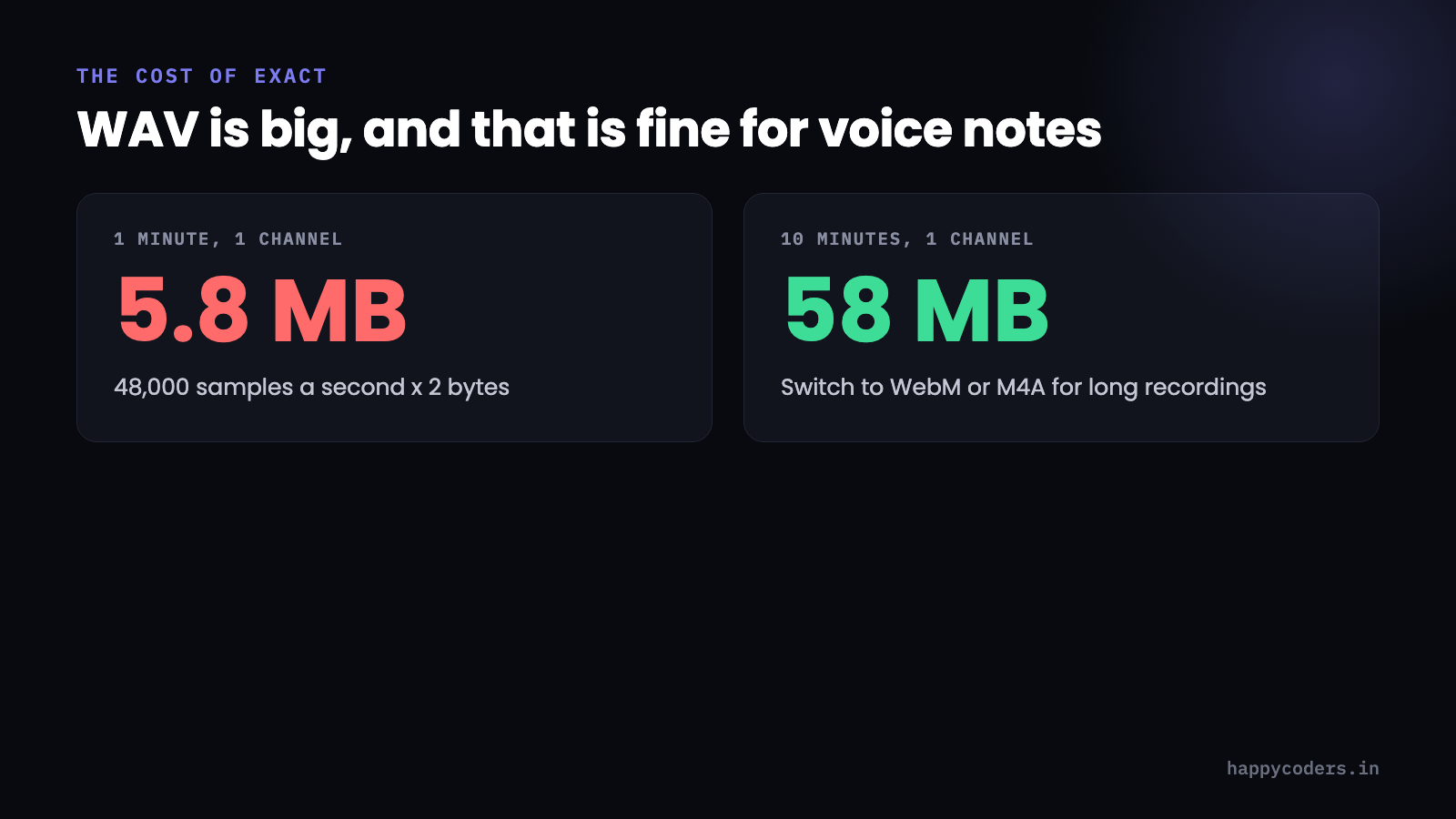
WAV is uncompressed. At 48,000 samples a second and two bytes a sample, that is 96,000 bytes a second for each channel, roughly 5.8 MB a minute for a single channel. A ten-minute voice note is about 58 MB per channel. The same recording as WebM or M4A is a small fraction of that.
For most voice notes, a minute or two long, that is a fair price for a file that is correct everywhere: in every player, in an audio editor, and in transcription tools that care about the length. For long recordings you plan to send by email, switch the format to WebM or M4A in the voice settings. The extension remembers the choice. Its WebM files have their length repaired in the header after recording, so they play and seek properly too.
One more trade-off is memory. Because the header needs the final length, the samples are held in memory until the recording stops, then written out in one go. For voice notes that is a few tens of megabytes at most. It is also why video recordings use the browser’s own encoder rather than this route.
Which format should you pick?
- WAV (default): editing in an audio tool, transcription, or anything where exact length matters. Largest files.
- WebM: small files for sharing. Plays in every modern browser; some older desktop players may not open it.
- M4A: small files that open almost everywhere, including phones. Only offered when your browser can encode it, and the length shown in the header may be shorter than the recording.
Questions people ask
Is the WAV file processed or compressed in any way?
No. The samples are the ones the browser’s audio system produced from your microphone, converted from floating point to 16-bit. The microphone itself can have noise reduction switched on in the extension’s settings, which uses the browser’s own noise suppression, echo cancellation and gain control.
Where does the recording go?
It is saved through the browser’s normal downloads, to your computer. The extension keeps its settings in the browser’s local storage and has no account or server.
Can I open the WAV in an audio editor?
Yes. It is a standard 16-bit PCM WAV, the most widely supported audio format there is. Audacity, GarageBand, Adobe Audition, video editors and transcription services all open it directly, and because the length in the header is exact, waveforms and timelines line up from the first second to the last. That is one of the main reasons WAV is the default: a voice note often ends up in another tool, and WAV is the format least likely to cause a problem there.
Does the extension work the same way in Edge?
Yes. Chrome and Edge share the same engine, and the extension ships from one source to both stores. The format list is built from what the browser reports it can encode, so the M4A option appears or not on its own.
Why not convert the WebM to WAV after recording instead?
That means decoding compressed audio back into samples after it has already lost detail, and doing it in the browser after the user pressed stop. Capturing the raw samples while recording is both simpler and better quality.
HappyRec is our screen and voice recorder for Mac, with a free browser extension for Chrome and Edge. See HappyRec.
Related articles
A Service Worker That Keeps Forgetting: How HappyRec’s Extension Keeps Its REC Badge and Recorder Window Straight
A Manifest V3 service worker is stopped whenever it is idle, and every variable goes with it. How HappyRec’s Chrome and Edge extension keeps…
Asking for an App Store Review Without Annoying Anyone: How HappyRec Decides When
HappyRec asks for a review only after a saved recording, at the 3rd, 15th and 50th, and never again once you say yes. The counter that delet…
Explaining a Website While You Record: Drawing on the Page in Chrome and Edge
A voice can’t point. Circle the button, arrow at the field, highlight the error — live on the web page while you record, with HappyRec’s Chr…