
Explaining a Website While You Record: Drawing on the Page in Chrome and Edge
“The button in the top right, no, the other one, next to the blue thing — no, scroll down a bit.” Anyone who has explained a website over a call knows this conversation. The words are fine. The problem is that a voice can’t point.
A screen recording fixes half of it: the viewer can see the page. The other half is pointing — a circle round the button you mean, an arrow at the field that’s wrong, a highlighter across the line of the error message. Most people solve that afterwards in a video editor, frame by frame, which is why most people don’t bother.
HappyRec’s Chrome and Edge extension lets you draw on the web page while you record. Whatever you draw is on the page, so it’s in the video — no editing, no second pass. This post is a practical guide to recording a website explanation people can actually follow: when to use it, how to set it up, and the habits that make the drawings help instead of clutter.
When drawing on the page earns its place
Not every recording needs annotations. They help most when the viewer has to find something specific on a busy page:
- Reviewing a website with a client. “This heading, this image, this button colour” — circle each one as you talk about it, and the feedback can’t be misread.
- Reporting a bug in a web app. Arrow at the field you typed into, circle the wrong total, highlight the error message. A developer watching it knows exactly where to look.
- Teaching a web tool. Showing a new colleague where things live in your CRM, your accounting system or your WordPress dashboard.
- Onboarding customers to your own product. A two-minute walkthrough with arrows answers the same question your support team gets every week.
If the whole screen is the point — a design you’re presenting, a slide — you probably don’t need to draw at all.
Setting up in two minutes
- Add the extension from the Chrome Web Store or Edge Add-ons. There’s no account and nothing else to install.
- Click the HappyRec icon in the toolbar. The recorder opens in its own small window — it stays open while you work in the browser.
- Choose Tab as the source if you’re explaining one website. It records only that tab, with the tab’s own sound, and nothing else on your computer — no notifications, no other windows.
- Turn on the microphone and use the Test button to check the level before you start.
- Optional: add your face or your logo in the corner bubble, and your own watermark text.
- Press record, pick the tab when the browser asks, and go to the page.
Tab, window, screen or area?
The extension can record four things, and for a website walkthrough the choice matters more than it looks.
- Tab — the best default. Only that tab is recorded, at its own size, with its own sound. A chat notification or an email popping up on your desktop simply isn’t in the video. The catch: if your walkthrough needs to jump between two websites, record each in its own tab, or use Window.
- Window — the whole browser window, including the tab bar and address bar. Useful when switching tabs is part of the explanation (“open the admin in a second tab, then…”).
- Screen — everything on your display. Only use it when you need to show something outside the browser, and close what you don’t want seen first.
- Area — drag a frame over just part of the screen. Good for one panel of a dashboard, and it keeps file sizes small.
Whichever you choose, drawing works the same way, because the drawings live on the web page rather than on the recording.
Drawing while you talk
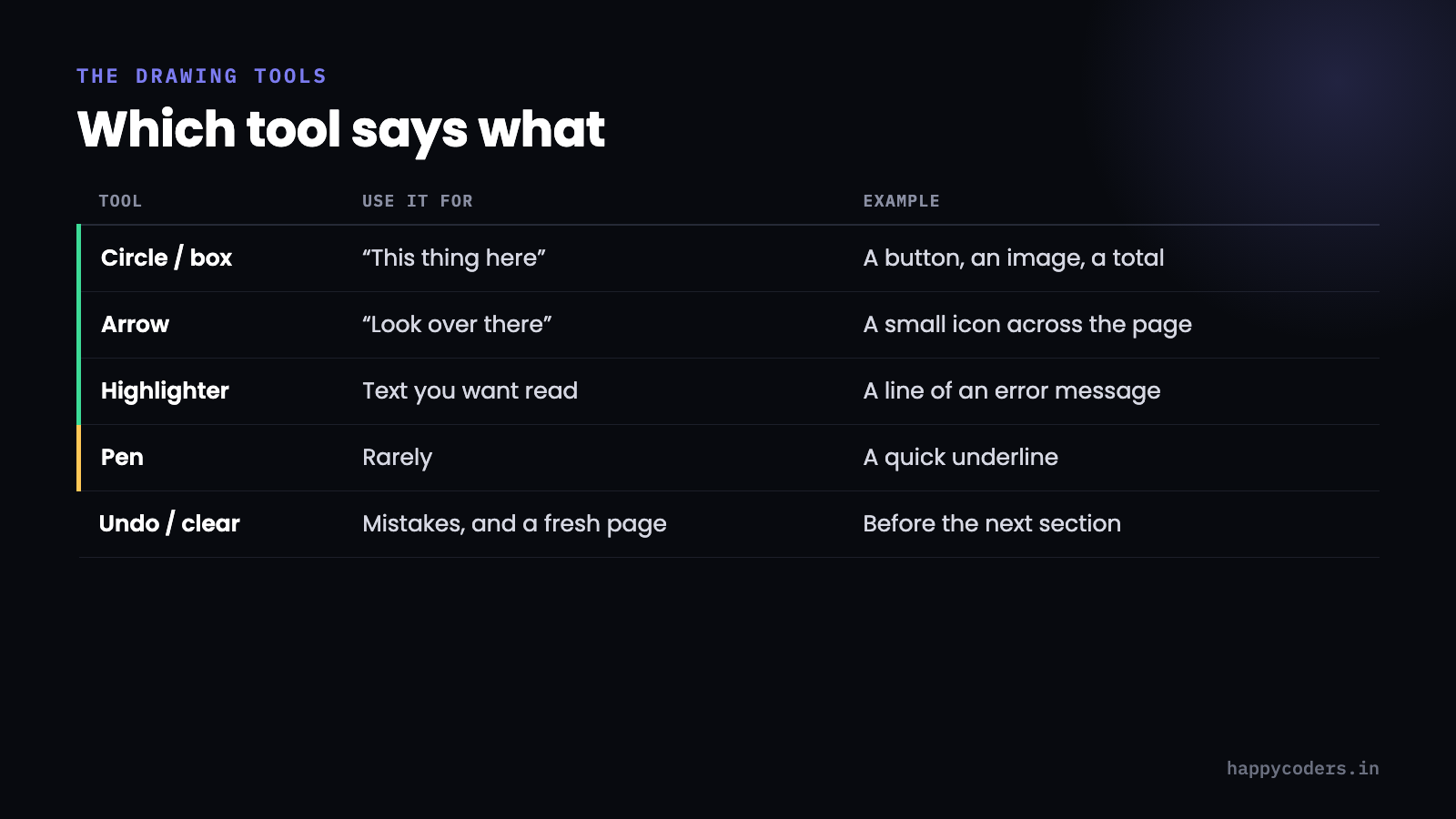
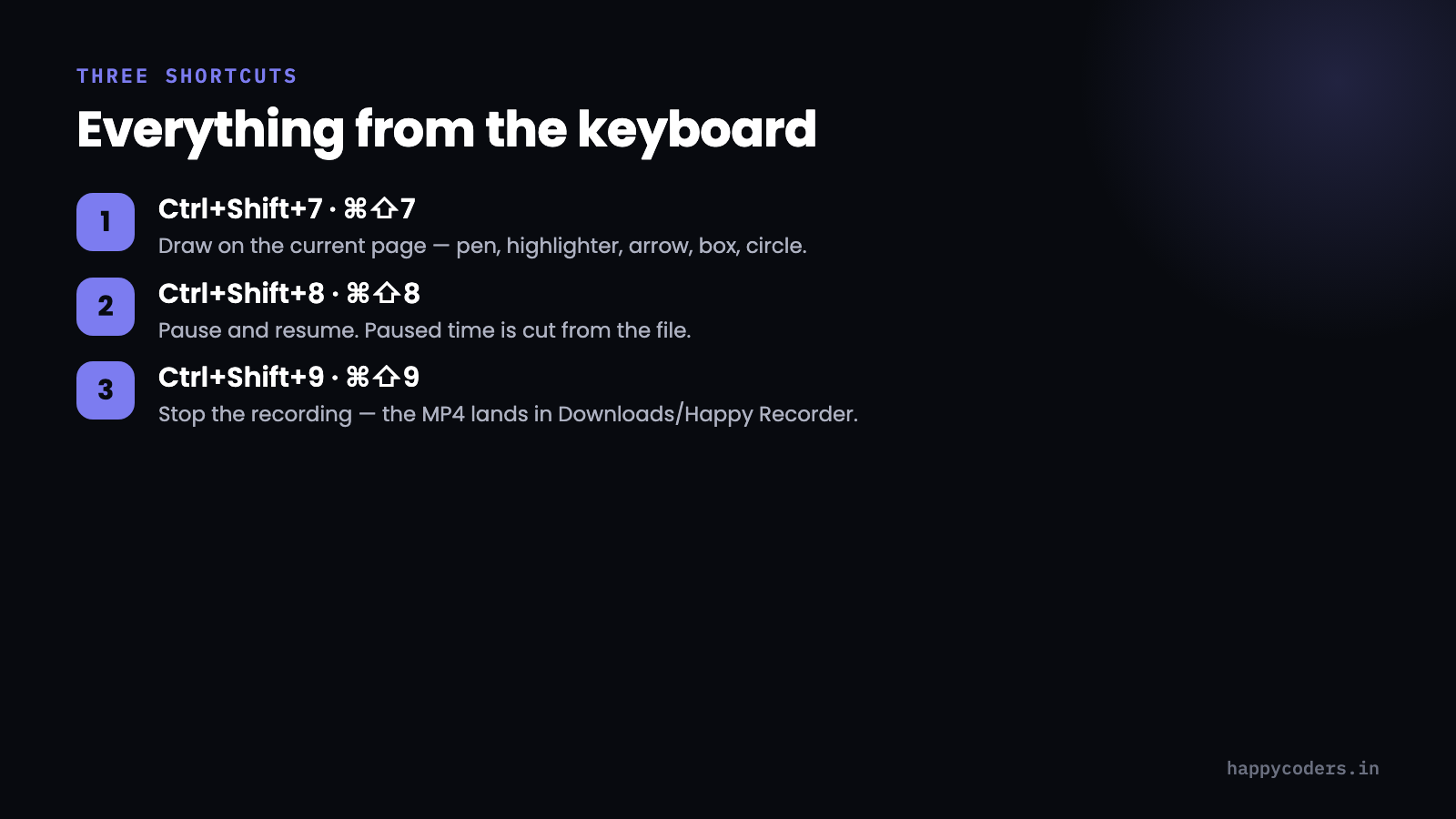
On the page you’re explaining, press Ctrl+Shift+7 (⌘⇧7 on a Mac), or right-click and choose Draw on this page. A small toolbar appears with six tools: pen, highlighter, arrow, box, circle and undo, plus six colours and a clear button.
Two things make this different from drawing in an editor afterwards:
- It’s on the page, so it’s in the recording. There’s nothing to line up later. What you see is what the viewer sees, at the moment you said it.
- Auto-fade. Strokes can fade out by themselves after a few seconds. You circle a button, say what it does, and by the time you move on the circle has gone — so the page never becomes a scribble of old annotations.
The rest of the shortcuts are worth learning too: Ctrl+Shift+8 pauses and resumes, and Ctrl+Shift+9 stops the recording (⌘⇧8 and ⌘⇧9 on a Mac). You can stop without leaving the page you’re on.
Habits that make annotations help
The tools are simple. Using them well is mostly restraint.
One mark per sentence
Draw as you say the thing, not before and not after. “This total” — circle — “should include tax” — pause. Then let it fade. A mark that arrives with the words is read as part of the sentence; a mark that sits there for a minute is noise.
Use the right tool for the job
- Circle or box for “this thing here” — a button, an image, a total.
- Arrow for “look over there” — especially when the thing is small, or you need to point across the page.
- Highlighter for text — a sentence in an error, a line of terms and conditions. It keeps the text readable underneath.
- Pen rarely. Freehand is the hardest to read and the easiest to overdo.
Pick one colour and keep it
Six colours is a choice, not an instruction. Use one that contrasts with the site — red on a white site, yellow on a dark one — and stick with it, unless a second colour genuinely means something different (“red is wrong, green is right”).
Zoom the page, not the video
If the thing you’re pointing at is small, zoom the browser to 125% or 150% before you start (Ctrl and +). Everything you record, including your drawings, is then bigger and sharper than anything you could zoom into afterwards.
Pause instead of rambling
If you need to find the next page, pause with Ctrl+Shift+8, get there, and resume. Paused time is cut out of the file, so the viewer never watches you search.
Where it works, and where it can’t
Drawing works on ordinary web pages: websites, web apps, admin dashboards, anything you open in a tab. Browsers don’t let any extension draw on a few kinds of page — the browser’s own settings pages, the extension stores and the built-in PDF viewer — and HappyRec tells you so rather than failing quietly. It also can’t draw over other desktop applications; for those, the Mac and Windows apps record the screen, with a face cam or avatar, but without the drawing tools.
The first time you draw from the recorder window’s own button, the browser asks permission to add the drawing toolbar to pages you choose. That permission is optional, and recording works without it — pressing the shortcut on the page itself only ever touches that one tab.
What you end up with
An MP4 that plays everywhere, saved to Downloads/Happy Recorder (or a folder you choose each time). Nothing is uploaded, and there’s no account, so a recording of a client’s private admin panel stays on your computer until you decide to send it. Every recording carries a small HappyRec badge in the top-right corner — the recorder is free, and that’s the trade.
Send it the way you’d send any file: as an attachment, through a shared drive, or into the ticket or chat thread where the question came from.
A script for a client website review
Client reviews are where drawing pays for itself, because written feedback on a website is so easy to misread. A structure that works:
- Thirty seconds of context, no drawing: which page, what you’re reviewing, what you’d like back.
- Top to bottom, one point at a time. Scroll, stop, circle the element, say the change in one sentence, let it fade, move on.
- Use a second colour only for “keep this”. Red circles for changes, green for things that are working — the client sees the balance at a glance.
- Pause between pages so the video doesn’t contain you hunting for the next link.
- End with a summary without drawing: “Three changes on the home page, one on contact, the rest is approved.”
A five-minute review recorded this way usually replaces a forty-minute call — and it can be watched again when the changes are being made, which a call can’t.
A five-minute example: reporting a checkout bug
- Open the shop in a tab and zoom to 125%.
- Start HappyRec on Tab, mic on, and pick the shop tab.
- Add a product to the cart. Circle the price on the product page: “This says ₹1,200.”
- Go to the cart. Circle the line total: “Here it’s ₹1,416 — that’s with tax, fine.”
- Go to checkout. Arrow at the order total: “But here it’s ₹1,671. Tax has been added twice.”
- Highlighter across the tax line. Stop with Ctrl+Shift+9.
Ninety seconds of video, three annotations, and a developer who doesn’t need to ask a single follow-up question.
Questions people ask
Do the drawings show in the final video?
Yes. They’re drawn on the page itself, so they’re captured exactly as you saw them, at the moment you drew them.
Does it work in Edge as well as Chrome?
Yes — it’s the same extension from each browser’s store, and it runs anywhere Chrome or Edge 116 or later runs, including Mac, Windows and Linux (and ChromeOS, for Chrome).
Can I draw over a PDF?
Not in the browser’s PDF viewer; browsers don’t allow extensions to draw there. Record it with the Mac or Windows app instead, or open it in a web-based viewer.
Is it really free?
Yes. No subscription, no trial limit and no account. Recordings carry a small HappyRec badge.
HappyRec is our free screen recorder for Mac, Windows, Chrome and Edge. See every platform and feature.
Related articles
A Service Worker That Keeps Forgetting: How HappyRec’s Extension Keeps Its REC Badge and Recorder Window Straight
A Manifest V3 service worker is stopped whenever it is idle, and every variable goes with it. How HappyRec’s Chrome and Edge extension keeps…
Why Our Browser Recorder Saves Voice Notes as WAV, and How It Writes Them From an AudioWorklet
Browsers cannot record WAV, and the M4A and WebM files they do write carry a wrong or missing length. How HappyRec’s browser extension captu…

Asking for an App Store Review Without Annoying Anyone: How HappyRec Decides When
HappyRec asks for a review only after a saved recording, at the 3rd, 15th and 50th, and never again once you say yes. The counter that delet…