A small circle in the corner of a screen recording, with a face in it, measurably helps people follow what they are watching. It gives them somewhere to look when the screen is not changing and it makes a tutorial feel like a person explaining something rather than a machine demonstrating it.
It also requires you to be on camera, tidy, in a room you are willing to show, at whatever time of day you happen to be recording. For a lot of people that is the reason the recording never gets made.
The camera bubble
Switch it on and your webcam appears in a circle over the recording. It is composited into the video as you record, so there is nothing to line up afterwards and no second file to manage.
The bubble can be moved during the recording, which matters more than it sounds — the corner that was empty at the start of a demonstration frequently has something important in it by the middle.
What to think about before using it: the bubble covers part of what you are recording, so put it where nothing happens. Bottom-left is usually safest, because the bottom-right of most interfaces has something in it.
The avatar, for when you would rather not
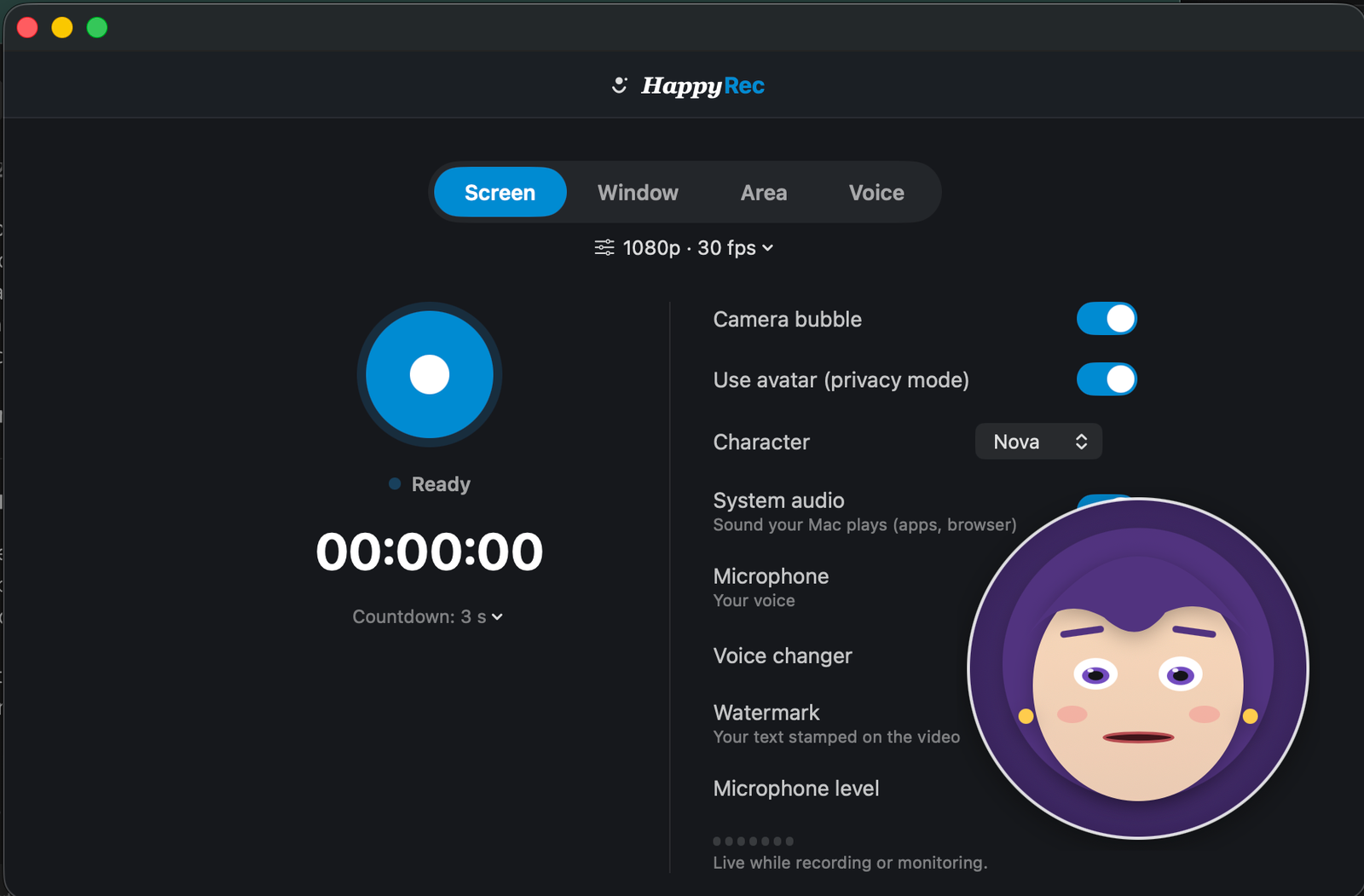
Switch on avatar mode and the circle shows an illustrated character instead of your camera. It responds to your face — it moves when you move, so it still gives the viewer something live to look at — but your actual camera image never appears in the recording and never leaves your Mac.
This solves a genuinely common problem. People who will not record with their camera on will record with an avatar, and the recording gets made.
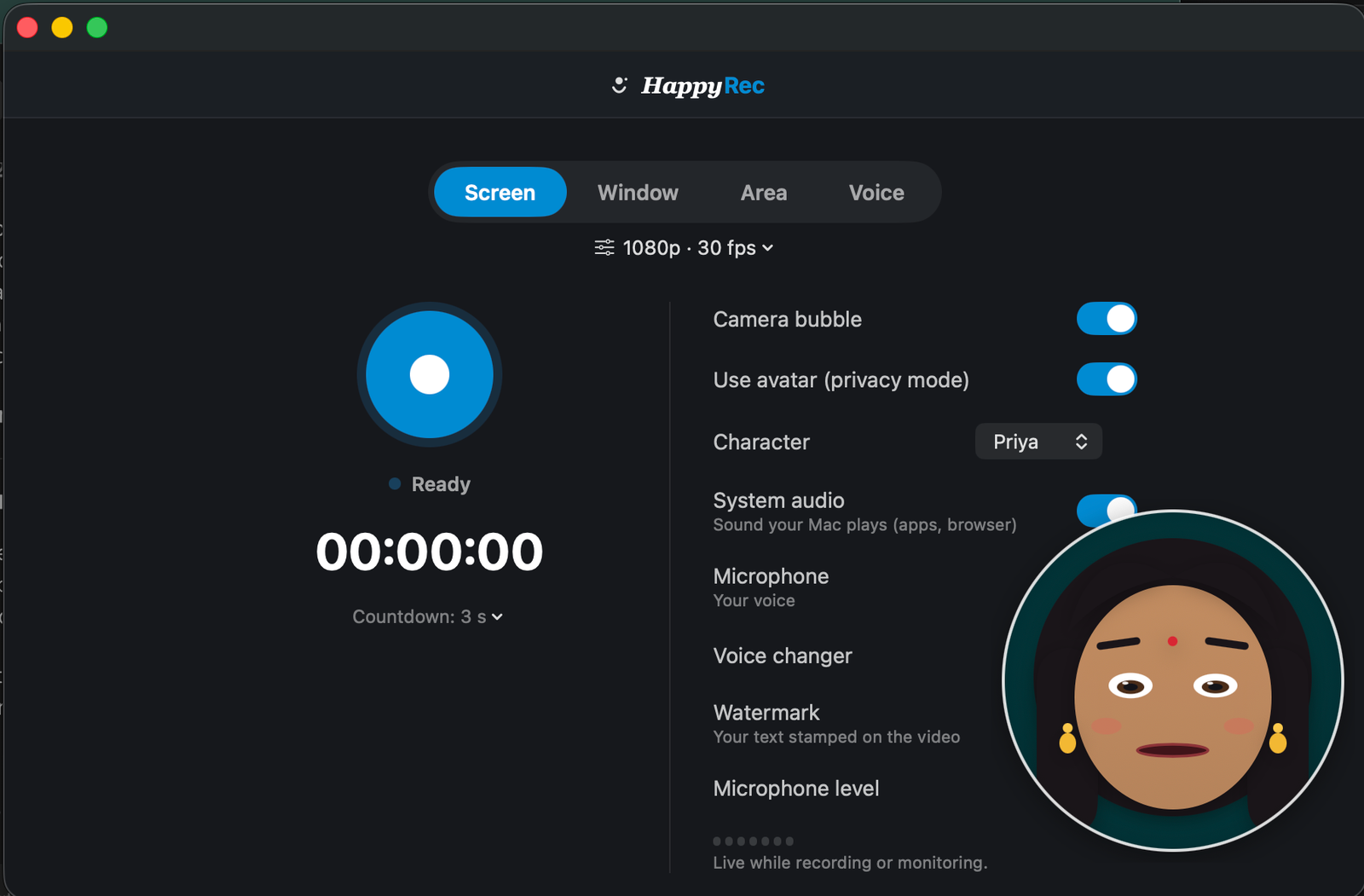
There are several characters to choose from. Pick one and stay with it — a familiar avatar across a series of videos does the same job as a familiar face, and changing it every recording undoes that.
Which to use
- Camera — anything client-facing, anything where being recognisable matters, anything you are presenting as yourself.
- Avatar — internal walkthroughs, recordings made at odd hours, anything where the room behind you is not something you want in a file, and anything you would otherwise not record at all.
- Neither — bug reports, short clips, anything under thirty seconds. A face adds nothing to a fifteen-second demonstration.
The right answer is frequently “neither”. A face helps a five-minute tutorial and does nothing for a fifteen-second clip except make the file bigger.
How big should the bubble be
Large enough that a face is readable, small enough that it does not cover the work. On a full screen recording that is usually smaller than people first choose.
A useful check: shrink the recording to the size somebody will actually watch it at — frequently a window a third of the screen, or a phone — and see whether the bubble is still legible and still out of the way. Both answers change at that size.
The mistake in the other direction is a bubble so small it is decoration. If a face is not readable it is doing none of the work it was added for, and switching it off entirely is the better choice.
What the avatar does and does not do
Worth being precise, because the question comes up.
The avatar responds to your face — it moves when you move, so the circle is alive rather than a static picture. The camera has to be on for that to work, because something has to see you move.
What does not happen is your camera image reaching the recording, or leaving your Mac. The camera feed is used on your machine to move an illustration and is never written to the file and never uploaded. There is no account, no server and no upload anywhere in HappyRec, for this or anything else.
If you would rather the camera were not on at all, switch off the bubble entirely. The avatar needs the camera to track you; no bubble needs nothing.
A face is not always an improvement
It is worth saying plainly, because the feature is fashionable: a camera bubble makes some recordings better and many recordings worse.
It helps when the recording is long, when there is speaking to follow, when the screen is static for stretches, and when the viewer benefits from knowing who is talking. A tutorial, a walkthrough, a lesson.
It does not help when the recording is short, when the screen is the entire point, or when the file will be watched with the sound off — which is a large share of everything watched on a phone. A bug report with a face in the corner is a bug report with less room for the bug.
The default position we would suggest is off, switched on deliberately when the recording is one of the kinds that benefits.
Recording a series
If you are making several videos that belong together, two small decisions early save a lot of inconsistency.
Pick a corner and keep it. A bubble that moves between videos is distracting in a way nobody can name but everybody notices.
Pick camera or avatar and keep that too. Alternating between a real face and an illustration across a series reads as two different people made them.
If you are recording for the first time with your camera on
Two things make a first attempt far less uncomfortable, and neither is about the equipment.
Record something you will throw away. Two minutes, on any subject, watched back once. Almost everybody hates the first one, and almost nobody hates the fourth. Getting the first one out of the way as a deliberate throwaway removes most of the difficulty.
And stop trying to get it perfect in one take. Pause when you lose your thread, collect it, and carry on — the pause does not appear in the file. A recording made with six pauses is indistinguishable from one made in a single confident run, and considerably easier to produce.
Practical things about the bubble
A few details that decide whether it looks deliberate.
Look at the camera occasionally, not constantly. You are demonstrating something on screen and it is natural to look at it. A glance at the camera when you make a point is enough.
Light your face from in front. A window behind you turns you into a silhouette. A window in front of you is the best light most people have available and costs nothing.
Check what is behind you once. Ten seconds before the first recording of the day, not after the recording is finished.
If any of that feels like too much to think about, that is exactly what the avatar is for.
It works in every mode
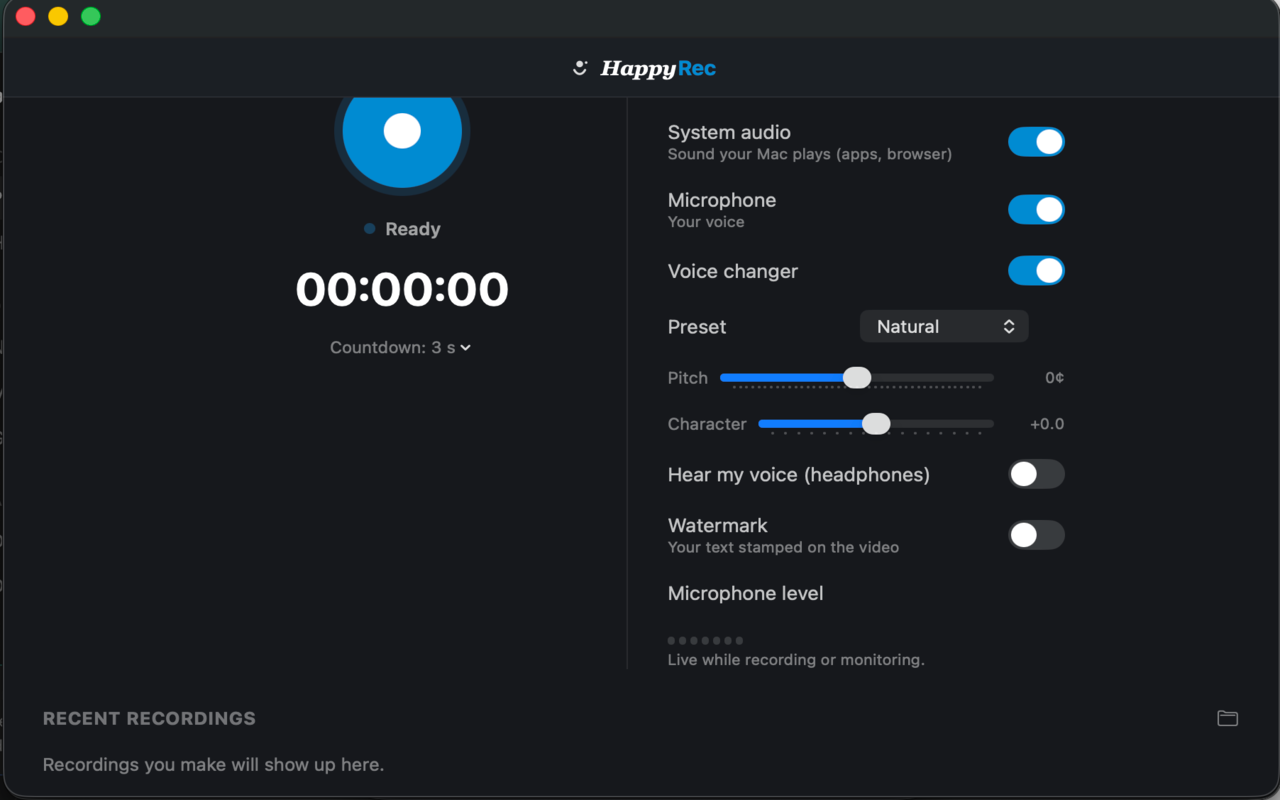
The bubble and the avatar are not tied to one recording mode. They appear over a full screen recording, a single window, or a dragged area, and behave the same way in all three.
In Voice mode there is nothing to appear over, so the switch has no effect — which is worth knowing if you are wondering why nothing happened.
Turning it off mid-series
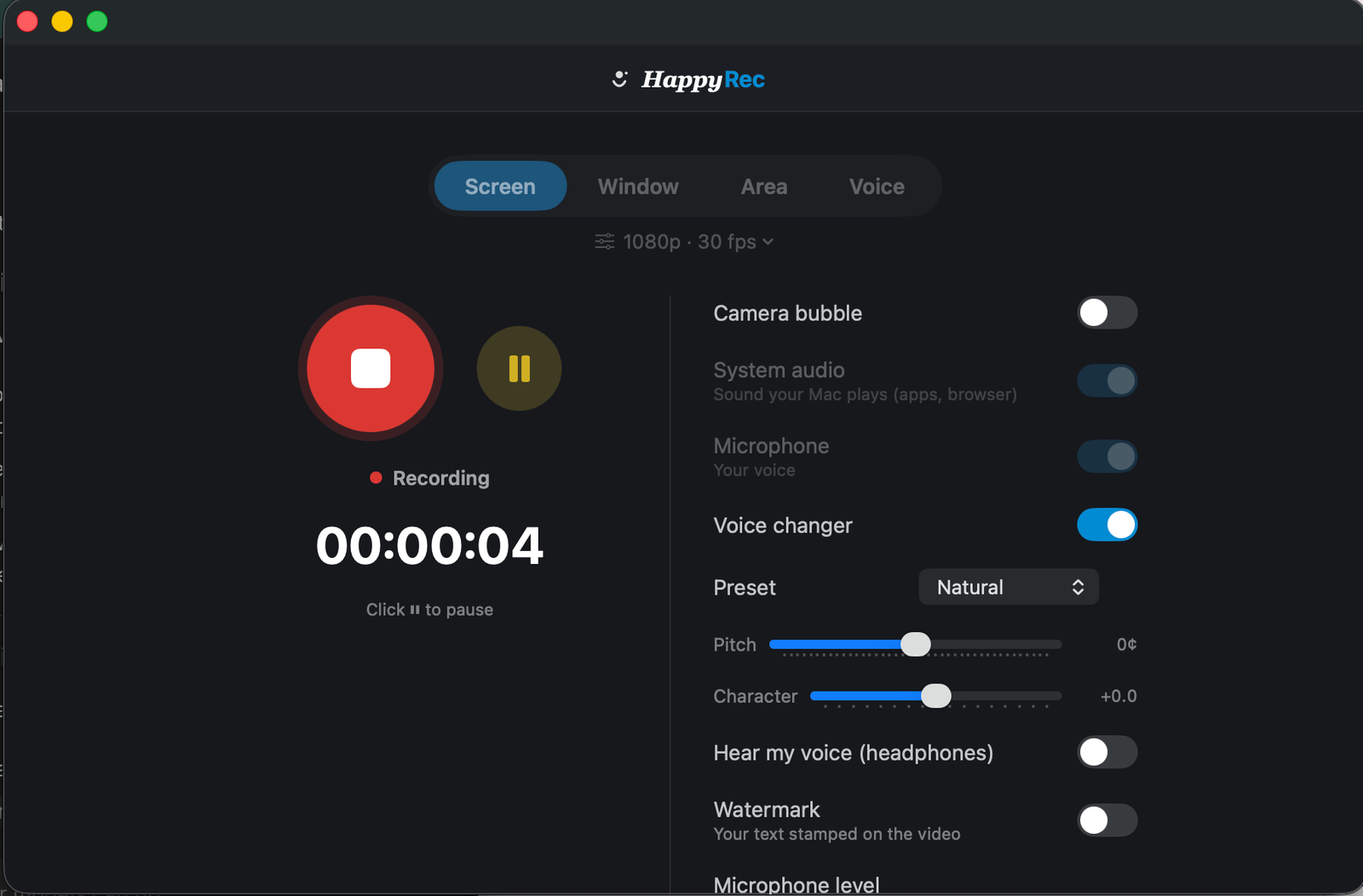
The bubble is decided before the recording starts. If you switch it on and change your mind, stop and start again rather than trying to work around it — a four-second cost, and much less than editing a face out of a finished video.