You start a recording, everything is fine, and twenty minutes in the fan spins up. Ten minutes after that it is loud enough that the microphone is picking it up, the cursor has started to lag, and when you play the file back afterwards there is a stutter in the middle that was not on your screen while you were recording it.
None of that is the Mac being weak. It is a recorder asking for far more work than the job needs, and there are usually two settings between you and a silent recording.
The first thing to change is resolution
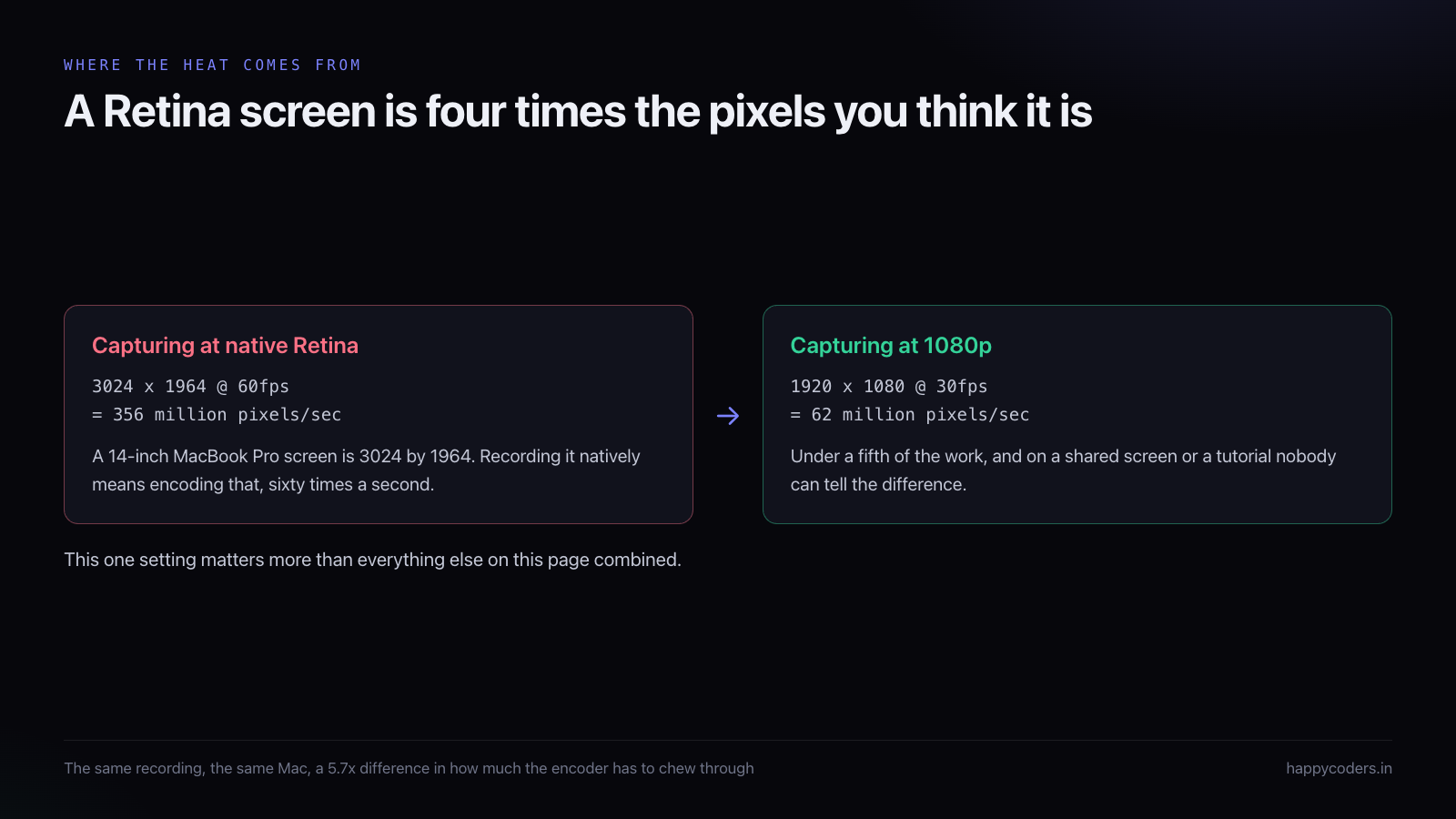
A modern Mac display is not the resolution it appears to be. A 14-inch MacBook Pro looks like it is running at roughly 1512 by 982, because that is the size everything is drawn at. The actual panel is 3024 by 1964, and if the recorder captures natively, that is what gets encoded — four times as many pixels for every single frame.
Multiply that by sixty frames a second and the encoder is being handed about 356 million pixels every second. Drop to 1080p at thirty frames and it is 62 million. Same recording, less than a fifth of the work.
The objection is always the same: will it look blurry? For a screen recording of a terminal, a browser, or an application interface, no. The text is rendered crisply at 1080p and the viewer is almost certainly watching in a window that is smaller than that anyway. Where full resolution genuinely earns its cost is fine detail work — a design tool at actual pixel scale, or video editing where somebody needs to see the footage properly. For everything else it is heat you are paying for and nobody sees.
The second is frame rate
Sixty frames a second is the default in a lot of recording software and it is the wrong default for screen content. Thirty is smooth for anything that is not fast motion, and a terminal, a code editor and a settings page are the opposite of fast motion.
The only place you notice the difference is fast scrolling, and fast scrolling is not something a viewer needs to see smoothly — if anything, scrolling slower is better for them. Halving the frame rate halves the encoding work for something almost nobody can detect in this kind of footage.
Then check who is doing the encoding
Every Mac made in the last decade has a dedicated hardware block for encoding H.264 video. Apple exposes it through VideoToolbox. It is a separate piece of silicon whose entire job is this, it does it at a fraction of the power, and it leaves the CPU free.
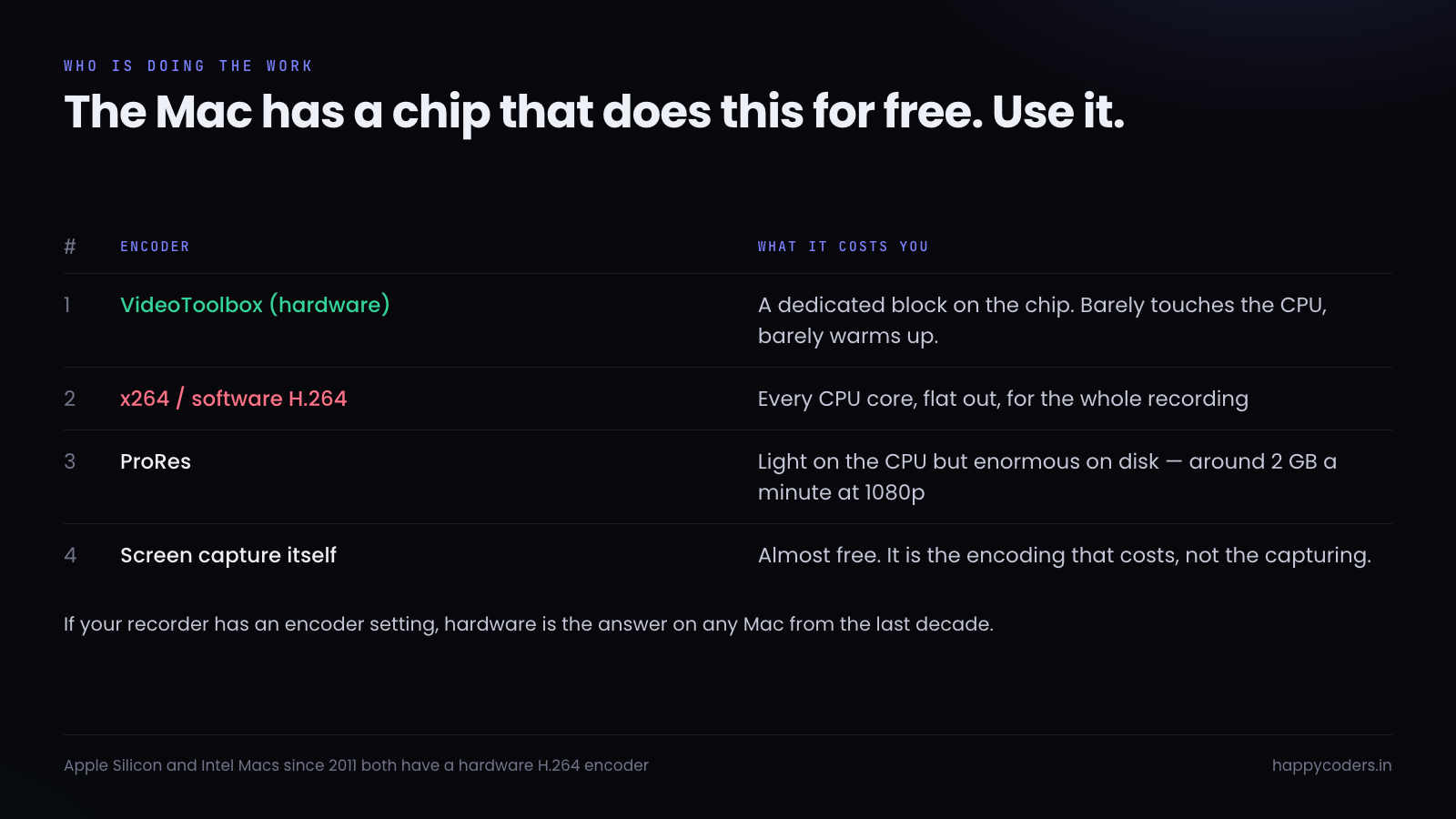
Software encoding — x264 and its relatives — produces marginally better quality per megabyte, and for a screen recording that difference is invisible while the cost is every core running flat out for the whole recording. That is the fan. If your recorder has an encoder setting, hardware is the answer, and there is no realistic case for changing it back.
ProRes is a different trade. It is light on the processor because it compresses far less, which is exactly why the files are enormous — roughly two gigabytes a minute at 1080p. It belongs in a video editing workflow where the file is an intermediate step, not in a recording you are going to send somebody.
Worth saying plainly: the capture itself is nearly free. macOS is already compositing those pixels to show them to you. What costs is turning them into a compressed video file. Almost every performance problem in screen recording is an encoding problem wearing a capture problem’s clothes.
Change them in this order
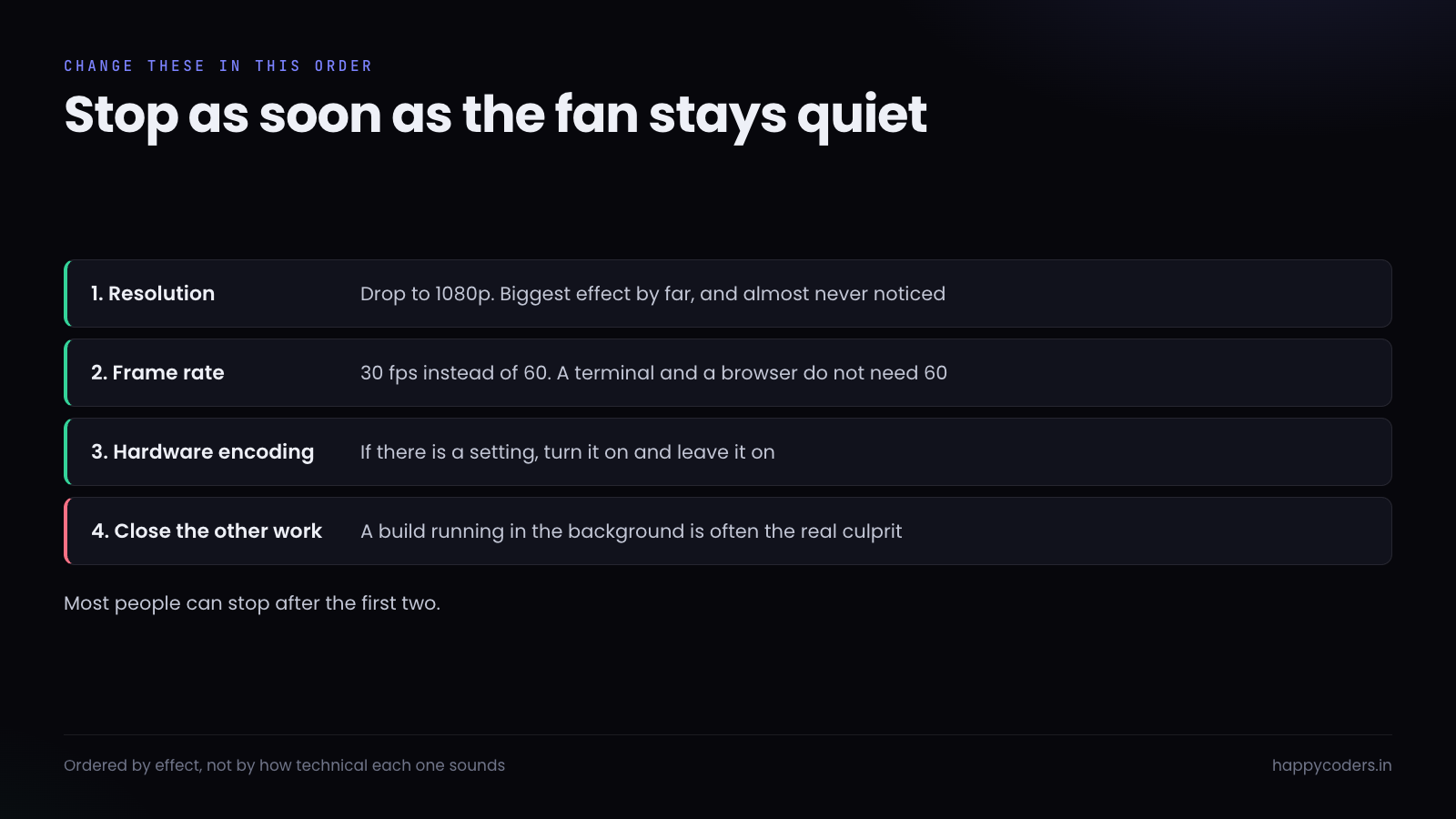
Resolution first, frame rate second. Most people never need to go further. If the fan is still up after both, turn hardware encoding on if there is a switch for it, and then look at what else the machine is doing — a running build, a container stack, a browser with ninety tabs and a video playing in one of them. A recorder gets blamed for heat that a webpack watcher is producing.
Apple Silicon changed the numbers, not the rules
An M-series Mac will take settings that an Intel one could not. The hardware encoder is
faster, the whole chip runs cooler, and the fanless models have no fan to hear in the first
place. On an Air there is no fan at all, so the symptom is different: instead of noise you
get throttling with no warning, because the only way that machine can shed heat is to slow
down.
What has not changed is the shape of the problem. Native Retina at sixty frames is still
several times the work of 1080p at thirty, it still generates heat, and on a long recording
it still catches up with you. The newer chip moves the point where that happens further out.
It does not remove it.
Practically: on an Apple Silicon Mac with a fan you can be more relaxed about resolution
than these numbers suggest. On a fanless Air, be stricter rather than less strict, because
you will not get the audible warning that something is wrong.
What audio costs, and what it does not
Almost nothing, in processing terms. Capturing a microphone and mixing in system audio is
a rounding error next to video encoding, and no recording has ever been saved by turning
audio off.
Two things about it are worth knowing though. Capturing system audio on macOS historically
needed a virtual audio device, which sits in the audio path and occasionally causes crackling
under load — if your audio degrades specifically when the machine is warm, that is where to
look rather than the microphone. And a USB microphone is not only better sounding than the
built-in one, it is also physically away from the fan, which removes the noise problem
entirely rather than managing it.
Why a short test recording proves nothing
The common mistake is testing for two minutes, seeing no problem, and then recording for an hour.
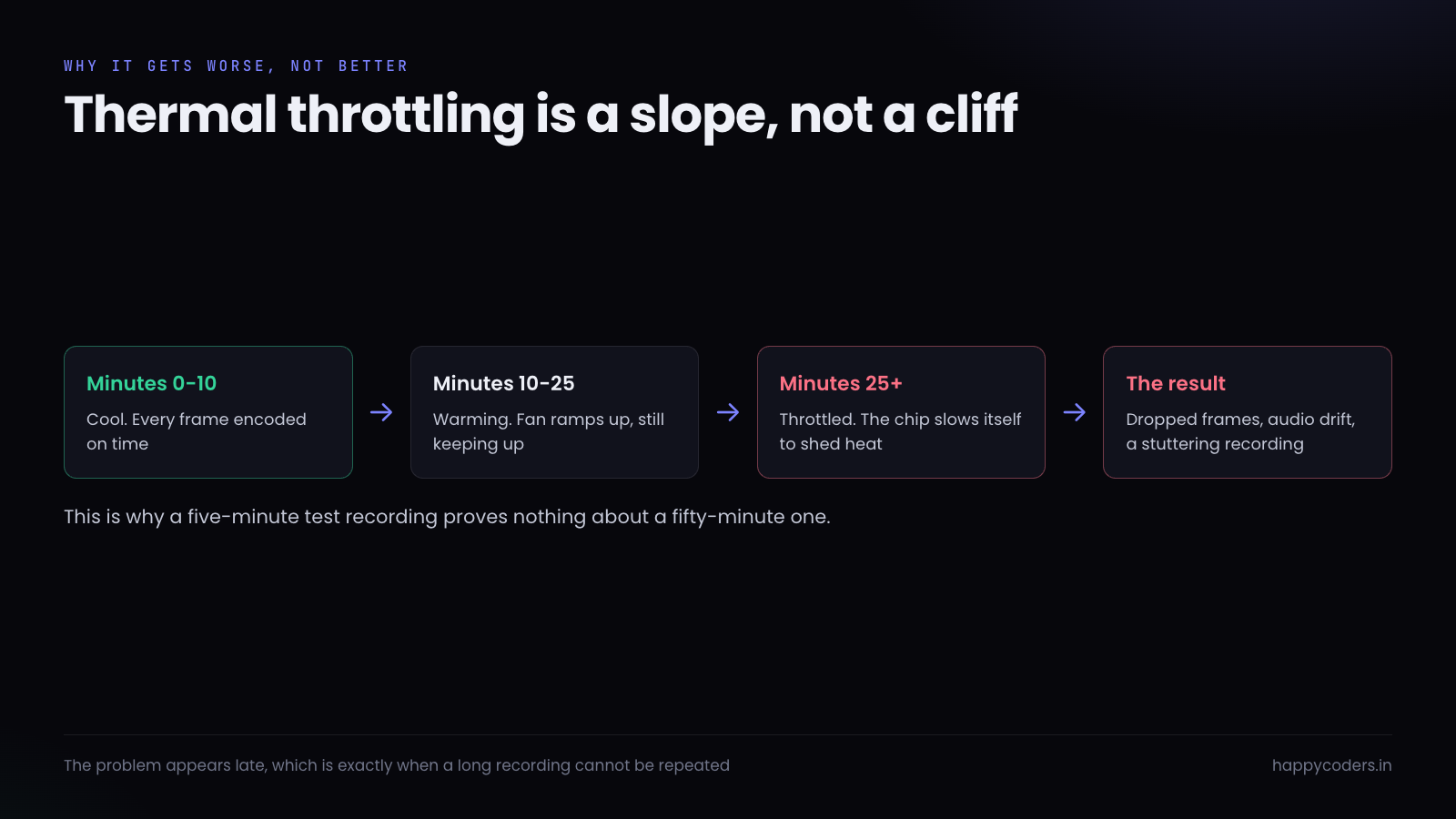
Heat accumulates. For the first stretch the chip runs at full speed and every frame is encoded on time. As the enclosure warms, the fan ramps up. Past a threshold the chip starts slowing itself down deliberately to shed heat, and that is when frames start arriving late.
A recorder that is dropping frames does not usually stop or warn you. It writes what it gets, and the result is a file that plays back with a stutter, or worse, audio that gradually drifts out of sync with the picture because the audio kept perfect time while the video did not.
So the test that means something is a long one. Record fifteen or twenty minutes of nothing in particular at your chosen settings, then watch the last two minutes. If those are clean, the settings will hold.
How to tell whether it actually dropped frames
Stuttering playback is not proof on its own — the playback machine might be the problem. The
way to know is to compare the file’s duration against how long you actually recorded. If you
recorded for twenty minutes and the file says nineteen minutes and forty seconds, frames went
missing, and the difference is roughly how many.
The other tell is audio drift. Audio and video are recorded on separate clocks. When video
frames are dropped and the file is written as though they were not, the picture gradually
falls behind the sound. If a recording is in sync at the start and visibly out by the end,
that is dropped frames, not a bad microphone.
Neither problem is fixable afterwards in any satisfying way. You can stretch the video to
match, but the stutter stays. This is the argument for getting the settings right before a
recording you cannot easily repeat — a client walkthrough, a handover, a live session.
The MacBook on a soft surface
Worth mentioning because it is common and invisible. A laptop on a bed, a sofa, or a cushion has its ventilation partly blocked, and the same recording that is fine on a desk will throttle. If you record from a laptop away from a desk, put something flat and hard underneath it. It costs nothing and it is occasionally the entire problem.
External displays are worth knowing about too. Driving a second screen is work the graphics chip is doing on top of the recording, and on a warm machine it contributes. If a long recording is struggling and you have a second monitor attached, disconnecting it for the duration is a fair thing to try.
What the fan does to your audio
The reason this matters beyond comfort: a built-in microphone sits inside the same enclosure as the fan. Once it is spinning at speed, it is in the recording. Not loud enough to be obvious while you are talking, but present as a broadband hiss under everything, and it is difficult to remove afterwards without making the voice sound processed.
This is the strongest practical argument for recording at settings the machine can handle comfortably. A quiet Mac is not just a nicer experience; it is a cleaner audio track, and audio is the part of a screen recording that people actually notice when it is bad.
A reasonable default
For a tutorial, a walkthrough, a bug report or a handover — which is most of what anybody records — 1080p at 30 frames per second with hardware encoding is the setting to start from. It produces a file small enough to email, it looks correct on any screen it will be watched on, and a Mac will hold it for an hour without the fan becoming part of the recording.
HappyRec uses hardware encoding by default and lets you pick the resolution and frame rate before you start, so this is a decision you make once. It is free, and it is built for exactly the kind of long, unglamorous recording where this problem shows up.