A screen recorder is one of the more invasive things you can install. By definition it can see whatever is on your screen, and if it has microphone permission it can hear whatever is in the room.
That is a reasonable thing to be careful about, and most applications in this category answer the question with a privacy policy nobody reads. Here is the direct version: what is captured, when, where it goes, and what never happens at all.
Nothing is recorded unless you are recording
HappyRec captures the screen while a recording is running and at no other time. Not in the background, not while the window is open and idle, not while it sits in the menu bar.
You can see this from the outside as well as take our word for it. macOS shows its own indicator in the menu bar whenever any application is capturing the screen, and it is drawn by the system rather than by us. If that indicator is not showing, nothing is being captured by anything.
The same applies to the microphone and the camera. Both have system indicators that no application can suppress.
This is the useful thing about macOS permissions: you do not have to trust the application’s own claim about whether it is recording. The operating system tells you independently.
Where the files are
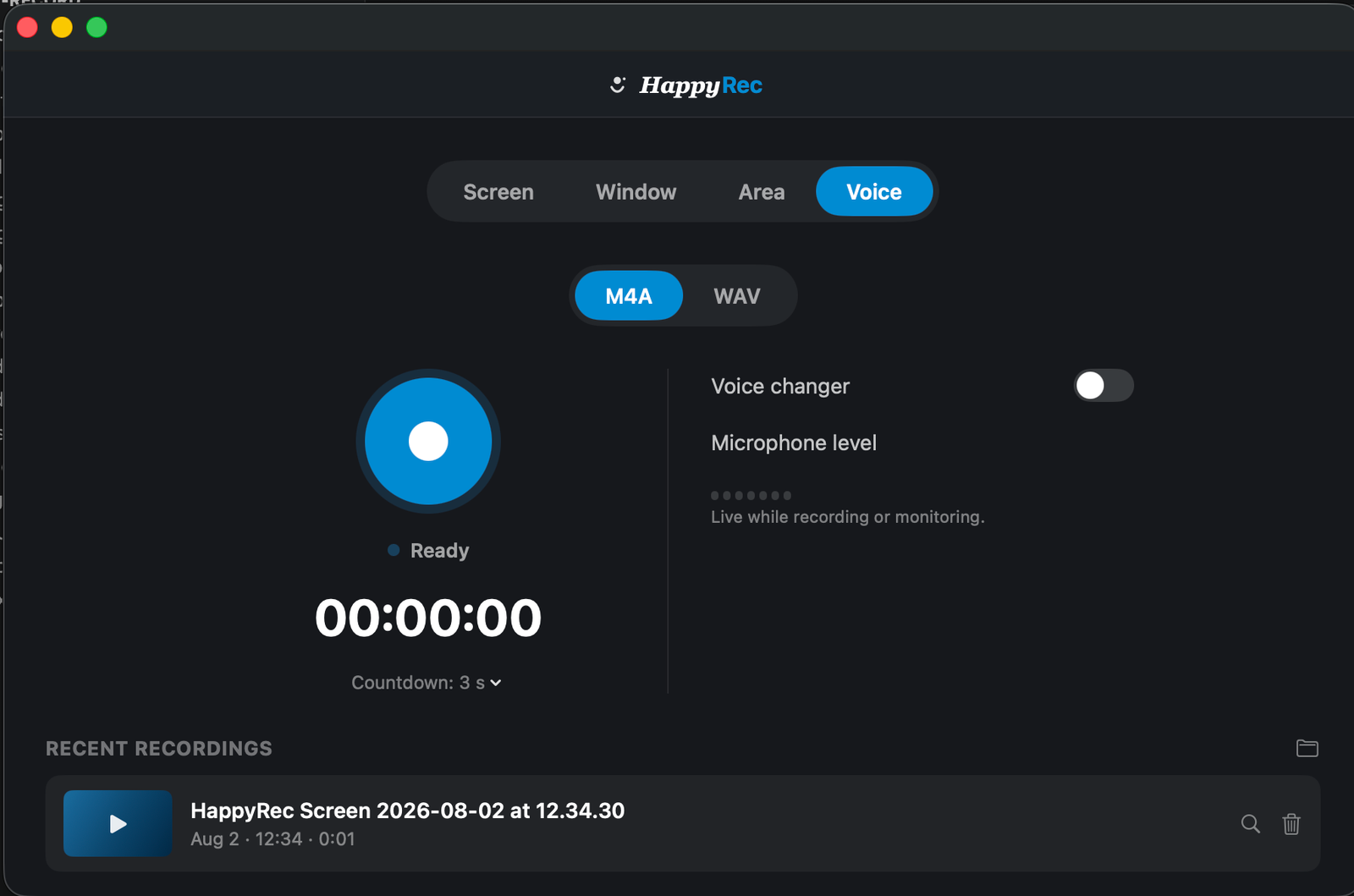
Recordings are written to a folder on your Mac that you pick the first time you record. Not a hidden container, not an application library — an ordinary folder you can open in Finder.
They are written continuously while you record rather than assembled at the end, which has a practical consequence worth knowing: if something goes wrong at forty minutes into an hour, you have forty minutes of valid file rather than nothing at all.
Because they are ordinary files in an ordinary folder, they are included in whatever backup you already run, and moving or renaming them breaks nothing.
There is no account
HappyRec has no sign-in, no account, and no server component. This is a design decision rather than a feature not yet built.
It means a few practical things. There is nothing to be locked out of. There is no password to lose. There is no subscription to lapse and take your access with it. And there is no copy of anything you record anywhere except on your own machine.
It also means there is no sync, no shared library and no web access to your recordings, which is the trade. For a tool whose job is to produce a file, we think that is the right side of the trade to be on.
What the app can see, and what it does with it
Three permissions, three narrow purposes.
- Screen recording — required to capture the screen. Used while recording, not otherwise.
- Microphone — optional. Only requested if you switch the microphone on, and only used while recording.
- Camera — optional. Only requested if you switch on the camera bubble or the avatar.
The avatar is worth a specific note, because it is the one that surprises people. The avatar moves in response to your face, which means the camera has to be on for it to work. Your camera image is used on your Mac to move an illustration and is never written into the recording and never sent anywhere. If you would prefer the camera not to be on at all, switch the bubble off entirely rather than using the avatar.
What never happens
- No uploads. Nothing you record is transmitted anywhere, ever.
- No keystroke logging. The app does not read what you type.
- No analytics on your content. Nothing looks at what is in a recording.
- No background capture. Recording happens while you are recording and at no other time.
- No hidden files. A recording is one file, where you put it.
Every one of those is checkable rather than a claim. Watch the system indicators, look at the folder, and put the machine on a network monitor if you like.
Things worth doing yourself
The application can be careful and still not protect you from the most common problem, which is what is on your screen when you press record.
- Turn on Do Not Disturb. A notification containing somebody else’s message is the most frequent accidental disclosure in screen recordings.
- Close what is not needed. Email, chat, anything with a client name in a tab title.
- Use Window or Area mode rather than Screen when the recording is going outside your company. Then only the thing you chose can be in it.
- Watch it back before sending. Thirty seconds, once, and it catches everything.
The fourth is the one people skip and the one that would have caught almost every screen recording that should not have been sent.
If you are deploying this at a company
A few questions come up when somebody wants to use a recorder for work rather than personally, and the answers are short.
- Does it need network access? No. It records and writes files locally. Nothing about recording requires a connection.
- Does it store anything centrally? No. There is no server component and no account.
- Where do the files live? In a folder each person chooses, on their own machine, inside whatever backup policy already covers it.
- Can it be audited? The macOS indicators show independently when the screen, microphone or camera are in use, and they cannot be suppressed by an application.
The remaining question — what employees may record and who they may share it with — is a policy question rather than a software one, and it is the one worth writing down before anybody installs anything.
Deleting a recording
Delete the file. That is the whole procedure, because the file is the only copy and there is no second one anywhere to also delete.
Removing it from the Recent recordings list does not delete the file, and deleting the file removes it from the list. The list is a view of a folder, not a database with its own contents.
HappyRec is free, needs no account, and keeps everything you record on your own Mac.
Choosing what can appear in a recording
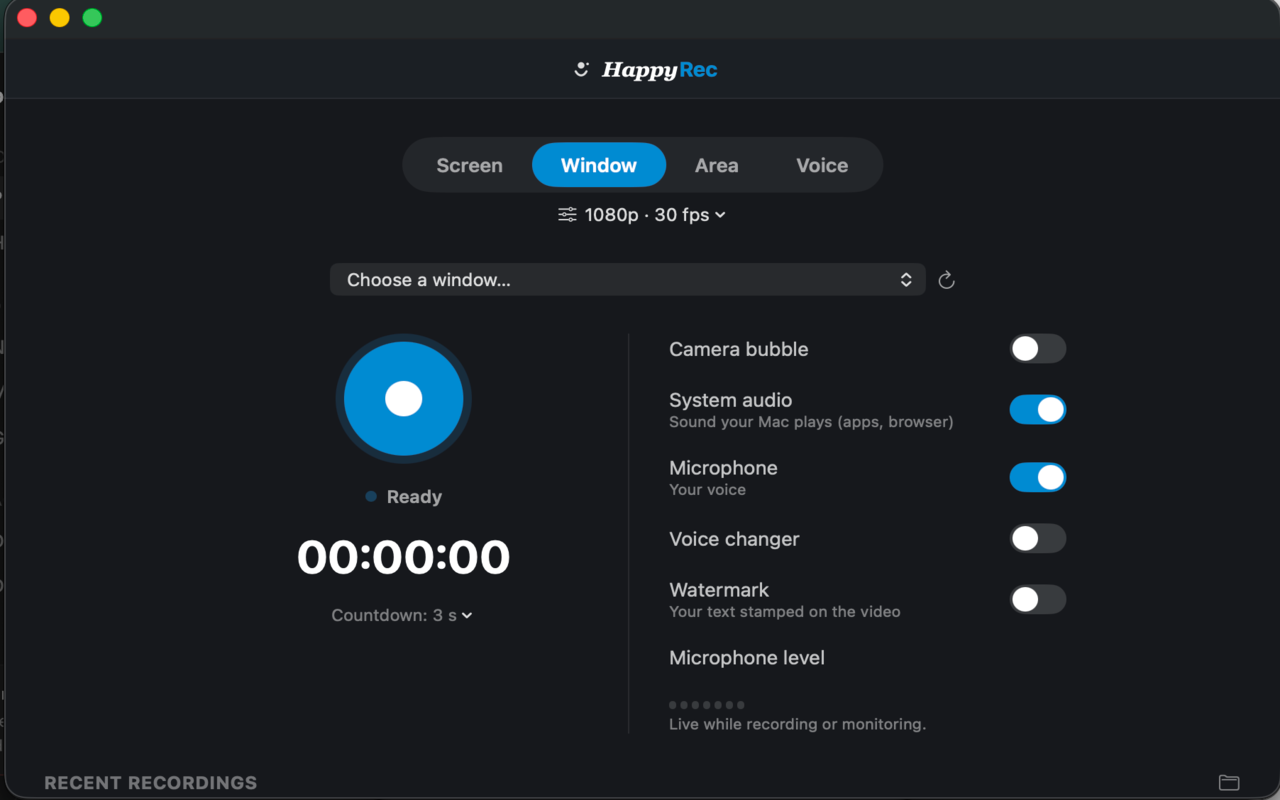
The strongest privacy control in a screen recorder is not a setting. It is choosing a capture mode that cannot include what you did not intend.
Window mode records one application. Nothing else can appear in the file — not a notification, not another window, not your desktop — because none of it is being captured in the first place.
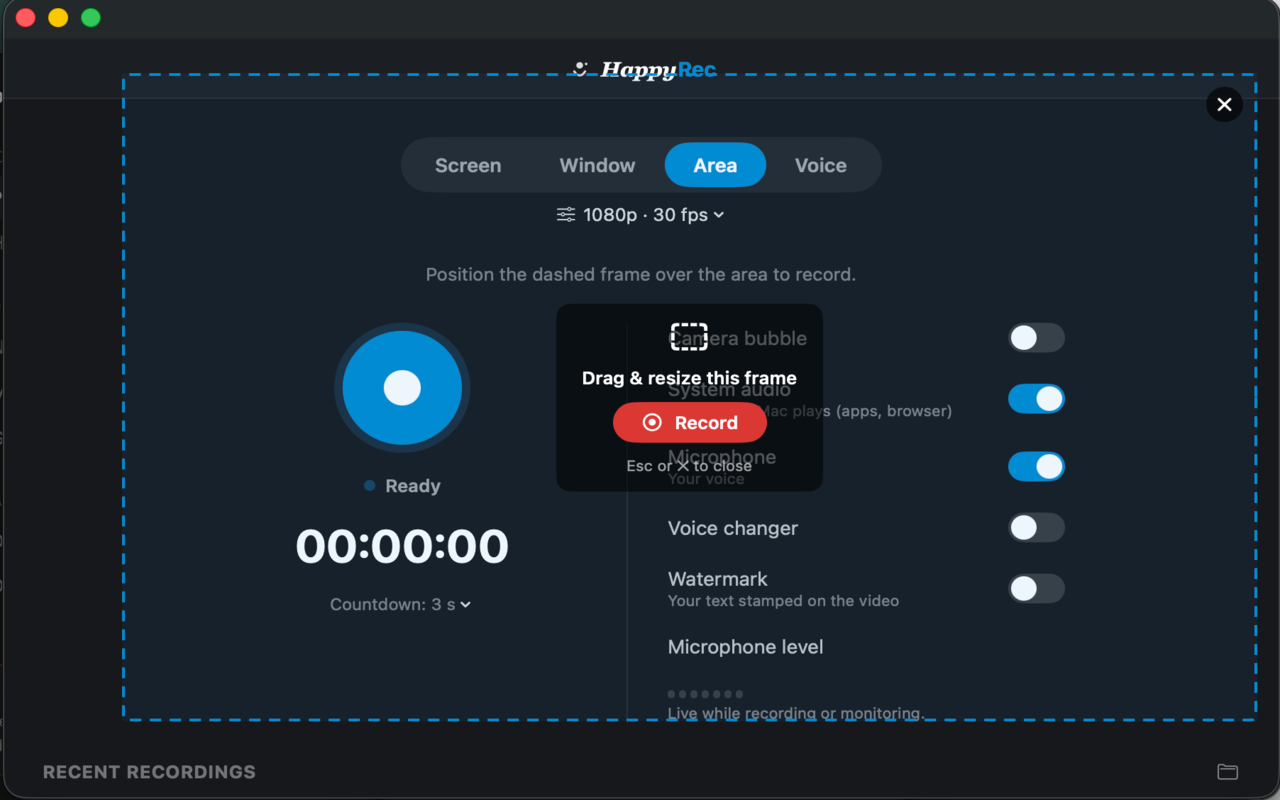
Area mode is the same argument in a different shape. You drew the rectangle; whatever is outside it is not in the file.
Screen mode is the honest one and the risky one. It records what your screen looks like, which is exactly what you want for a workflow demonstration and exactly what you do not want for anything going to a client without a look at the desktop first.
The recording you already made
If something ended up in a recording that should not have, the fix is the same as for any file: delete it, and check anywhere you have already sent it. There is no cloud copy, no cached version and no second place to also clear.
That is the practical benefit of an application with no account. The list of places a recording exists is short and you can see all of it.