Every developer has received the same bug report: a screenshot of an error message, and the words “not working”. And every developer has sent back the same reply — what were you doing before this happened?
That reply is the whole argument. A screenshot shows the moment something broke. A recording shows the steps that broke it, and the steps are what gets it fixed.
What a developer is actually trying to work out
Fixing a bug is mostly reproducing it. Once a developer can make it happen on their own machine, the fix is usually quick; until then they are guessing. So everything in a good bug report exists to answer one question: what exactly did you do?
- Which screen were you on, and how did you get there?
- What did you type or click, in what order?
- Was anything unusual on screen before the error — a slow spinner, a different message, something half-loaded?
- Did it happen every time, or only that once?
A screenshot answers none of those. A thirty-second recording answers all of them without anybody typing a word.
When a screenshot is the right choice
Screenshots are not a lesser tool; they are a different one, and for some reports they are better.
- A wrong value on screen. A total that says ₹1,240 instead of ₹1,420 needs one image, not a video.
- A layout problem. Overlapping text, a button off the edge, something misaligned on a phone.
- An error message to be read. Especially one you want to paste text from.
- Anything you are sending over a slow connection, or pasting into a chat where a video will be compressed to mush.
- Documentation and step-by-step guides, where a reader needs to look at one thing at a time.
The test is simple: if the problem is visible in one moment, send a screenshot. If the problem is how you arrived at that moment, record it.
When a recording saves a week
- “It only happens sometimes.” Intermittent bugs are the most expensive kind. A recording of one occurrence, with the timing visible, is often the entire clue.
- Anything involving order. Save, then edit, then go back — bugs that depend on sequence cannot be described accurately from memory.
- Timing and animation. A spinner that never stops, a page that flashes, a button that works on the second click.
- “I cannot describe it.” When a non-technical user is reporting, a recording removes the translation step entirely.
- Anything a developer cannot reproduce. If two replies have already been exchanged, stop typing and record.
What makes a recording actually useful
A five-minute video of somebody browsing is worse than a screenshot. A good bug recording is short and deliberate.
- Start from a known place. The home screen, or a fresh page load — not halfway through a flow.
- Say what you are about to do, if you are recording your voice. Twenty seconds of narration replaces a paragraph of description.
- Move slowly. A developer watching needs to see where you clicked.
- Show the thing that is wrong, clearly, and pause on it for two seconds.
- Keep it under a minute. If it takes longer, the report is probably two bugs.
And record the window, not the whole screen. A full desktop recording means your email, your other tabs and anybody’s name in your notifications are now in a file attached to a ticket.
What not to record
This is the part people get wrong, and it matters more in a bug report than anywhere else, because the file goes into a ticket system that many people can read, and it stays there for years.
- Never record a screen with real customer data if you can reproduce the problem with test data.
- Close anything with credentials on it — a terminal, a password manager, an
.envfile, an admin panel with API keys. - Turn on Do Not Disturb. A message that appears mid-recording is now in the ticket.
- Use an area or window, not the full screen, so nothing outside the app can appear.
A video can be paused frame by frame. If a key or a customer name appeared for half a second, treat it as disclosed — rotate the key, and re-record.
Recording one in under a minute
On a Mac the practical sequence is short enough to become habit:
- Open the recorder, choose Window mode and pick the application.
- Turn the microphone on if you want to narrate; leave it off for a silent clip.
- Turn Do Not Disturb on.
- Press record, wait for the countdown, reproduce the bug.
- Stop. Attach the file to the ticket.
If you need both — a recording of the steps and a still of the error to paste in the ticket description — take a screenshot as well. They are not exclusive, and a ticket with a still at the top and a recording attached is the most useful shape there is.
A bug report template that works
Whatever you attach, the text around it does the other half. Five lines:
- What I did — the steps, briefly.
- What I expected — one sentence.
- What happened instead — one sentence.
- How often — every time, or once in five.
- Where — browser and version, or app version, and whether it is live or staging.
With a recording attached, those five lines take a minute to write and remove almost all of the back and forth. Without one, they still help — but the developer will still ask what you did before.
For teams: make it easy, not mandatory
The fastest way to get better bug reports is not a policy. It is putting a recorder on every machine so the effort of recording is lower than the effort of describing.
Two things help adoption. First, a tool that needs no account and no sign-in, so nobody has to be onboarded. Second, a shared folder or ticket field where recordings go, so people are not left wondering what to do with a 40 MB file.
And keep the recordings small: window mode rather than the full screen, and the lower resolution setting. A bug recording does not need to be 4K, and a file that will not upload does not get attached.
Frequently asked questions
Is a GIF better than a video?
For very short, silent clips a GIF plays inline in most ticket systems, which is convenient. It is also far larger than a video of the same length and cannot carry sound. Under five seconds, a GIF is fine; beyond that, send a video.
Should I always narrate?
Not always, but it helps more than people expect — especially for intermittent bugs, where “this is the third time I have tried, it worked twice” is information no screenshot can carry.
What about screen recordings on a phone?
Both iOS and Android record the screen natively, and for mobile bugs that is the right tool. The same rules apply: short, from a known starting point, notifications off.
The tool
HappyRec is a free screen recorder for macOS with no watermark and no account — screen, window, area or voice-only, and files saved to your own Mac rather than uploaded anywhere. For bug reports that combination matters: window mode keeps the rest of your desktop out of the file, and nothing leaves the machine unless you attach it yourself.
If you record tutorials as well as bug reports, we have a guide on recording a coding tutorial with your voice.
Why the screenshot usually is not enough
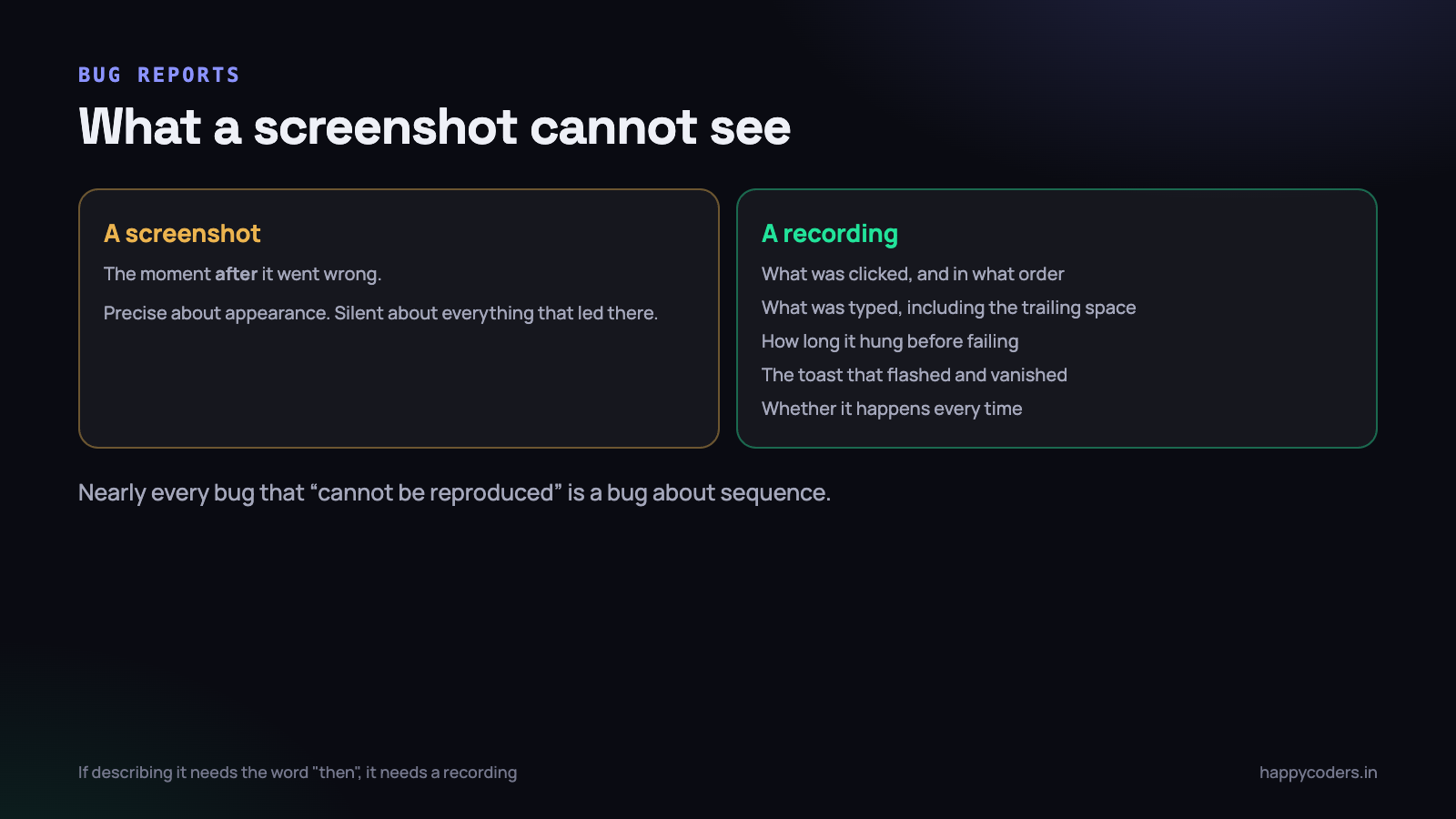
A screenshot captures the moment after something went wrong. Almost everything a developer needs to reproduce a bug happened before that moment, and the screenshot did not see any of it.
Consider what is missing from a picture of an error message:
- What the person clicked, and in what order. Nearly every bug that cannot be reproduced is a bug about sequence.
- What they typed. Including the trailing space, the pasted value with invisible formatting, or the date entered in the other format.
- How long things took. A page that hung for eleven seconds and then failed is a completely different bug from one that failed instantly.
- What flashed and disappeared. Toast messages, loading states and validation errors that clear themselves are invisible to a still image.
- Whether it happened once or every time. A recording of two attempts answers this; a screenshot never can.
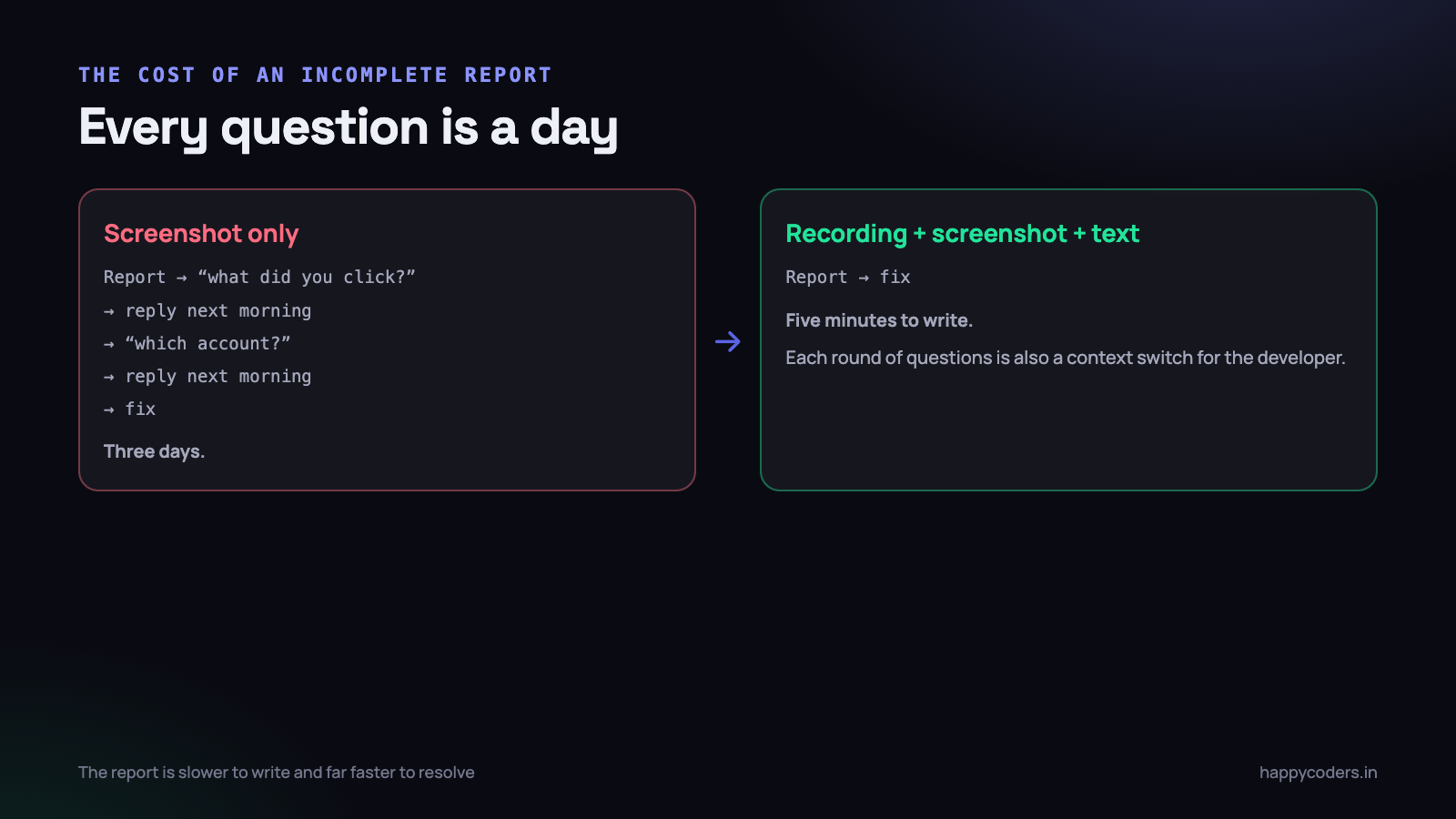
This is why the most common reply to a screenshot is a question, and why a bug reported with one takes several rounds to resolve. Each round is a day, because the reporter and the developer are rarely at their desks at the same moment.
Where a screenshot genuinely wins
Screenshots are not a worse tool — they are a different one, and for some reports they are clearly correct.
- Anything about appearance. Wrong colour, misaligned button, text overflowing a box. A still image is precise and a video makes it harder to see.
- Anything you need to annotate. Arrows, circles and labels communicate faster than narration ever will.
- Error text and stack traces. Though pasting the text is better still, because it can be searched and copied.
- A record for a document or a ticket description that somebody will skim months later.
- When the problem is genuinely static and takes one step to reach. A recording of one click is a waste of everybody’s attention.
A useful rule of thumb: if you can describe the problem completely in one sentence without using the word “then”, a screenshot is probably enough. As soon as the description needs a sequence, it needs a recording.
How to record a bug that gets fixed quickly
A bad recording is worse than a screenshot, because it wastes four minutes of somebody’s time and still does not show the problem. The difference between the two is almost entirely preparation.
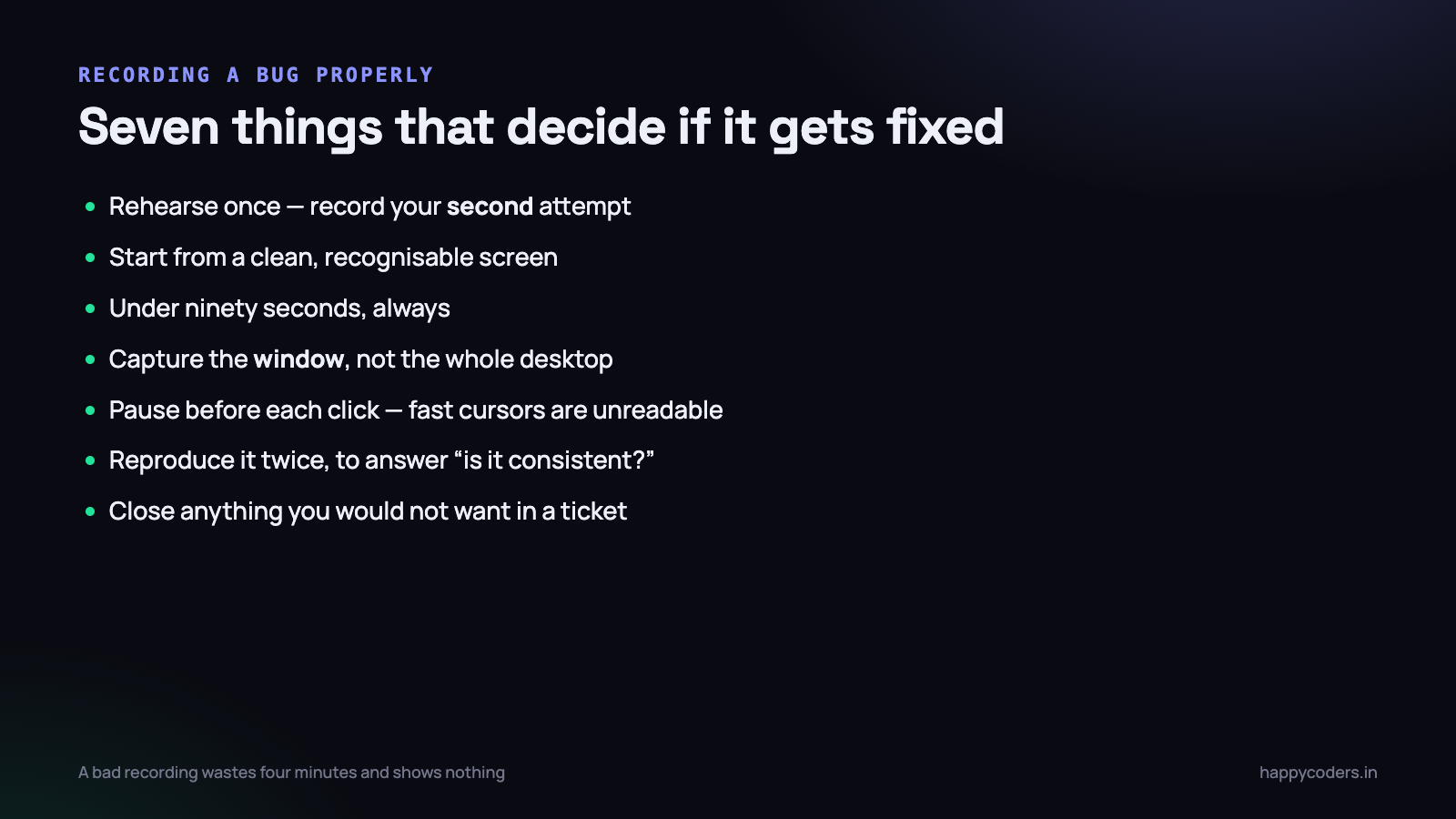
- Rehearse the steps once before recording. Know exactly what you are going to click. The recording should be your second attempt, not your first.
- Start from a clean, recognisable state. Begin at a page the developer will recognise, not halfway through a flow with six modals already open.
- Keep it under ninety seconds. Almost every bug can be shown in under a minute. Long recordings do not get watched properly.
- Record the window, not the whole desktop. It keeps the file small, keeps the text readable, and keeps your other tabs and messages out of the file.
- Move the cursor deliberately and pause before each click. On a recording, a fast cursor is genuinely hard to follow.
- Reproduce it twice if you can. The second attempt answers “is it consistent?” without anybody having to ask.
- Narrate briefly, or do not narrate at all. “I click save, and it says saved, but the value is still the old one” is perfect. Thinking out loud for two minutes is not.
Before you record, close anything you would not want in a ticket — personal chat, email, other clients’ data. A recording captures everything on screen, and unlike a screenshot you cannot glance at it and be sure. This matters most when the recording will be attached to a ticket that people outside your team can read.
The combination that works best
In practice, the strongest bug report is not one or the other. It is a short recording plus an annotated screenshot of the key moment, plus the text.
The recording proves the sequence. The screenshot points at the exact thing that is wrong, so nobody has to scrub through the video to find it. The text carries the parts neither can hold — the URL, the browser and version, the account used, the time it happened, and what was expected instead.
- Title — what is broken, in one line: “Saving a client keeps the old email address”.
- Steps — numbered, three to six of them.
- Expected and actual — one line each.
- Environment — browser, operating system, account, roughly when.
- Recording — under ninety seconds, window capture.
- Screenshot — annotated, of the wrong result.
- Error text — pasted as text, not photographed.
That takes about five minutes to assemble and routinely saves a day and a half of back-and-forth. The reason is simple arithmetic: every question a developer has to ask costs a full working-day round trip, and a complete report usually eliminates two or three of them.
What this changes for a support team
If your support or QA people currently send screenshots by default, changing the default is a small process change with a disproportionate effect.
- Agree one rule — anything involving a sequence gets recorded. Anything about appearance gets a screenshot.
- Put a recorder on every support machine and make sure everyone has used it once before they need it in anger.
- Add the recording field to the ticket template, so leaving it empty is a visible choice rather than an oversight.
- Agree where files go — attached to the ticket, or a link, but the same place every time. Recordings scattered across personal drives are lost within a month.
- Keep them short by policy, not by hope. A ninety-second limit written down is respected; “keep it brief” is not.
The measurable result is fewer rounds per ticket. That shows up as faster fixes, but it also shows up as fewer interruptions for the developers, because each round of questions is a context switch for somebody who was working on something else.
HappyRec is a free screen recorder for macOS with window and area capture, which is what you want for a bug report — a small file, readable text, and nothing on screen that should not be in a ticket.