Both stop a function running too often. They do it in opposite ways, and choosing the wrong one produces a feature that works in testing and feels broken in use.
The one-line version: debounce waits for things to stop; throttle allows one call per interval no matter what. Everything else follows from that.
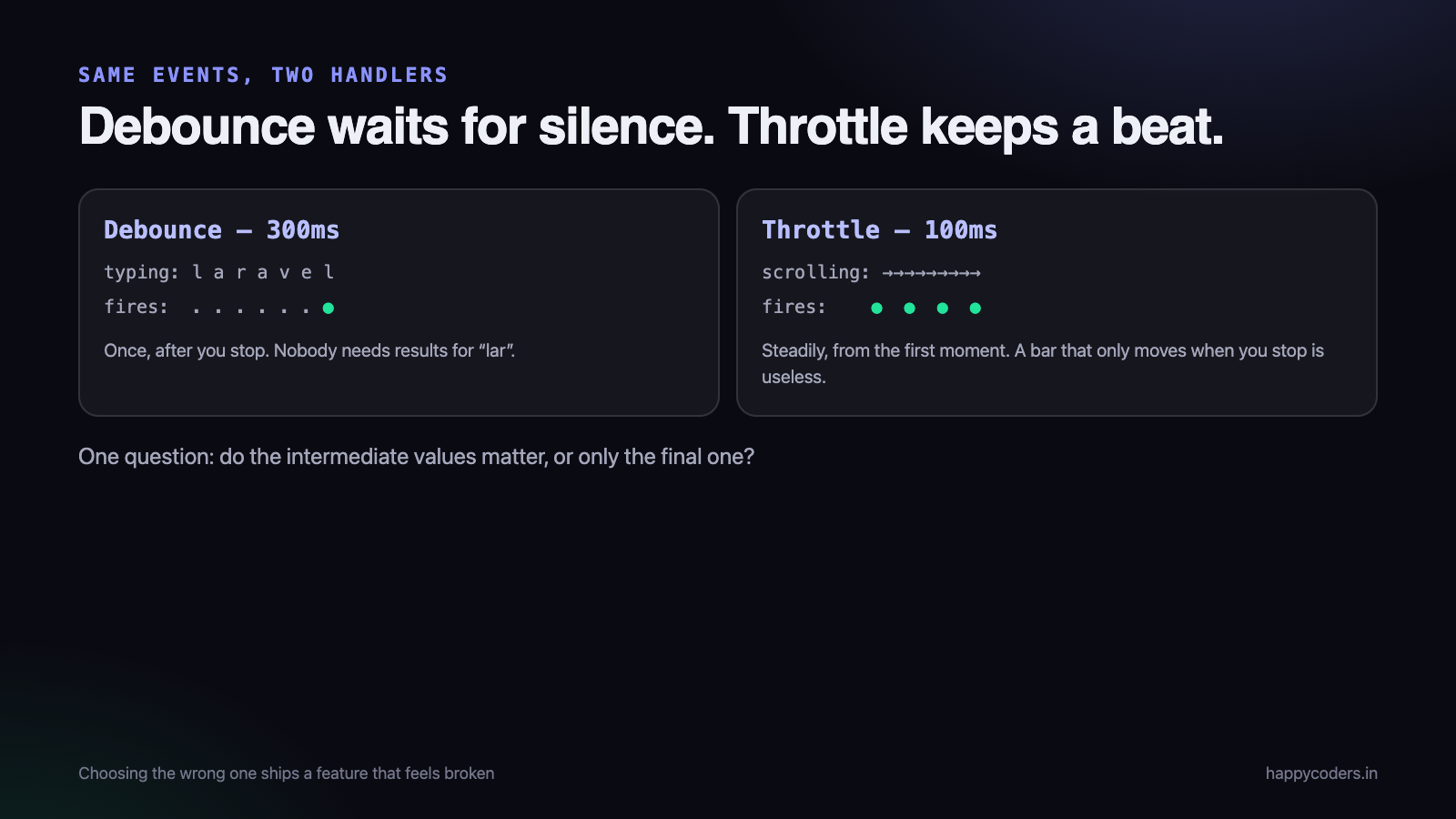
Debounce: wait for the pause
A debounced function resets its timer every time it is called. It only runs once calls have stopped for the specified period.
Type “laravel” into a search box at normal speed and a debounced handler with a 300ms delay fires once, after you stop. Not seven times.
function debounce(fn, wait = 300) {
  let timer;
  return function (...args) {
    clearTimeout(timer);
    timer = setTimeout(() => fn.apply(this, args), wait);
  };
}

const search = debounce(q => fetchResults(q), 300);
input.addEventListener('input', e => search(e.target.value));
Use it when only the final state matters and the intermediate ones are noise: search-as-you-type, autosave in an editor, validating a field after the user stops typing, reacting to a window resize.
Throttle: one call per interval
A throttled function runs immediately, then refuses to run again until the interval has passed. Calls in between are dropped.
Scroll down a long page and a throttled handler at 100ms fires about ten times a second, steadily, from the first moment — instead of the sixty or more times the browser would otherwise fire it.
function throttle(fn, limit = 100) {
  let waiting = false;
  let lastArgs = null;

  return function (...args) {
    if (waiting) { lastArgs = args; return; }

    fn.apply(this, args);
    waiting = true;

    setTimeout(() => {
      waiting = false;
      if (lastArgs) { fn.apply(this, lastArgs); lastArgs = null; }
    }, limit);
  };
}

window.addEventListener('scroll', throttle(updateProgressBar, 100));
Note the lastArgs handling. Without it, the final call in a burst is lost — so a scroll that stops mid-page leaves your progress bar showing where it was 90ms ago. Naive throttle implementations skip this, and it is exactly the kind of bug that is invisible in testing.
Use it when intermediate updates genuinely matter: scroll position, a progress indicator, mouse position, updating a chart while dragging, live analytics.
Choosing between them
Ask one question: do the intermediate values matter, or only the final one?
- Only the final one — debounce. Nobody needs search results for “lar”.
- The intermediate ones matter — throttle. A scroll indicator that only updates when you stop scrolling is useless.
A second question catches the remaining cases: is the handler expensive? A network request or a layout recalculation is expensive and must be limited. Setting a CSS variable is cheap and often needs neither.
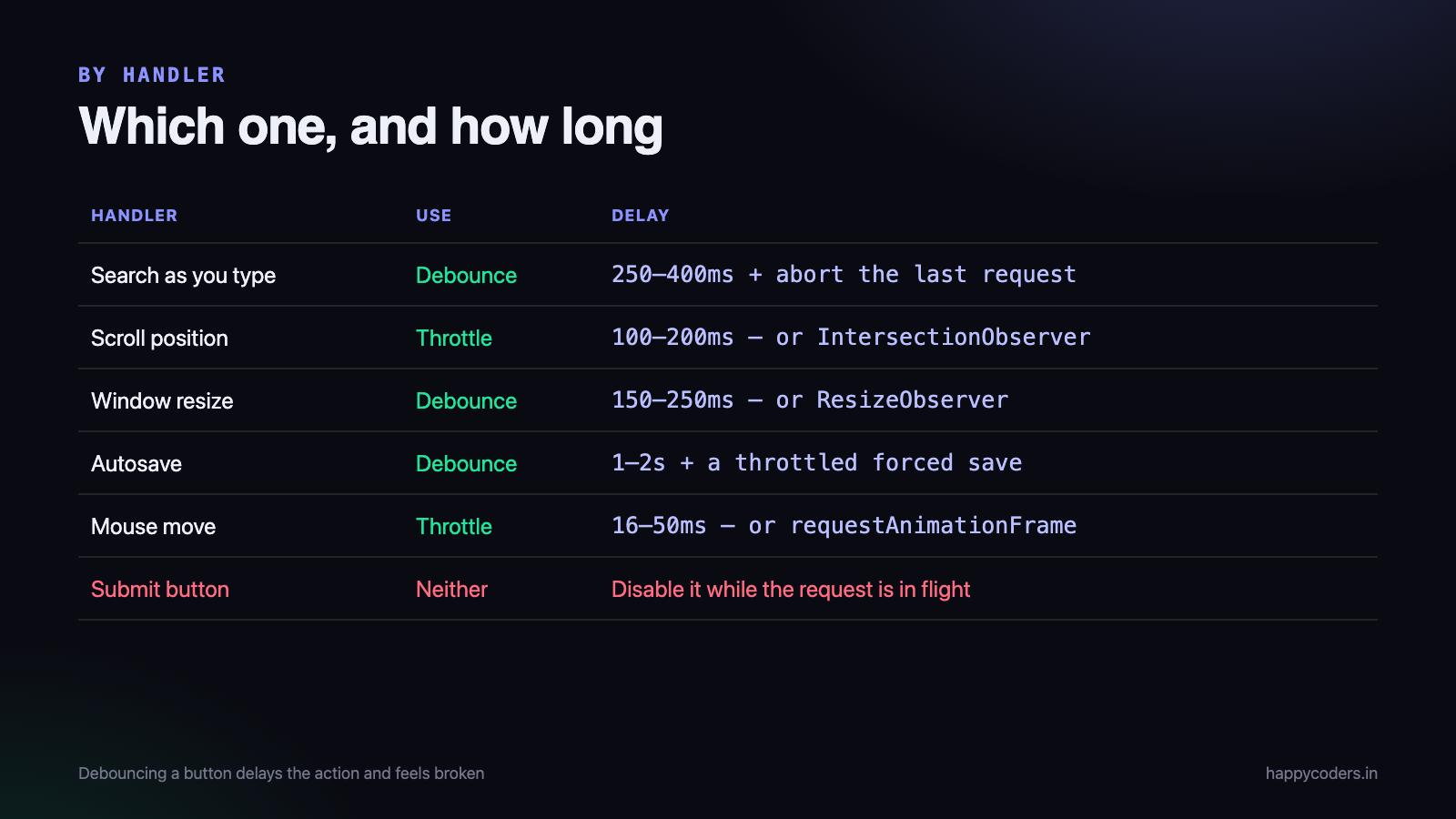
The cases, specifically
Search as you type — debounce, 250 to 400ms
Below 200ms you are firing requests at people who type quickly. Above 500ms the box feels unresponsive. 300ms is a good default.
Debouncing is not the whole job though. Responses can arrive out of order — a request for “lar” can return after the one for “laravel” and overwrite better results with worse ones. Cancel the previous request as well:
let controller;

const search = debounce(async q => {
  controller?.abort();
  controller = new AbortController();
  try {
    const res  = await fetch(`/api/search?q=${encodeURIComponent(q)}`,
                             { signal: controller.signal });
    render(await res.json());
  } catch (e) {
    if (e.name !== 'AbortError') showError();
  }
}, 300);
Scroll handlers — throttle, 100 to 200ms
Though for anything that only needs to know whether an element is on screen, use IntersectionObserver instead. It is not a throttled scroll handler; it is the browser telling you when visibility changes, which is both more accurate and considerably cheaper.
Reserve throttled scroll handlers for things that genuinely need the scroll position itself — a reading progress bar, a parallax effect, a header that shrinks.
Window resize — debounce, 150 to 250ms
Resizing fires continuously while the user drags. Anything that recalculates layout or redraws a chart should wait until they stop.
Autosave — debounce, 1000 to 2000ms
Longer than it feels like it should be, because every save is a request. Pair it with a periodic forced save so a user who types continuously for ten minutes is not one crash away from losing everything:
const save     = debounce(persist, 2000);
const forceSave = throttle(persist, 30000);   // at most once every 30s

editor.addEventListener('input', () => { save(); forceSave(); });
Button clicks — neither
Do not debounce a submit button. Debouncing delays the action, which makes the interface feel broken. Disable the button while the request is in flight and re-enable it when it resolves. That is clearer to the user and does not depend on a timer.
Mouse move — throttle, 16 to 50ms
Or, for anything visual, use requestAnimationFrame instead, which synchronises with the browser’s paint cycle rather than guessing at an interval.
let queued = false;
window.addEventListener('mousemove', e => {
  if (queued) return;
  queued = true;
  requestAnimationFrame(() => { moveTooltip(e); queued = false; });
});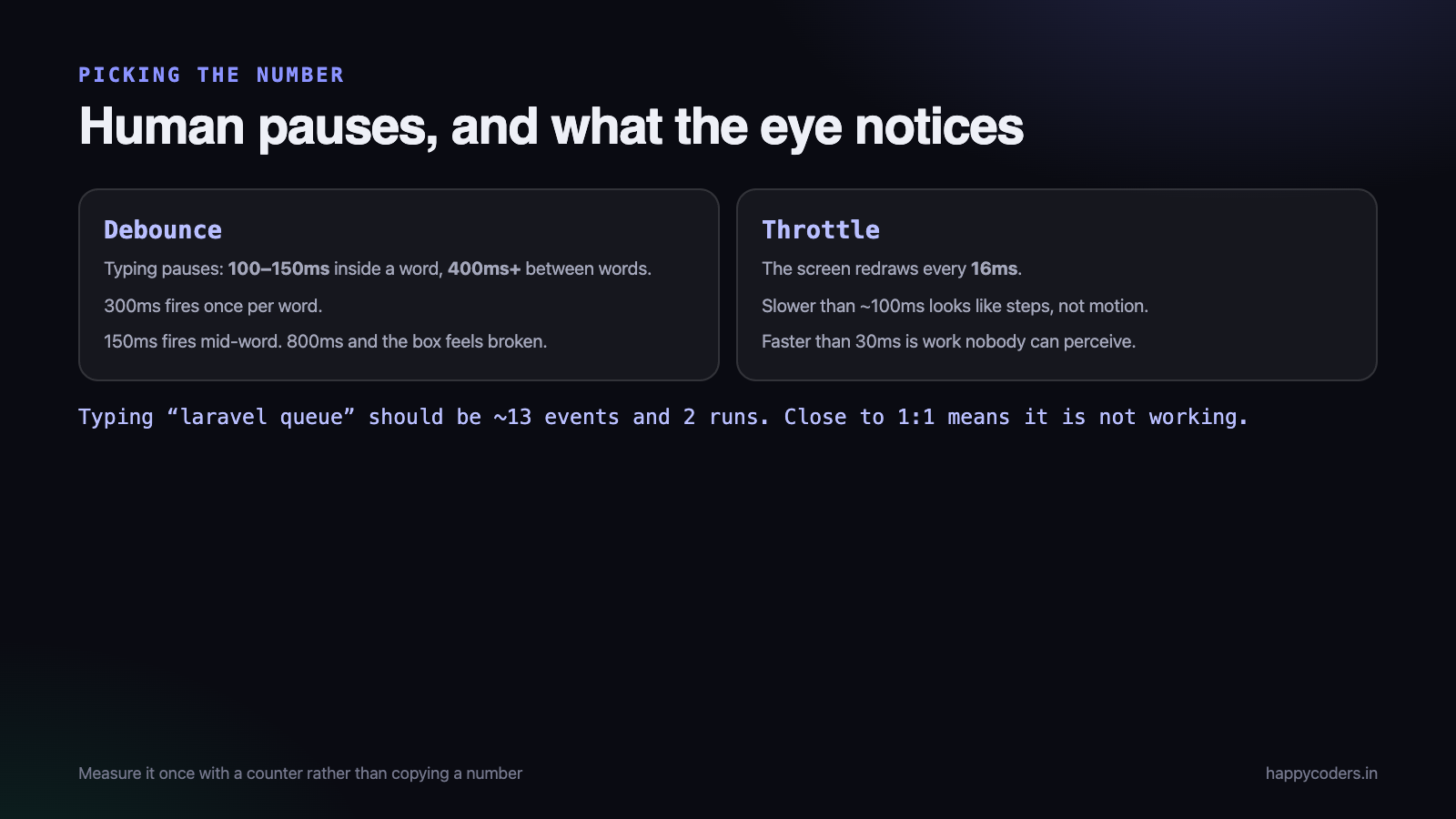
Picking the number
The delay is usually chosen by copying whatever the first search result said. It is worth a moment’s thought, because the wrong value is what makes an interface feel sluggish or wasteful.
For debounce, the number is about human pauses
A competent typist pauses roughly 100–150ms between keystrokes inside a word, and 400ms or more between words or when thinking. A debounce of 300ms therefore fires once per word rather than once per keystroke, which is almost always what you want from a search box.
Set it to 150ms and you are firing mid-word. Set it to 800ms and there is a visible lag after the user has plainly finished typing, and they start wondering whether the box is broken.
For throttle, the number is about how fast the eye notices
A screen redraws 60 times a second, so every 16ms. Updates slower than about 100ms start to look like steps rather than motion; faster than 30ms is usually wasted work nobody can perceive.
So: 16ms for something following the cursor directly, 50–100ms for a progress bar or a sticky header, 200ms or more for something like firing an analytics event where nobody is watching the result at all.
Measure rather than guess, once
Both of these are easy to check on the real thing. Log a counter in the handler, use the feature the way a user would for thirty seconds, and look at the number:
let calls = 0, runs = 0;

input.addEventListener('input', () => { calls++; });
const search = debounce(q => { runs++; fetchResults(q); }, 300);

// after using it: console.log(calls, runs)
// a search box typing "laravel queue" should be roughly 13 and 2
If the ratio is close to 1:1 your debounce is not working — usually the mistake in the next section. If runs is 1 when it should be several, the delay is too long for how people actually use it.
How they behave on a slow network
Both helpers assume the expensive thing finishes before the next one starts. On a poor connection it does not, and two failure modes appear that never show up in development.
Requests pile up. A debounced search on a 3G connection can have three requests in flight at once if the user types in bursts. Aborting the previous one, as shown earlier, is not an optimisation — on a slow connection it is the difference between correct results and whichever response happened to land last.
The interface has nothing to say. Between the debounce delay and the response arriving there can be a second and a half where the user has stopped typing and the screen has not changed. Show a loading state as soon as the debounced call fires, not when the response arrives, or the feature feels dead in exactly the conditions where reassurance matters most.
Both are worth testing deliberately: throttle the network in dev tools to Slow 3G and use the feature normally for a minute. It takes two minutes and finds problems that never appear on a desk with fibre.
The three mistakes
Creating the debounced function inside the handler
// wrong: a new debounced function every keystroke, so the timer never survives
input.addEventListener('input', e => {
  debounce(() => search(e.target.value), 300)();
});

// right: create it once, outside
const search = debounce(q => fetchResults(q), 300);
input.addEventListener('input', e => search(e.target.value));
The wrong version debounces nothing at all, and it is subtle enough to survive code review. In React the same mistake is creating the debounced function in the render body instead of a useMemo or a ref.
Forgetting to cancel on unmount
A pending debounced call that fires after the component is gone will try to update something that no longer exists. Any debounce you keep should expose a cancel:
function debounce(fn, wait = 300) {
  let timer;
  const debounced = function (...args) {
    clearTimeout(timer);
    timer = setTimeout(() => fn.apply(this, args), wait);
  };
  debounced.cancel = () => clearTimeout(timer);
  return debounced;
}
Using it to hide a real performance problem
If a scroll handler takes 40ms to run, throttling it to every 100ms means the page still stutters, just less often. Throttling limits how frequently the problem occurs; it does not fix it.
Profile the handler first. Reading offsetHeight inside a scroll listener forces the browser to recalculate layout on every call, and moving that read outside the handler often removes the need for throttling altogether.
A third option people forget: just do less
Debounce and throttle both manage the frequency of an expensive operation. There is a third move that is often better than either: make the operation cheap enough that the frequency stops mattering.
- Search locally first. If the dataset is a few hundred items already in memory — a client list, a project picker — filter in JavaScript and send no request at all. Instant, works offline, and no debounce needed.
- Cache what you already fetched. A user who types “lara”, deletes back to “lar” and types forward again should not cause a second request for a query you answered twenty seconds ago. A small map keyed by query removes a surprising share of the traffic.
- Ask for less. A search that returns fifty full records to render five names is slow because of the payload, not the frequency.
- Do the work on the way in, not on the way out. Reading
getBoundingClientRect()once before a drag begins, rather than on every mousemove, frequently removes the need to throttle at all.
The instinct on seeing a handler fire too often is to limit the handler. It is worth thirty seconds asking whether the handler needs to do that much work in the first place — because a fast handler running sixty times a second is better for the user than a slow one running ten times.
Naming them so the next person knows
Small habit, real payoff in a shared codebase: put the behaviour in the name of the thing you export.
// unclear at the call site
export const handleInput = debounce(search, 300);

// obvious at the call site
export const searchDebounced300 = debounce(search, 300);
export const onScrollThrottled = throttle(updateBar, 100);
Six months later somebody will be debugging why a value arrives late, and the name is what tells them a timer is involved without reading the definition. It also makes the wrong-usage bug — wrapping an already-wrapped function — visible at the point where it is written.
What the platform gives you
Several things that used to need these helpers now have proper APIs, and they are better than a timer in every case where they apply.
IntersectionObserver— is this element visible? Lazy loading, infinite scroll, scroll-triggered animation.ResizeObserver— did this element change size? Better than a window resize handler when you care about one box.requestAnimationFrame— for anything that moves or draws.content-visibilityandwill-changein CSS — sometimes the scroll handler was only there to do something CSS can do alone.
Before reaching for throttle on a scroll listener, check whether one of these does the job. Usually it does, and the result is both faster and simpler.
In React, Vue and friends
The wrapper has to survive re-renders, and that is where framework code gets it wrong. Creating it in the render body makes a new debounced function every render, so the timer is discarded before it ever fires — the same non-working debounce as the mistake above, arrived at a different way.
// React - create once, and clean up
const search = useMemo(() => debounce(q => fetchResults(q), 300), []);
useEffect(() => () => search.cancel(), [search]);
If the debounced function needs current state, keep the latest values in a ref and read them inside, rather than rebuilding the wrapper whenever they change. In Vue, define it outside setup’s reactive path or inside onMounted, and cancel in onUnmounted.
Do you need a library?
The implementations above are eight and fifteen lines, and they cover the great majority of cases. Lodash’s versions handle leading and trailing edges, maximum wait times and cancellation, and if you already have Lodash, use them.
Pulling in a dependency purely for this is not worth it — but do not write a fourth private copy in the same codebase either. Put one in a small utilities module and import it.
The short version
- Debounce — waits for the pause. Only the final value matters.
- Throttle — one call per interval. The intermediate values matter.
- Search: debounce 300ms, and cancel the previous request.
- Scroll: throttle 100ms, or use IntersectionObserver.
- Resize: debounce 200ms, or use ResizeObserver.
- Autosave: debounce 2s, plus a throttled forced save.
- Buttons: neither. Disable while the request is in flight.
- Create the wrapper once, outside the handler.
- Provide a cancel, and call it on unmount.
Both are a few lines and the whole difficulty is picking the right one. If you remember only one thing: debounce waits for silence, throttle keeps a beat. And if the handler itself is slow, neither of them is the fix you are looking for — they only change how often you pay the cost, not what it is.
For more front-end work without reaching for a framework, see our guides to building a modal dialog and a dark mode toggle that remembers the choice.