Every company that has hired more than three people has the same folder somewhere: a set of process documents written with real care by somebody who has since left, last updated when the software looked different, and opened by almost nobody. The documents are not bad. They are simply the wrong format for the job they were asked to do.
The job is this. A person who has been with you for four days needs to raise their first invoice, or handle their first refund, or push their first deploy, and the one person who knows how is in a client call until four. What that person needs is not fourteen pages. They need to watch somebody do it once.
Why six minutes of video beats a document nobody opens
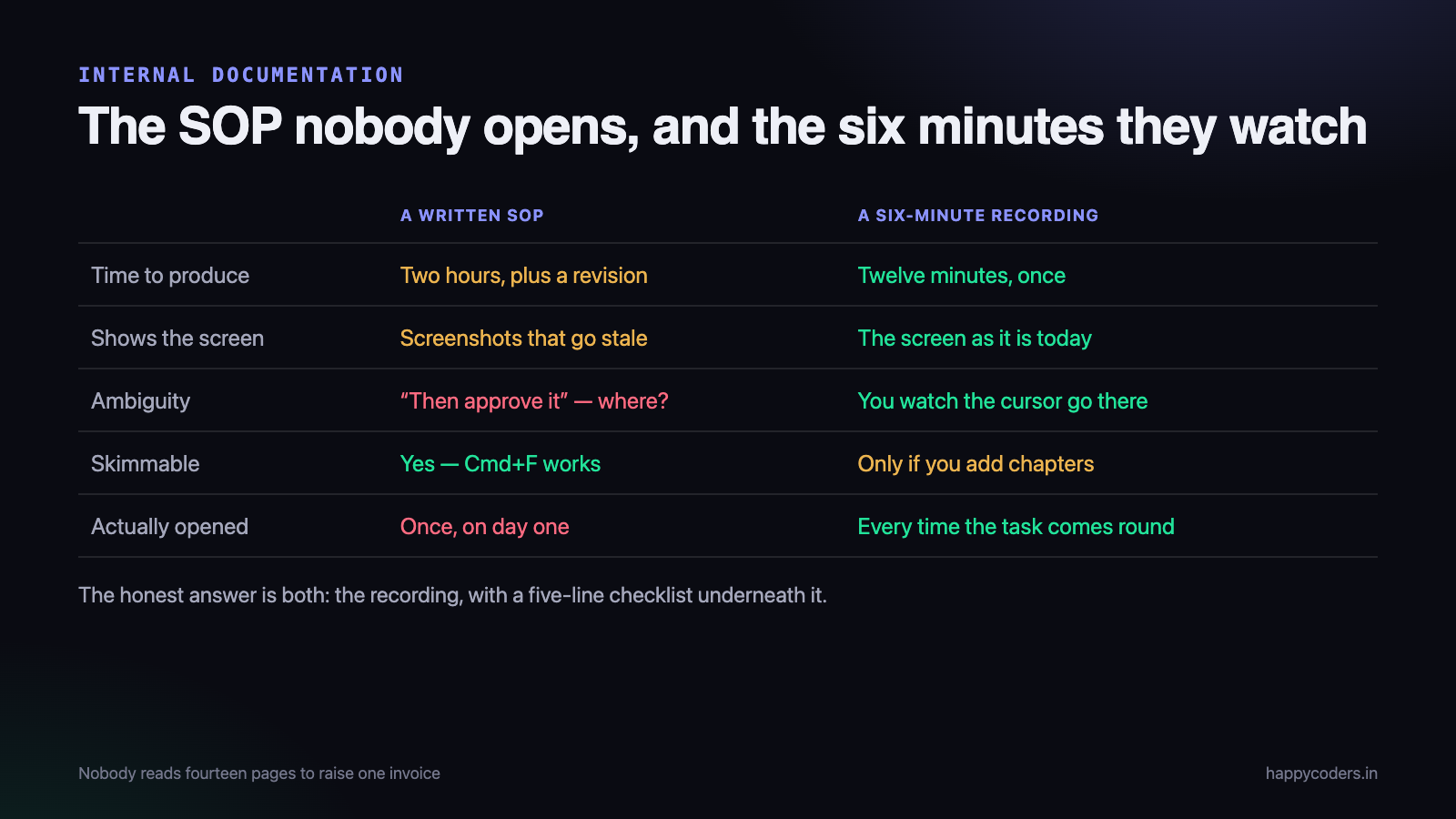
A written SOP has to describe the screen in words. That is a translation, and translations lose things. “Open the invoice, check the line items and approve it” is a perfectly clear sentence that leaves three questions unanswered: where is the approve control, what does it look like once it has worked, and what happens if the amount is wrong. The writer knew all three. The reader has to guess.
A recording removes the translation. The new joiner sees the cursor travel to the button, sees the toast that appears, sees the row change colour. There is no gap between the instruction and the screen because they are the same thing.
There is a second reason, less discussed and more important. A written SOP is expensive to produce, so it gets written once and then it rots. A six-minute recording costs about twelve minutes of your time, which means it gets remade when the screen changes. The format that is cheap to redo is the format that stays true.
This is not an argument for abandoning written process. Audit trails, compliance documents and anything a client or an inspector might read should be written down. The argument is narrower: for teaching somebody how to perform a task on a screen, video is the cheaper and more accurate format, and most Indian teams under fifty people have almost none of it.
The strongest combination is a recording with a five-line checklist underneath it. Watch the video once, and after that the checklist is enough. The checklist is not a summary of the video — it is the memory aid for somebody who has already seen it.
The three videos every new joiner needs
The instinct, once a team decides to record training material, is to record everything. That project takes four weekends, produces eleven videos, and then stops. Nobody watches videos four through eleven because by then the new joiner is asking colleagues instead.
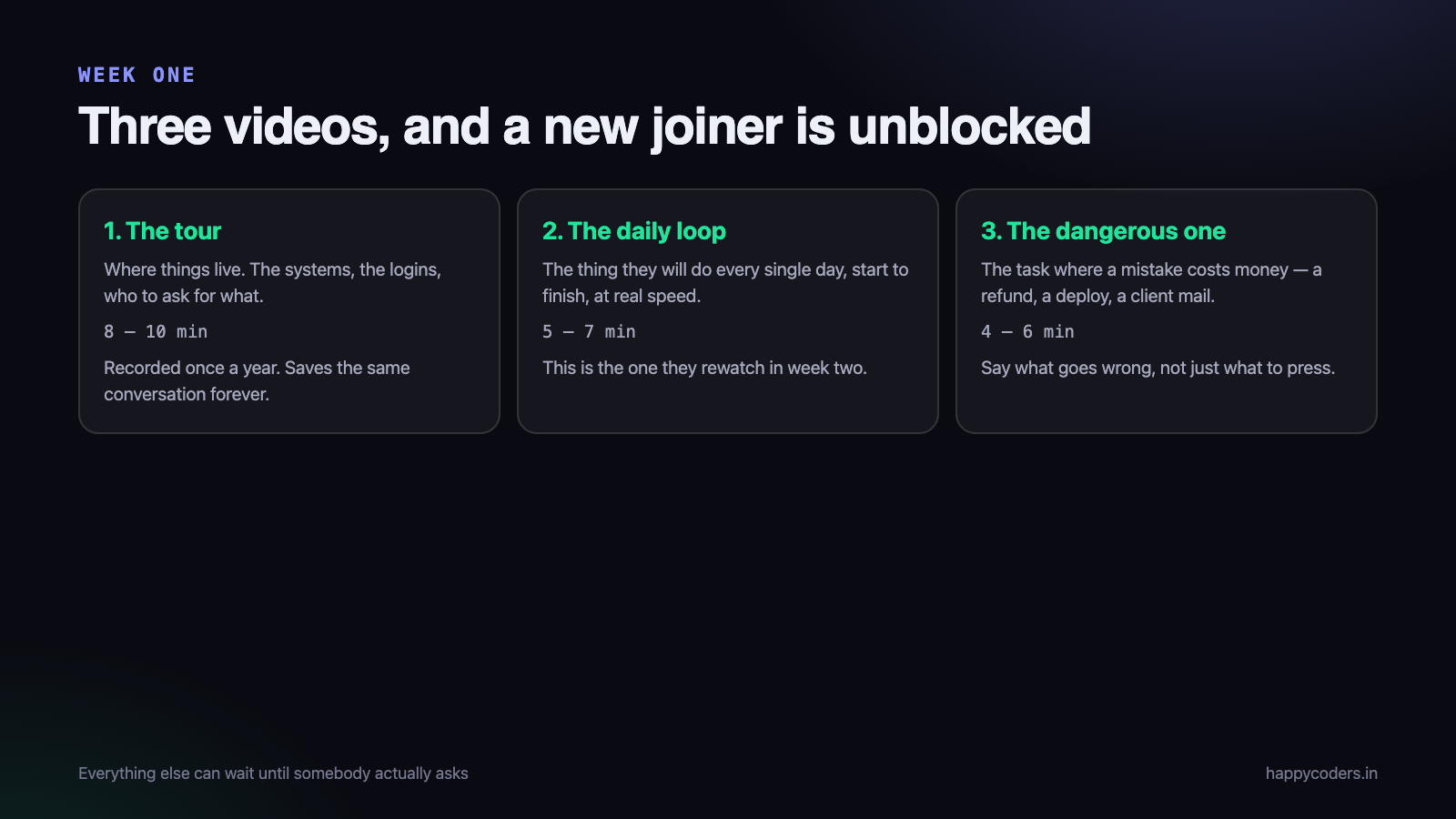
Record three. They cover the first fortnight, which is the fortnight that matters.
1. The tour
Eight to ten minutes, recorded once a year. Where things live: which system holds the projects, which one holds the invoices, where the shared drive is, which chat group is for what, and who to ask when something is broken. It answers roughly thirty small questions that a new person would otherwise ask over three weeks, one at a time, always when you are busy.
This is the video that saves the most total time, and it is the one teams never make, because everybody assumes it is obvious.
2. The daily loop
Five to seven minutes. The thing this person will do every working day, start to finish, at real speed. Not an idealised version — the actual sequence, including the part where you have to switch to another tab to copy the reference number.
Record this one at real speed deliberately. If you speed it up or skip the fiddly middle, the new joiner watches it, tries it, hits the fiddly middle, and concludes they are doing it wrong. They are not. You edited out the truth.
3. The dangerous one
Four to six minutes on the task where a mistake costs money or embarrassment: issuing a refund, sending a bulk mail, running a deploy, approving something that goes to a client. This video is different in kind. It is not only about which buttons to press — it is about what goes wrong, and what to do when it does.
Say the failure out loud. “If you pick the wrong customer here, the refund goes out and we cannot pull it back. So read the name twice before you click.” That sentence, spoken on a recording, prevents more errors than a page of warnings in bold.
Script it from the task, not from memory
The most common mistake is to sit down, press record, and explain the process from memory. It always comes out the same way: confident for two minutes, then a pause, then “oh, I forgot, before this you actually need to…”, and now the recording is worse than nothing because the order is wrong.
The fix costs ten minutes. Do the task once, for real, and write down what you actually did. Not what you believe the process to be. What your hands did.
- Perform the task normally, with a text file open beside it. Every time you click something, type one line.
- Note the things you did without thinking. The tab you checked first, the filter you always set, the number you copied. These are precisely the steps missing from the written SOP.
- Note where you hesitated. A hesitation is a place the new joiner will be stuck for twenty minutes.
- Group the lines into four to eight steps. Each group becomes a chapter and a file.
- Write one sentence per step saying what this step is for — not how, why. “This is where we check the client has not already paid.”
That list is your script. You do not read it out; you glance at it. The point is not word-perfect narration, it is that you never discover the missing step while the recording is running.
One more thing goes on the script: the state you need to be in before you start. Logged into the right account, on the right screen, with a suitable record already created. Half of all bad training videos begin with ninety seconds of the recorder finding something.
Record in chapters, not in one long take
This is the single habit that decides whether your training library is alive in a year or dead in four months.
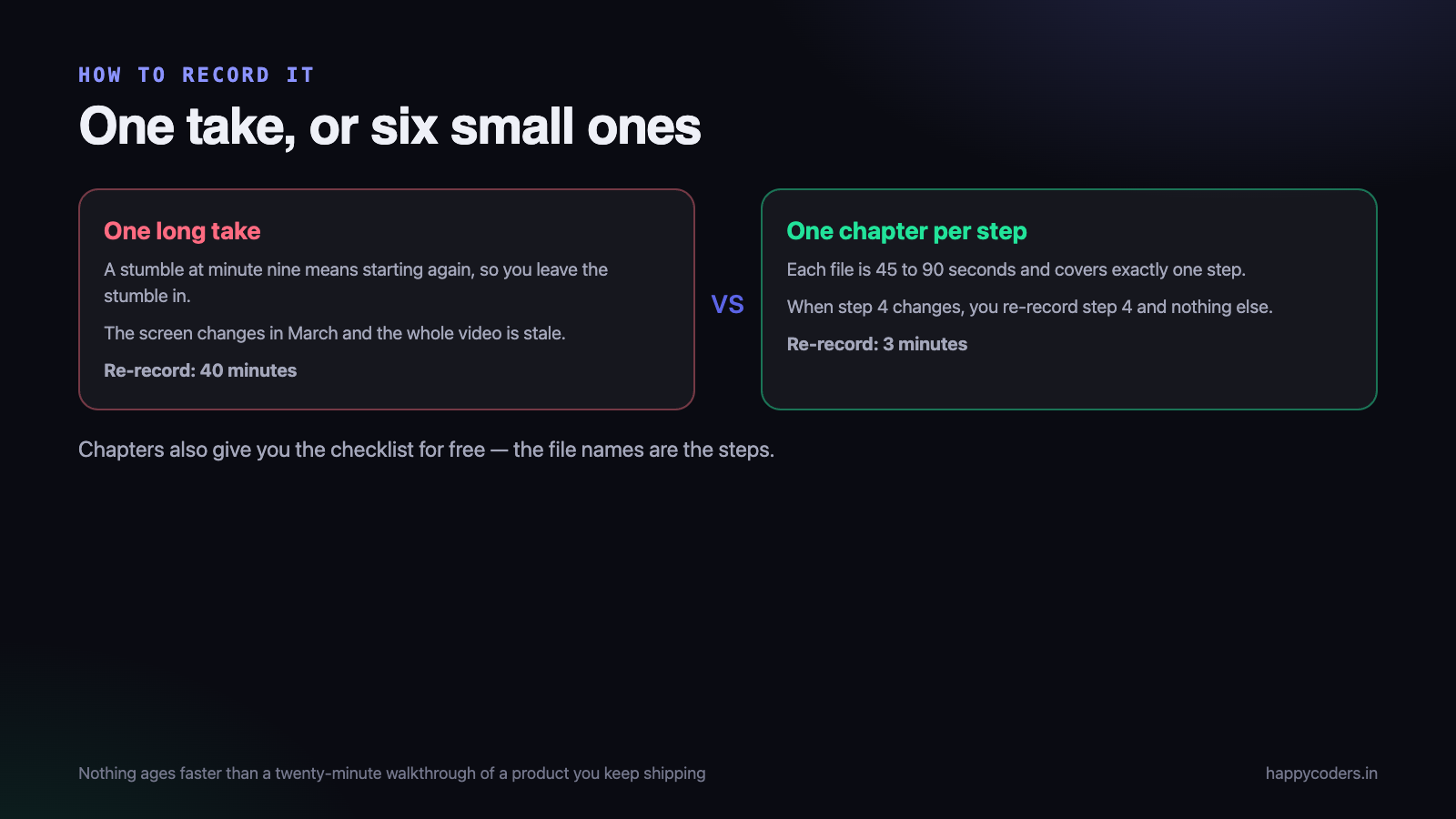
Record each step as its own short file, forty-five to ninety seconds. Stop between them. Have a drink of water, check the script, set up the next screen, press record again.
Three things get better immediately.
- A mistake costs seconds. Fumble at minute nine of a single take and you either start again or leave the fumble in. Almost everyone leaves it in, and the video is worse for it. Fumble in a ninety-second chapter and you redo ninety seconds.
- One step can be replaced later. When the approval screen is redesigned in March, you re-record chapter four. Three minutes of work. With one long take, the entire video is now subtly wrong and everybody knows it, so they stop trusting all of it.
- Each chapter is tighter. You are thinking about one idea at a time, so you ramble less. Six chapters usually total less time than the one take would have.
The chapters also give you the checklist for nothing. The file names, listed in order, are the steps. Paste them under the video and the written half of the job is done.
If you want a single file to send to somebody, join the chapters afterwards. That is a two-minute job and you still keep the pieces. The same principle applies to a client handover walkthrough, where sections get reused across projects.
What must never be on the screen
Internal training videos feel private. They are not. They get downloaded to laptops, forwarded to a contractor, uploaded to a shared drive that half the company can read, and occasionally attached to a mail that goes to a client by accident. Record every one as though it will be seen by somebody outside the company, because eventually one of them will be.
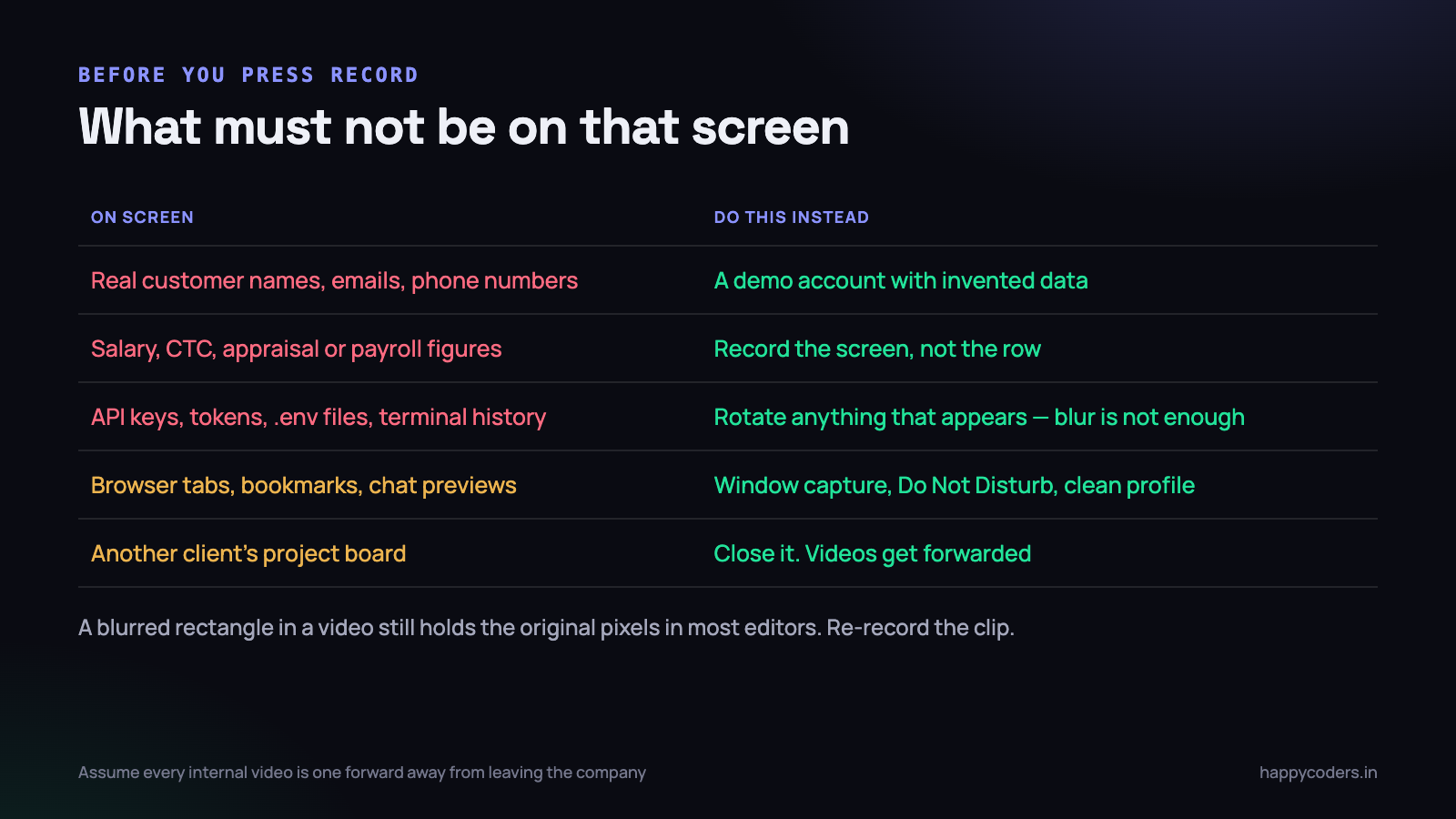
Customer data
Real names, email addresses, phone numbers, addresses and order amounts belonging to actual customers should not appear. Create a demo account with invented data and record against that. It takes twenty minutes once and every future recording is safe by default.
If the process genuinely cannot be demonstrated without production data, record the narrow part of the screen that shows the control, not the whole list.
Money about people
Salary figures, CTC, appraisal ratings and payroll screens are the single fastest way to turn a helpful video into an incident. If you are recording an HR or finance process that touches a payroll table, plan the capture region so the table is not in frame. Do not plan to blur it later.
Credentials
API keys, tokens, .env files, database passwords and terminal scrollback are the ones that cause real damage. And here is the part people get wrong: if a key appears on screen, blurring the video is not the fix. Rotating the key is the fix. Most editors keep the original frames, many blur tools are reversible at the edges, and a single frame at a scrub point is enough.
Everything around the window
Turn on Do Not Disturb. Close the chat app. Hide the bookmarks bar. Use a clean browser profile if you have one. Capture the window rather than the whole desktop — it keeps the text large, the file small and your other client’s project board out of the frame.
Before you press record, look at the screen for five seconds and ask one question: if this frame were a screenshot in a WhatsApp group, would I mind? That is the entire privacy review, and it catches almost everything.
Naming and storing so it is findable in a year
A training library does not die because the videos were bad. It dies because eighteen months later nobody can tell which of the four files called invoice-process-final.mov is the current one.
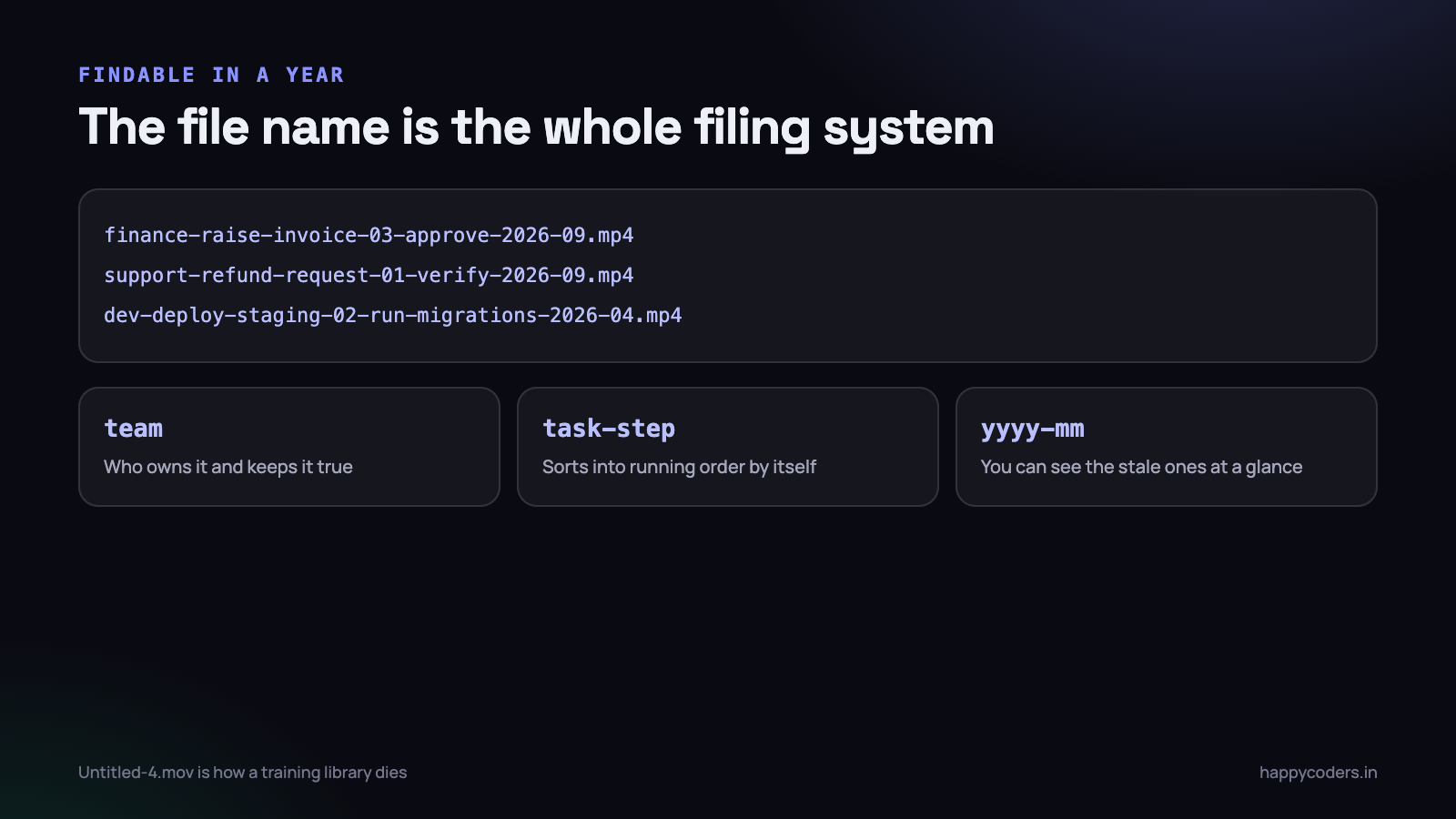
Use one pattern and never break it:
team-task-step-description-yyyy-mm.mp4

finance-raise-invoice-01-find-the-project-2026-09.mp4
finance-raise-invoice-02-check-line-items-2026-09.mp4
finance-raise-invoice-03-approve-2026-09.mp4
Four things are doing work there.
- The team prefix says who owns the video and who is responsible for it still being true.
- The task groups the chapters together in any file listing, on any operating system.
- The two-digit step sorts the chapters into running order without a playlist.
- The year and month let anyone see at a glance that a video is from 2024 and should be treated with suspicion.
Store them in one place, not four. A single folder per team on the shared drive, or an unlisted playlist per task if you use a video platform. What matters is that the answer to “where are the training videos” is one sentence long.
Add one plain page — a wiki page, a shared document, anything — that lists the tasks with a link and one line of description each. Five minutes of work. Without it, people ask a colleague instead of searching, which is the behaviour you were trying to remove.
Keep file sizes sensible so the drive does not become unusable. Window capture at logical resolution rather than full Retina pixels, thirty frames a second, is plenty for a training video and a fraction of the size — the details are in our note on reducing screen recording file size.
Keeping them current
Every training library drifts, because the software keeps moving. The question is not whether it drifts but whether anyone notices.
Put a review month in the file name and honour it
Once a quarter, one person opens the folder and looks at the dates. Anything older than a year gets watched at double speed — four minutes for a six-minute video. Either it is still accurate, in which case rename it with the current month, or one chapter is wrong, in which case re-record that chapter.
Let the newest person be the auditor
The best reviewer of a training video is somebody who joined last month, because they are the only person who will notice a step that no longer exists. Ask them to flag anything that did not match. They will find things the author cannot see.
Re-record, do not annotate
The temptation when a screen changes is to add a note: “the button has moved to the top right now.” Two of those and the video is untrustworthy. Re-recording one ninety-second chapter is faster than writing the caveat and far better for the person watching.
Record the change while you make it
The cheapest moment to update a training video is the day the process changes, by the person who changed it. If you are the one moving the approval step, you already have the screen open and the reason in your head. Ninety seconds of recording then saves somebody forty minutes in November.
A realistic first attempt
The quality bar for internal video is much lower than people fear, and aiming higher wastes time. Nobody in your company is judging the production. They want to know which button to press.
- No intro. Start with “this is how we raise an invoice” and go. No music, no logo, no greeting.
- Your laptop microphone is fine in a quiet room. A good microphone in an echoing room is worse.
- Do not edit. If a chapter goes badly, record it again. Editing internal video is where the whole project dies.
- Speak slightly slower than feels natural and pause before each click. On a recording, a fast cursor is genuinely hard to follow.
- Say the numbers. “This usually takes about four minutes” tells a new joiner whether they are lost.
One team of nine we work with recorded their entire onboarding set in a single afternoon: eleven chapters, three tasks, about fifty minutes of footage, no editing at all. The next person to join was productive on day three instead of day nine. The whole cost was one afternoon that nobody enjoyed.
What to do on Monday morning
Do not plan a training library. Record one video.
- Pick the task you have explained most often this year. You already know which one it is.
- Do it once with a text file open, writing a line per click. Ten minutes.
- Group those lines into four to six steps. That is your chapter list.
- Set up a demo account so no real customer, salary or key is on screen. Turn on Do Not Disturb.
- Record the chapters one at a time, window capture, no editing. About twenty minutes.
- Name them properly and put them in one folder with a one-line description each.
- Send the link to the next person who asks instead of explaining it again.
That is roughly forty-five minutes end to end, and the second one is faster because the setup already exists. Three tasks in, you have the beginning of something a new joiner can actually use.
HappyRec is a free screen recorder for macOS with window, area and full-screen capture, system audio alongside your voice, and a camera bubble or avatar when a face helps — which covers everything above without a paid tool or a subscription.