You hit record, start talking, and the machine audibly changes gear. The fan comes up, the cursor starts lagging behind the mouse, and when you play it back the video stutters and the audio has drifted a second out from the picture.
This is almost never a recorder problem. It is a machine being asked to encode more pixels per second than it can manage while also running everything else.
What to reduce, in order
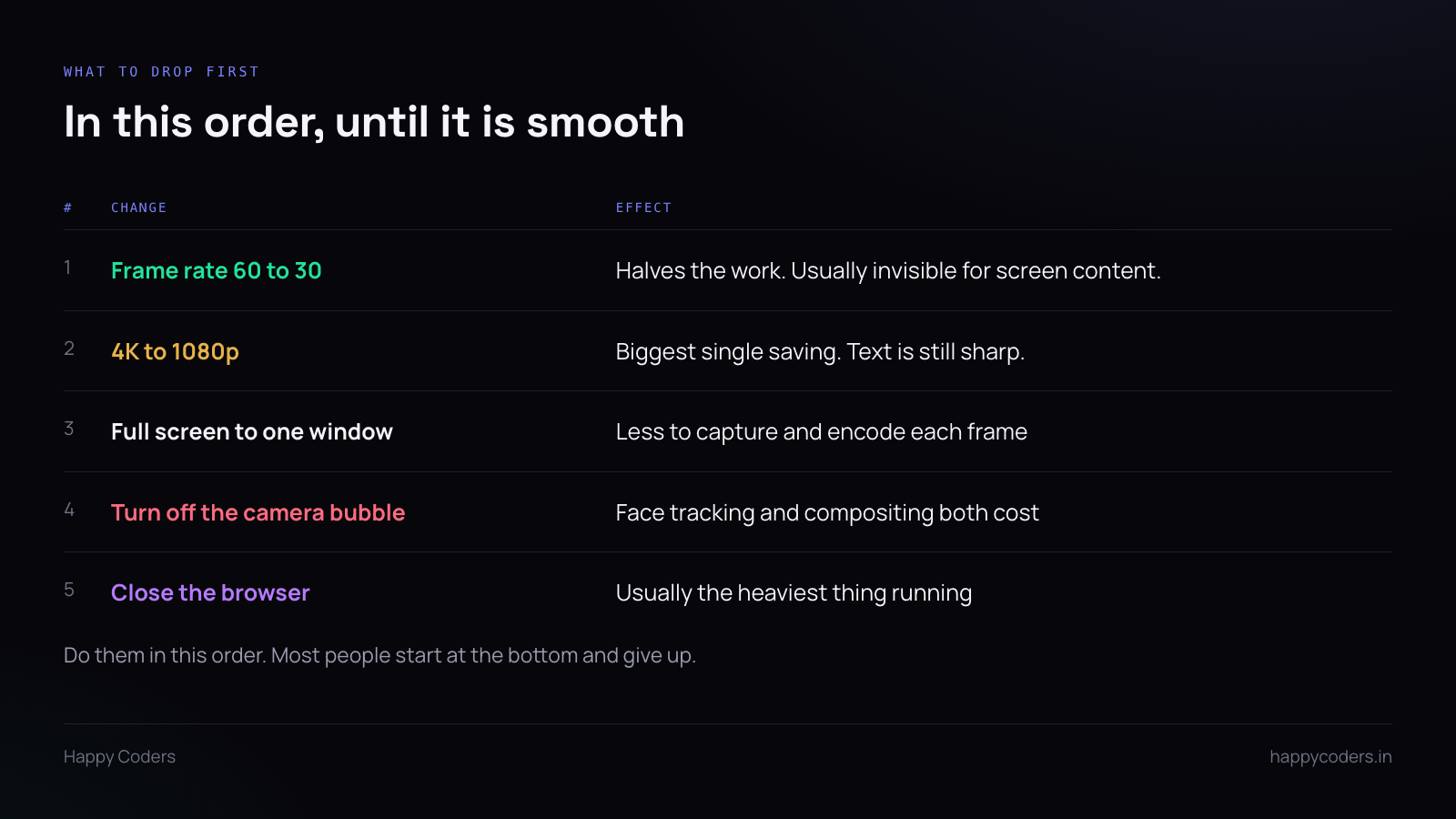
People usually start by closing a few tabs and give up when that does not help. Work from the top of this list instead — the first two changes are worth more than everything else combined.
Frame rate: 60 to 30
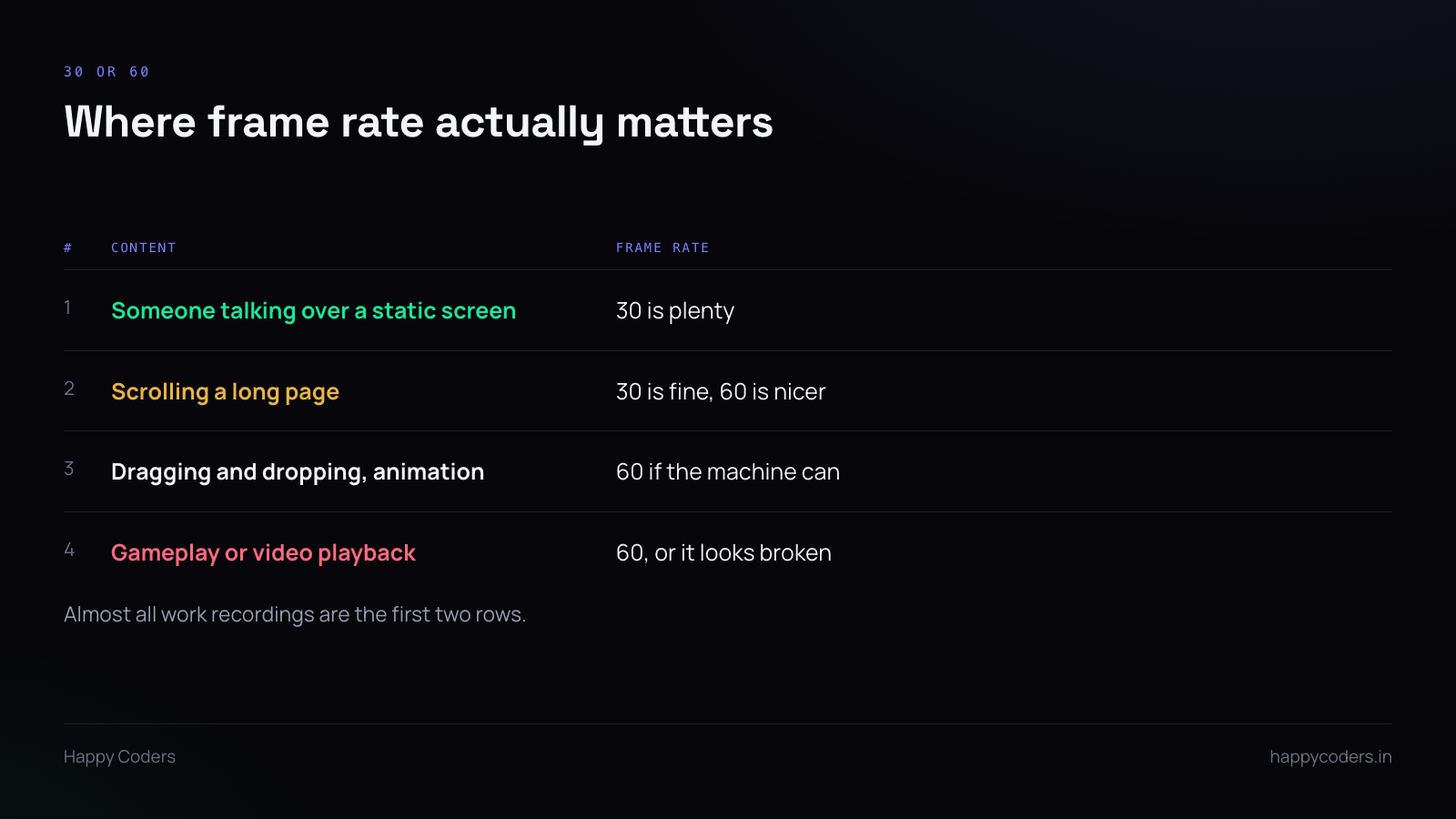
This halves the encoding work and for screen recording it is almost invisible.
Sixty frames per second exists for motion — gameplay, video, fast animation. A person talking over a mostly static screen produces almost no change between frames, and thirty is more than enough to look normal.
Do this one first. It is the cheapest win there is.
Resolution: 4K to 1080p
The biggest single saving. 4K is four times the pixels of 1080p, which means roughly four times the work per frame.
The worry is that text will go soft. For a recording somebody watches at normal size, 1080p keeps screen text perfectly readable — the places 4K earns its keep are large displays and footage you intend to crop into.
If text does look soft at 1080p, the usual cause is not the resolution but the capture area: recording a 4K display scaled down to 1080p is a different thing from recording a 1080p window natively.
One window instead of the whole screen
Less area to capture, less to compress, and on a multi-monitor setup it avoids capturing a second display you did not need.
It is also the better privacy setting, which makes it worth doing anyway.
Turn off the camera bubble
A camera bubble costs twice: capturing the camera, and compositing it into every frame. With face tracking or an avatar there is a third cost, because the tracking runs per frame.
For a walkthrough the face adds little. Turn it off and the machine gets noticeably easier.
Close the browser
Last on the list and still worth doing. A browser with twenty tabs is usually the heaviest thing on a work machine, and several of those tabs are animating something nobody is looking at.
Audio drift is a symptom, not a separate problem
When audio ends up out of sync, the usual cause is dropped video frames. Audio keeps real time; video falls behind and the gap widens.
So do not go looking for an audio setting. Fix the frame drops with the list above and the sync fixes itself.
If audio is out of sync from the very first second and stays constant, that is different — that is a device latency offset, and it is a setting rather than a performance problem.
Hardware encoding
If the recorder offers hardware encoding, use it. The video chip does the compression instead of the processor, which is both faster and cooler, and on a laptop that matters for a long recording.
The output is marginally larger than a slow software encode at the same quality. For a work recording that trade is obviously worth it.
Where the file is written
A detail that catches people out: recording to a network drive or a synced cloud folder means every frame is being written over a connection and, in the sync case, uploaded while you record.
Record to a local folder. Move it afterwards.
Test before the long one
Before recording something that matters, do thirty seconds at the settings you intend to use, doing roughly what you will be doing. Play it back and watch the busiest moment.
Thirty seconds tells you whether the settings hold. The alternative is finding out at the end of a twelve-minute take, and twelve minutes is long enough that you will be tempted to send the stuttering version rather than do it again.
When it is the machine
If 1080p at 30 with one window and no camera still stutters, the machine is genuinely at its limit.
Two honest options: record shorter clips, which gives the machine thermal headroom and fails less badly, or record voice-only with the screen described rather than captured. A clear audio explanation is better than a video nobody can watch.